Monthly Archives: January 2023

WRITE versus PRINT in CoCo BASIC

When I was writing my recent post about sequential and direct access files in Disk BASIC, I noticed something in the manual about the Disk BASIC WRITE command:

It was almost identical to the description of how to use PRINT for disk access, except PRINT mentioned a semicolon:

I don’t remember if I used PRINT or WRITE back then, but “knowing what I now know” I wondered if this Disk BASIC command would work with other device numbers, such as tape (#-1) or screen (#0). I gave it a try, and found it did work with #0 to print a message to the screen. This is how I learned the difference between WRITE and PRINT:

It appears WRITE will enclose the string in quotes. When I tested with a numeric variable, it looked the same as PRINT output. I also noticed you couldn’t end a WRITE line with a semicolon (thus, maybe, the reference to PRINT being able to use a semicolon in the manual).
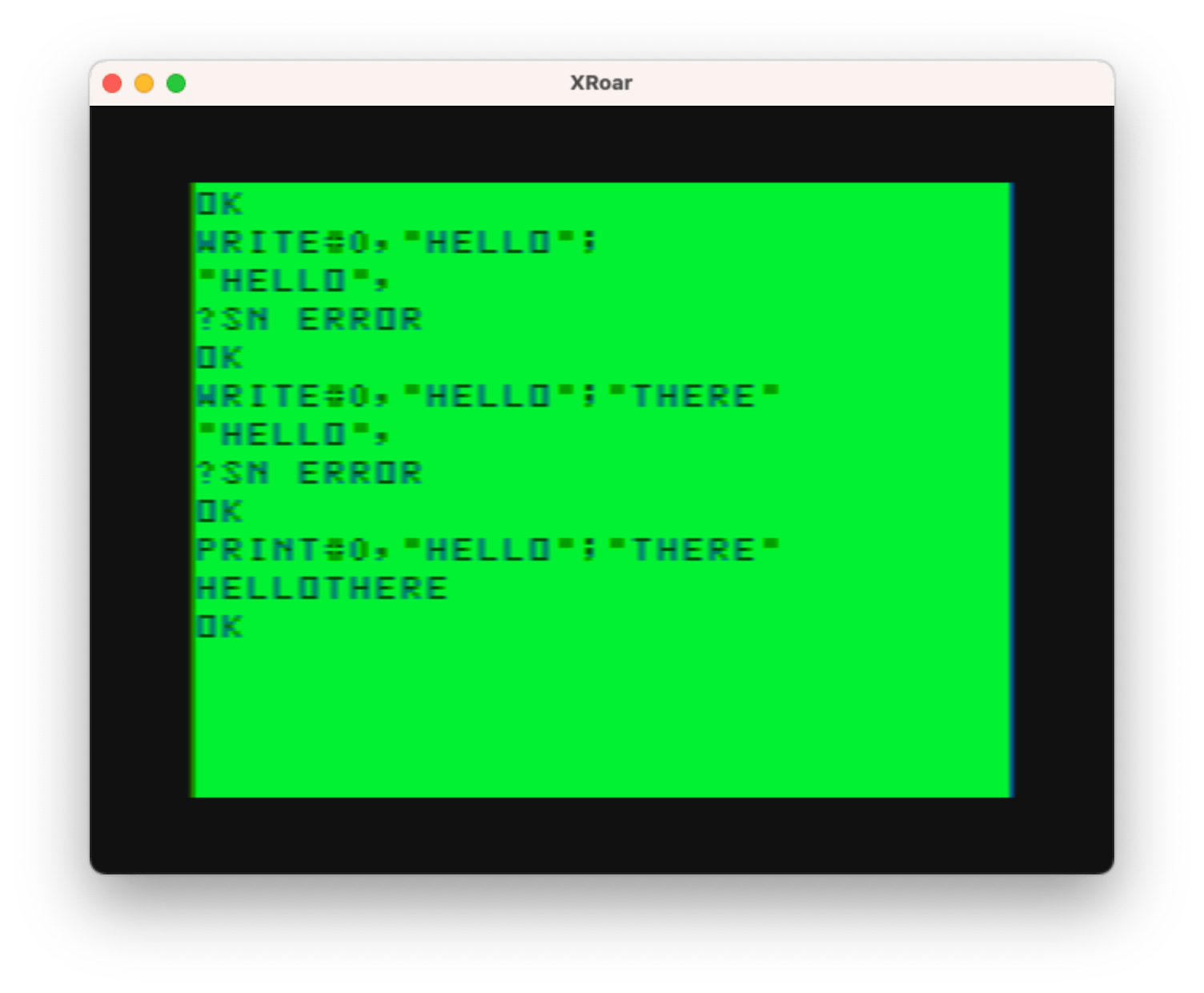
If you look above, you will also see WRITE was trying to add a comma, which led me down a rabbit hole trying to figure out what all was going on.

Comma little bit closer

Some quick experiments showed me that WRITE was doing much more than just acting like a PRINT replacement that could not use a semicolon. WRITE ignores TAB positions, which normally happen when you try to PRINT something separated by a comma. For the CoCo’s 32-column screen, the comma uses 16 for the tab position so if you print…

PRINT "THIS","THAT"

…you will get something like this:

 12345678901234567890123456789012
+--------------------------------+
|THIS            THAT            | 32-col screen
|                                |

If you use PRINT to put messages in a file on tape or disk, I expect they would have the tab spaces inserted in the file as well.

Tangent testing

Obviously I had to test that. I decided to take my hexdump program I shared last time and modify it to dump the bytes in a file I wrote to using PRINT and commas to see what was in it. The program looks like this:

0 'DUMPFILE.BAS
10 ' CREATE TEST FILE
20 OPEN "O",#1,"TEST"
30 PRINT #1,"THIS","THAT","OTHER"
40 CLOSE #1
50 ' DUMP TEST FILE
60 OPEN "D",#1,"TEST",1
70 FIELD #1,1 AS BT$
80 OF=0:C=0
90 FOR R=1 TO LOF(1)
100 IF C=0 THEN PRINT:PRINT USING"####   ";OF;
110 GET #1,R
120 BT=ASC(BT$)
130 IF BT<&H10 THEN PRINT "0";
140 PRINT HEX$(BT);" ";
150 C=C+1:IF C>7 THEN C=0
160 OF=OF+1
170 NEXT
180 CLOSE #1

When I ran that, I did see that it was padding the words with spaces out to the 16 character tab position:

Above, I PRINTed “THIS”, “THAT” and “OTHER” to the file, separated by commas. In the hex dump output, the hex values 54 38 39 53 are “THIS”, followed by hex value 20s (space). You can see it goes all the way to the end of the second line. Each hex dump line represents eight characters, so the comma tabbed out to the 16th character.

At offset 16 are hex values 54 48 41 54 which is “THAT”, followed by spaces out to the next 16th tab position (end of line four).

At offset 32 there is just 4F 54 48 45 52 which is “OTHER” followed by 0D which is CHR$(13) for ENTER.

Checks out! But I digress…

PRINT versus WRITE versus COMMAS

WRITE, on the other hand, will put string items in quotes and output a comma character rather than tab spaces. Here’s an example of WRITE versus PRINT:
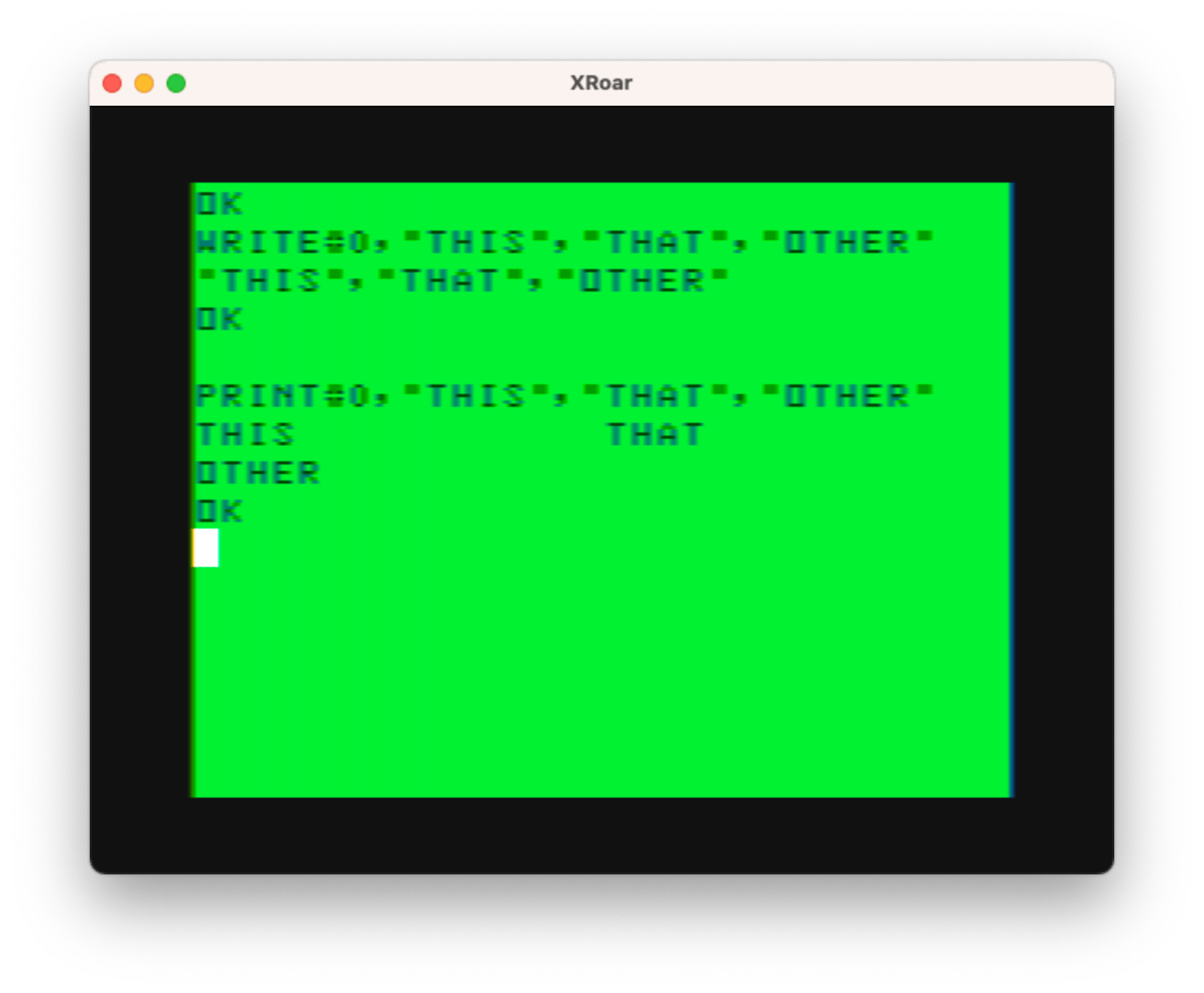
With this understood, the difference between WRITE and PRINT now becomes clear.

SIDE NOTE: Just like with PRINT, you don’t need to specify device #0. You can simply do WRITE “HELLO, WORLD!” and you will get a nicely quoted “HELLO, WORLD!” message to the screen.

If I were to modify the test program to use WRITE instead of PRINT, it would look like this:

0 'DUMPFILE2.BAS
10 ' CREATE TEST FILE
20 OPEN "O",#1,"TEST"
30 WRITE #1,"THIS","THAT","OTHER"
40 CLOSE #1
50 ' DUMP TEST FILE
60 OPEN "D",#1,"TEST",1
70 FIELD #1,1 AS BT$
80 OF=0:C=0
90 FOR R=1 TO LOF(1)
100 IF C=0 THEN PRINT:PRINT USING"####   ";OF;
110 GET #1,R
120 BT=ASC(BT$)
130 IF BT<&H10 THEN PRINT "0";
140 PRINT HEX$(BT);" ";
150 C=C+1:IF C>7 THEN C=0
160 OF=OF+1
170 NEXT
180 CLOSE #1

And if I run that, I expect we’d see the addition of the quote character around each word, and a comma character in place of the run of spaces that PRINT added. Let’s try:
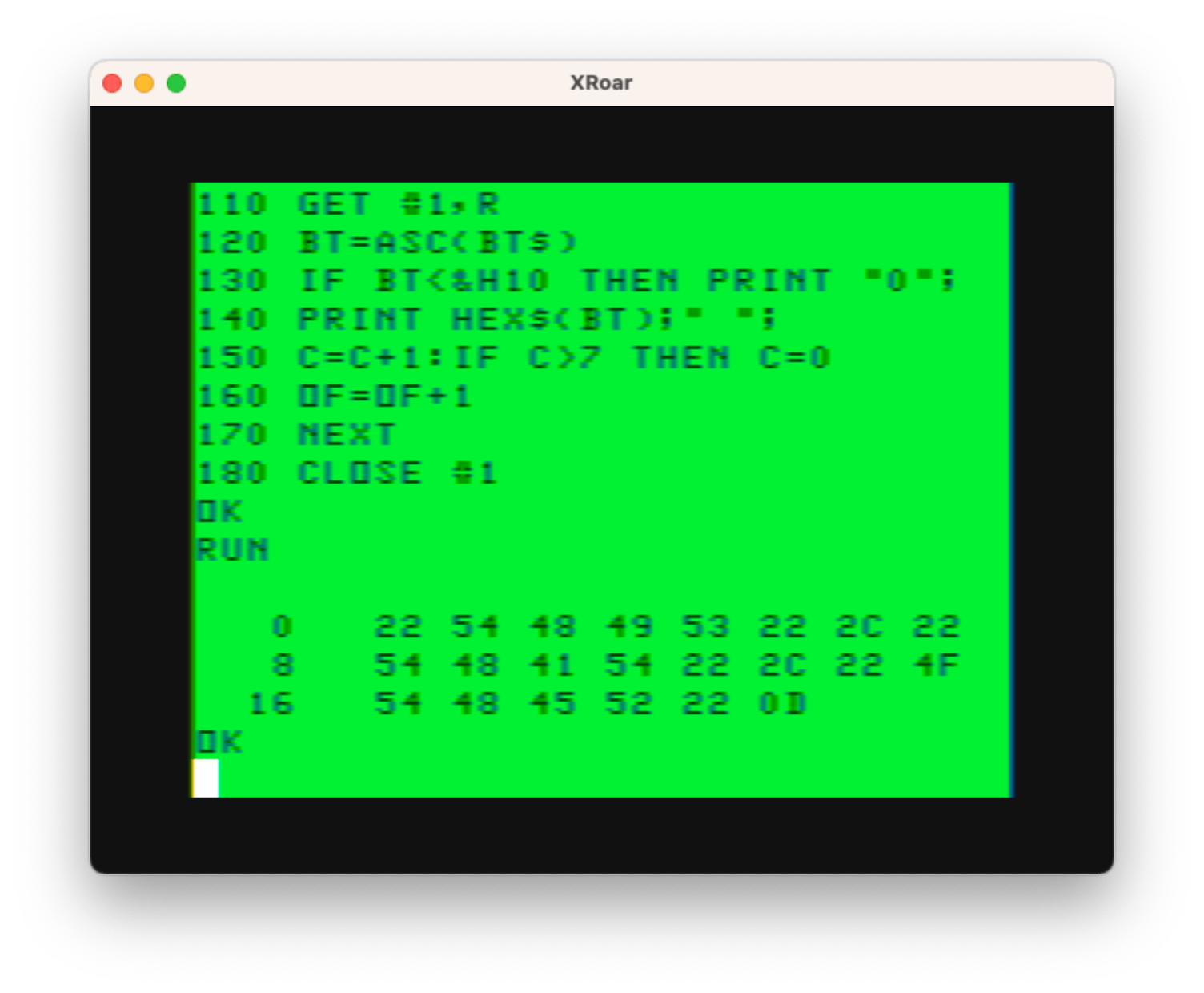
It looks like it works as predicated. Hex 22 must be the quote character, then 54 48 49 53 is “THIS”, then a closing quote 22, followed by a 2C which must be the comma, then another quote 22 and “THAT” followed by a quote 22, then another comma 2C, then a quote 22 and “OTHER” with a final quote 22 and ENTER 0D.

That really packs the data much better than using PRINT. I had no idea when I was PRINTing comma separated numbers to a file it was padding them out with all those spaces! Apparently, when you INPUT the data back, it must be checking for the spaces to know where the next value starts or something, or maybe that won’t work at all. I need to test this, sometime, too…

There’s no time like sometime

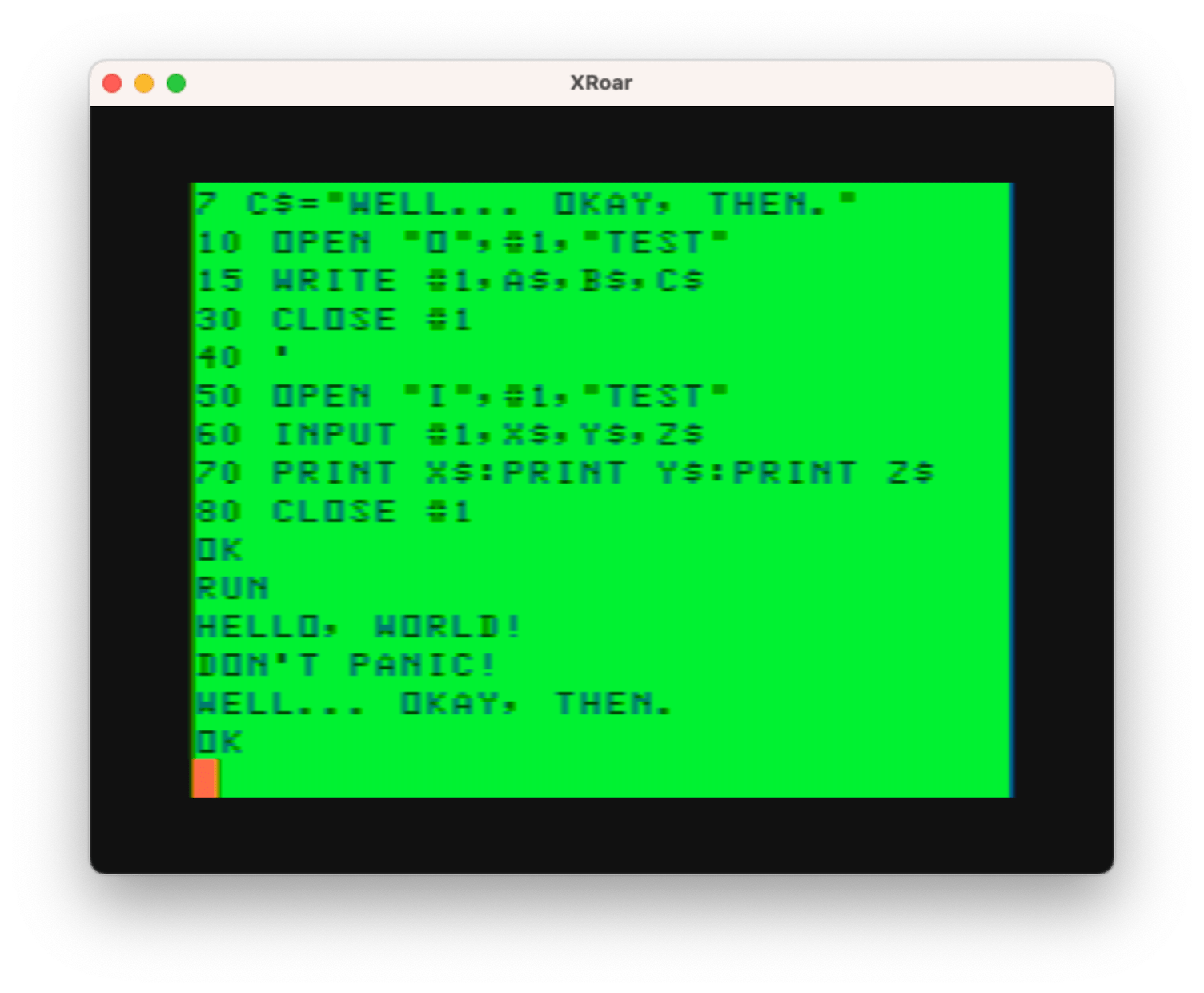
I wrote a simple program that PRINTs out three strings separated by commas and reads them back.

0 'PRINTREAD.BAS
5 A$="HELLO, WORLD!"
6 B$="DON'T PANIC!"
7 C$="WELL... OKAY, THEN."
10 OPEN "O",#1,"TEST"
20 PRINT #1,A$,B$,C$
30 CLOSE #1
40 '
50 OPEN "I",#1,"TEST"
60 INPUT #1,X$,Y$,Z$
70 PRINT X$:PRINT Y$:PRINT Z$
80 CLOSE #1

Running this gives me results I do not want:
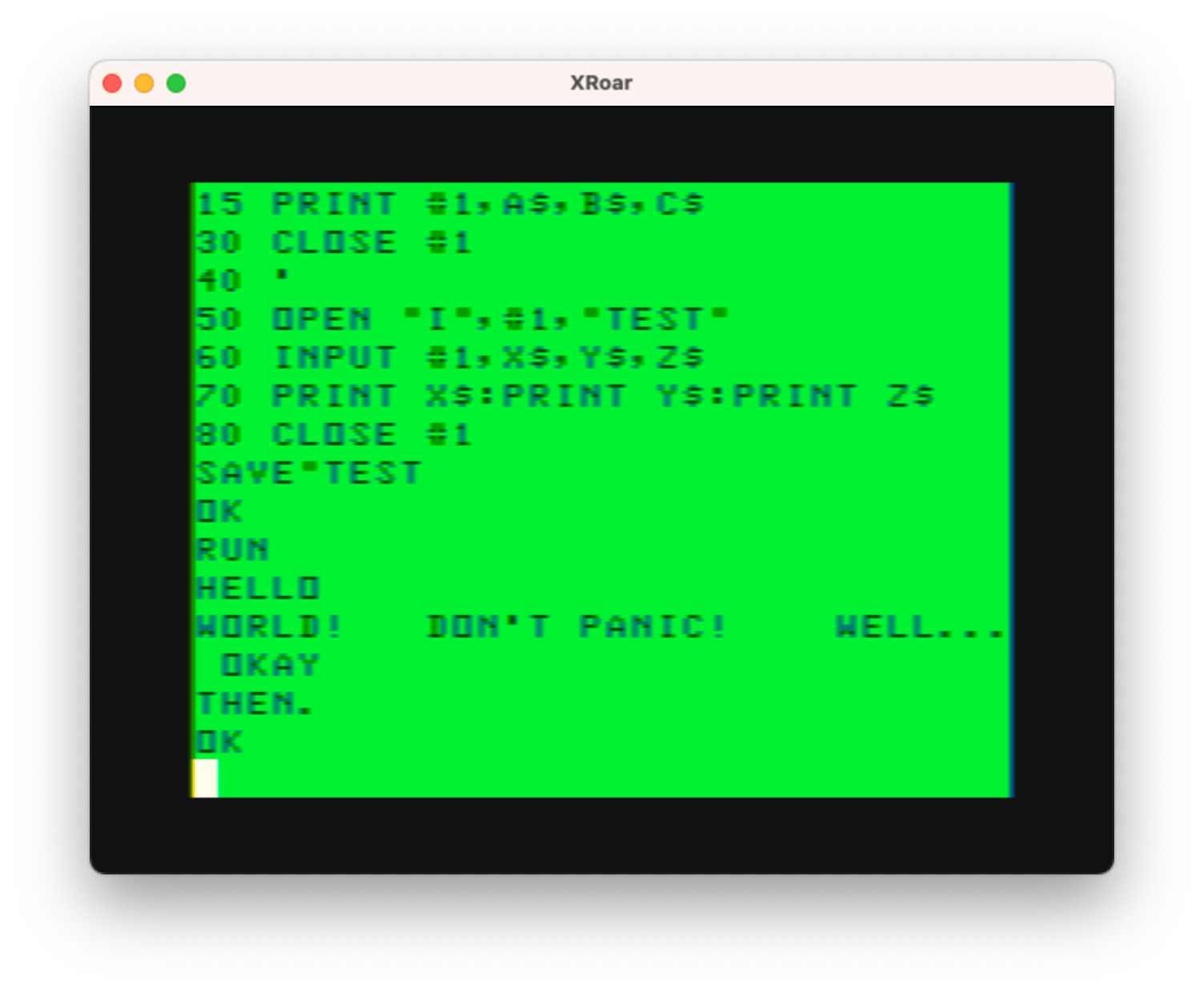
This is because INPUT separates things by a comma, so if the string is:

HELLO, WORLD!

…doing INPUT A$,B$ would put “HELLO,” in A$, and “WORLD!” in B$. But the output above doesn’t quite look like that, and that’s due to there being no commas between the three strings we PRINTed. Instead, it was adding spaces to the next TAB position. Therefore, if we looked at the contents of the file as if it was the screen, the data might look like:

 12345678901234567890123456789012
+--------------------------------+
|HELLO, WORLD!   DON'T PANIC!    |
|WELL... OKAY####################| <- end

WHEN “INPUT #1,A$,B$,C$” sees that, it’s as if we did a normal INPUT to the screen and the user typed in:

10 INPUT A$,B$,C$
RUN
? HELLO, WORLD!   DON'T PANIC!    WELL... OKAY

BUT! If you type that in and hit enter, you will then see “?? ” as a prompt, because BASIC is looking for the third parameter. It found an element, then a comma (that was the first so it goes in to A$), then a bunch of stuff and an end of line (that goes in to B$) and still wants to find the C$. If you do:

10 INPUT A$,B$,C$
20 PRINT A$:PRINT B$:PRINT C$

And RUN that, you can type each of those three items on a line by itself and it will work.

RUN
? THIS
?? THAT
?? OTHER
THIS
THAT
OTHER

BUT, if you are doing an INPUT from a file, there is no way to prompt the user that something is missing, so apparently INPUT just skips it and returns what it was able to find.

To make INPUT accept a comma as part of what you type, you can surround it by quotes. That would let you do this:

RUN
? "HELLO, WORLD!"
?? "I THINK, THEREFORE..."
?? "BUT, WAIT!"
HELLO, WORLD!
I THINK, THEREFORE...
BUT, WAIT!

INPUT requires the quotes so it doesn’t split up a string that might contain a comma. Which means you could have typed them all on one line like this:

RUN
? "HELLO, WORLD!","I THINK, THEREFORE...","BUT, WAIT!"
HELLO, WORLD!
I THINK, THEREFORE...
BUT, WAIT!

In order to output a quoted string to a file, you would have had to manually add the quote characters using CHR$(34) like this:

PRINT #1,CHR$(34)"THIS WILL BE QUOTED"CHR$(34)

And, when using output to cassettes, I guess that’s how you had to do it, since there was no WRITE command in Color BASIC or Extended Color BASIC!

And, since the first example didn’t have enough commas to use to separate the string values, you cannot use PRINT like that for strings and expect INPUT to read them back:

0 'NOWORKY.BAS
10 OPEN "O",#1,"TEST"
20 PRINT #1,"THIS","THAT","OTHER"
30 CLOSE #1
40 '
50 OPEN "I",#1,"TEST"
60 INPUT #1,A$,B$,C$
70 PRINT A$:PRINT B$:PRINT C$
80 CLOSE #1

The above program will produce an ?IE ERROR IN 60 because it never found a comma and therefore only sees one long entry that looks like those three words with a bunch of spaces between each of them. The only reason the previous example got as far as it did was due to having a comma in one of the strings. #TheMoreYouKnow

Input Crosses the Line

Extended BASIC added the LINE INPUT command which can only input strings, and drops support for the comma. It treats everything as a literal string (which can contain commas and even quotes). It is a superior INPUT for strings. You can do:

10 LINE INPUT "TYPE:";A$
20 PRINT A$

…and then you can type things that contain a comma and it works just fine:

RUN
TYPE:THIS, MY FRIENDS, IS COOL.
THIS, MY FRIENDS, IS COOL.

It also allows you to have quotes in the string:

RUN
TYPE:"I AM QUOTED!"
"I AM QUOTED!"

While you can use LINE INPUT on tape or disk files (if you have Extended or Disk BASIC), you can no longer separate data with commas. This means only one entry per line in the file.

If you want to use INPUT so you can have multiple items on each line, you either need to make sure they don’t contain commas or, if they do, quote them, and put commas between each quoted string.

PRINT #1,CHR$(34)"THIS"CHR$(34)","CHR$(34)"THAT"CHR$(34)","CHR$(34)"AND, OF COURSE, OTHER"CHR$(34)

Or use WRITE and it takes care of that for you.

WRITE #1,"THIS","THAT","AND, OF COURSE, OTHER"

Changing the example to use WRITE instead of PRINT works nicely:
And that, in a nutshell, is the difference between using WRITE and PRINT, and why you might want to use WRITE/PRINT versus PRINT/LINE INPUT.

Bonus Tip

In a comment to the previous entry, William “Lost Wizard” Astle added:

You can also use “R” for random files. It’s exactly the same as “D”.

– William Astle

So I guess OPEN “R”,#1,”FILE” and OPEN “D”,#1,”FILE” do the same thing. If I ever knew that, I don’t now. Well, except now I do, again or for the first time, thanks to William.

Until next time…

CoCo DISK BASIC sequential and direct access files

On a tape-based Color Computer (Color BASIC or Extended Color BASIC), you could write data out to a tape file by opening device #-1 for Output (“O”) like this:

0 'TAPEWRIT.BAS
10 OPEN "O",#-1,"MYFILE"
20 PRINT #-1,"THIS IS IN THE FILE"
30 PRINT #-1,"SO IS THIS"
40 PRINT #-1,"AND THIS IS AS WELL"
50 CLOSE #-1

By having a tape inserted in the recorder, and PLAY+RECORD pressed, when that program runs the cassette relay in the computer would click on, starting the tape motor, and the three lines of text would be written to the file. The file would look like this:

THIS IS IN THE FILE(enter)
SO IS THIS(enter)
AND THIS IS AS WELL(enter)

After rewinding the tape and pressing PLAY, running this program would open the same file for Input (“I”) and read and display that data:

0 'TAPEREAD.BAS
10 OPEN "I",#-1,"MYFILE"
20 IF EOF(-1)=-1 THEN 60
30 INPUT #-1, A$
40 PRINT A$
50 GOTO 20
60 CLOSE #-1

NOTE: In line 30, if you have Extended Color BASIC, if reading strings use LINE INPUT instead of INPUT. That will allow lines that have commas, quotes, and other special characters in it, which INPUT will not.

In line 20, the EOF function is used to check if there is more data in the file. If you knew exactly how much data was in the file (like a configuration file that always has the same information), you could just do that many INPUTs. If the amount of data is not known, EOF must be used to avoid an end-of-file error when you try to read past the end of data.

Now you have a simple program that would read and print as many lines as are in the file.

Disks Do More

When a floppy disk controller is added, Disk BASIC comes along for the ride. While cassettes use device #-1, disks can use devices #1 to #15. This allows multiple files to be open at the same time, and on different drives. (Disk BASIC supported four floppy drives simultaneously.)

We can change the above sequential file programs to work on a disk system just by changing device #-1 to be device #1:

0 'DISKWRIT.BAS
10 OPEN "O",#1,"MYFILE.TXT"
20 PRINT #1,"THIS IS IN THE FILE"
30 PRINT #1,"SO IS THIS"
40 PRINT #1,"AND THIS IS AS WELL"
50 CLOSE #1

…and…

0 'DISKREAD.BAS
10 OPEN "I",#1,"MYFILE.TXT"
20 IF EOF(1)=-1 THEN 60
30 LINE INPUT #1, A$
40 PRINT A$
50 GOTO 20
60 CLOSE #1

The only change I made other than the device number was adding an extension to the filename. Since a disk file can have a three-character extension, I used “.TXT”. If you leave off the extension, it will be created as “.DAT” for a data file.

With a sequential file, each entry is expected to have a carriage return at the end. You can write out a single line, like the earlier example:

PRINT #1,"THIS IS AN ENTRY"

…or even write out numeric data, separated by commas:

PRINT #1,A,B,C,D

In the disk file will either be “THIS IS AN ENTRY” with an ENTER at the end, or the three numbers with an ENTER at the end.

5 A=1:B=2:C=3
10 OPEN "O",#1,"NUMBERS"
20 PRINT #1,A,B,C
30 CLOSE #1
40 '
50 OPEN "I",#1,"NUMBERS"
60 INPUT #1,X,Y,Z
70 PRINT X;Y;Z
80 CLOSE #1

As the name implies, data is sequential — one after the next. If you had a file with 1000 entries in it, and wanted to get to the 1000th entry, you would have to read through the 999 entries first.

Direct Access

A far more powerful form of disk access is Direct. This allows you to create a file that is not made of arbitraty strings that end in a carriage return. Instead, the file can be a set of records (of a size you specify). This is done by using the “D”irect access mode and specifying the record size at the end of the OPEN.

With a direct access file, you can specify a record size, and then write or read to any record you want. (This is usually called “random access” these days.)

Here is an example that creates a file with 32-byte records, and writes three entries to it:

0 'DISKWRIT2.BAS
10 OPEN "D",#1,"MYFILE2.TXT",32
20 PRINT #1,"THIS IS IN THE FILE"
25 PUT #1,1
30 PRINT #1,"SO IS THIS"
35 PUT #1,2
40 PRINT #1,"AND THIS IS AS WELL"
45 PUT #1,3
50 CLOSE #1

For a direct access file, using PRINT (or the WRITE command, which seems to do the same thing), the data goes in to a buffer and won’t be written to the disk until PUT is used to tell it which record of the disk file to write it to. The file would look like this:

          11111111111222222222233
 12345678901234567890123456789012
+--------------------------------+
|THIS IS IN THE FILE             | record 1
+--------------------------------+
|SO IS THIS                      | record 2
+--------------------------------+
|AND THIS IS AS WELL             | record 3
+--------------------------------+

(There would also be an ENTER at the end of each line, normally.)

The program to read back and display the records looks like this:

0 'DISKREAD2.BAS
10 OPEN "D",#1,"MYFILE2.TXT",32
20 FOR R=1 TO LOF(1)
30 GET #1,R
40 LINE INPUT #1,A$
50 PRINT A$
60 NEXT
70 CLOSE #1

Above, you see the addition of “,32” to specify 32 byte records, and the use of LOF which is the length of file (number of records). In our example, this should be 3, matching the three records we wrote in the previous example.

To load a record in to the buffer, GET is used, followed by a LINE INPUT to read it in to a string.

Now if 1000 entries had been written in to a direct access file, we could retrieve any record we wanted just by using GET #1,42:LINE INPUT A$ or whatever.

Breaking Records

A record can be treated like a string of a maximum size. When you PRINT or WRITE that record, it must be smaller than the record size, and have the ENTER at the end. The ENTER is needed for INPUT/LINE INPUT to know where the end of that record is.

But, you can also break a record up in to specific entries. For instance, first name, middle initial, and last name. This is done using the FIELD command. You tell it the buffer (device) number and how many bytes to assign to a variable. For example, if you wanted a 32 byte record to look like this:

          11111            11111111
 12345678901234|1|12345678901234567
+--------------+-+-----------------+
| First Name   |I| Last Name       |
+--------------+-+-----------------+

…with fourteen (14) characters for the First Name, one (1) character for the Initial, and fifteen (17) characters for the Last Name, and you wanted them in variables F$, I$, L$, you would use:

FIELD #1,14 AS F$,1 AS I$,17 AS L$

(I wanted to use FN$ for first name but FN is a reserved keyword used for the DEF FN function and it cannot be used for a variable.)

If you do that, you no longer use INPUT/LINE INPUT. Instead, when you GET the record, it loads the appropriate bytes in to the variables for you! Nifty!

And, to write it, you reverse the process by loading the variables (using LSET or RSET) and then using PUT. Also nifty! Here is a program that adds three First/Initial/Last records:

0 'DISKWRIT3.BAS
10 OPEN "D",#1,"NAMES.DAT",32
15 FIELD #1,14 AS F$,1 AS I$,17 AS L$
20 LSET F$="ALLEN":LSET I$="C":LSET L$="HUFFMAN"
25 PUT #1,1
30 LSET F$="ARTHUR":LSET I$="P":LSET L$="DENT"
35 PUT #1,2
40 LSET F$="TRICIA":LSET I$="M":LSET L$="MCMILLAN"
45 PUT #1,3
50 CLOSE #1

If you try to just assign the variable and then PUT, it doesn’t work (or at least, did not for me). The example in the Disk BASIC manual show this being done with LSET and RSET to assign those variables to the buffer (left or right justified). After the write, the disk file looks something like this:

          11111            11111111
|12345678901234|1|12345678901234567
+--------------+-+-----------------+
|ALLEN         |C|HUFFMAN          | record 1
+--------------+-+-----------------+
|ARTHUR        |P|DENT             | record 2
+--------------+-+-----------------+
|TRICIA        |M|MCMILLAN         | record 3
+--------------+-+-----------------+

Using LSET puts the entry in to the left, and using RSET would right justify it instead. (What is this for, anyone know?) RESET would make the file look like this:

          11111            11111111
 12345678901234|1|12345678901234567
+--------------+-+-----------------+
|         ALLEN|C|          HUFFMAN| record 1
+--------------+-+-----------------+
|        ARTHUR|P|             DENT| record 2
+--------------+-+-----------------+
|        TRICIA|M|         MCMILLAN| record 3
+--------------+-+-----------------+

…and here is the program that reads them back and displays them:

0 'DISKREAD3.BAS
10 OPEN "D",#1,"NAMES.DAT",32
15 FIELD #1,14 AS F$,1 AS I$,17 AS L$
20 FOR R=1 TO LOF(1)
30 GET #1,R
40 PRINT F$;" ";I$;". ";L$
60 NEXT
70 CLOSE #1

With this in mind, we could make a program that dumps out all the bytes in a file by making the record size one (1) byte, like this:

0 'DIRECT.BAS
10 '
11 ' CREATE A FILE
12 '
20 OPEN "O",#1,"FILE.TXT"
30 PRINT #1,"DON'T PANIC!"
40 CLOSE #1
100 '
101 ' OPEN DIRECT ACCESS
102 '
110 OPEN "D",#1,"FILE.TXT",1
115 FIELD #1,1 AS BT$
120 NR=LOF(1)
130 PRINT "RECORDS: ";NR
140 FOR R=1 TO NR
150 GET #1,R
170 PRINT ASC(BT$);
180 NEXT
190 CLOSE #1

The important part are lines 100-190. You could remove the earlier lines that just make a test file, and modify this to “dump” any file you want. Here’s a simple HEX dump program:

0 'HEXDUMP.BAS
10 LINE INPUT "FILENAME:";F$
20 OPEN "D",#1,F$,1
30 FIELD #1,1 AS BT$
40 OF=0:C=0
50 FOR R=1 TO LOF(1)
60 IF C=0 THEN PRINT:PRINT USING"####   ";OF;
70 GET #1,R
80 BT=ASC(BT$)
90 IF BT<&H10 THEN PRINT "0";
100 PRINT HEX$(BT);" ";
110 C=C+1:IF C>7 THEN C=0
120 OF=OF+1
140 NEXT
150 CLOSE #1

There is more you can do with Disk BASIC, so here are a few references to get you started:

Until next time…

Shell script to rename odd numbered files

Recently, I accepted a Fiverr project to needed to sharpen and enhance a video. My Topaz Labs Video AI was unable to do anything useful, so I tried converting the entire video to photos and running through through their photo tools like Photo AI. Using the open source ffmpeg, I did it like this:

Movie to Images using ffmpeg

ffmpeg -i “input.mp4 frames-full/frame%d.jpg

That command creates jpg image files in a subfolder called “frames-full” for every frame of the original video. In my case, the original video was shot at 59.94 frames per second and created a ton of image files.

Processing 20,000+ images was going to take days, so I decided to just process it as 29.97 frames per second (standard US video rate) which would cut my processing time in half. To do this, I needed to delete every other image. I was able to use the “find” command to search for any matching filename that ended in 0, 2, 4, 6 or 8 (an even number):

find . -name "frame[0-9]*[02468].jpg"

One neat thing about the modern macOS file system is you can make a duplicate of a folder before doing something dangerous like command line deletes! The duplicate doesn’t take up extra space (beyond a bit of directory overhead) so that let me experiment over and over until I figured it out.

Now I had frame1.jpg, frame3.jpg, frame5.jpg and so on. After processing these files, I would need to re-assemble them using ffmpeg at the 29.97 frame rate. Here is the command for that:

ffmpeg -framerate 29.97 -I frames-full/frame%d.jpg -pix_fmt yuv420p output.m4v

Unfortunately, it expects all the files to be sequentially numbered (1, 2, 3, 4) and would not work with every other file missing.

To fix that, I needed a script that would rename files down from…

frame1.jpg
frame3.jpg
frame5.jpg
frame6.jpg
frame9.jpg

…to…

frame1.jpg
frame2.jpg (was 3)
frame3.jpg (was 5)
frame4.jpg (was 7)
frame5.jpg (was 9)

A bit of trail and error led me to this simple script that divides the number by 2, and since there is no floating point, all I needed to do was add one to the number and then do the division. 3 became 1+3 which is 4, which divided by 2 became 2:

1 -> 1+1 = 2 / 2 = 1
3 -> 3+1 = 4 / 2 = 2
5 -> 5+1 = 6 / 2 = 3
7 -> 7+1 = 8 / 2 = 4
9 -> 9+1 = 10 / 2 = 5

That let me simply rename the original number to the new number and get what I wanted. Here is the script, though it is hard coded to the number of files I needed. You’d have to change that since it’s not smart enough to figure this out (like, “stop when you find a file that doesn’t exist”). Also, it starts at 3 since frame1.jpg would be renamed to frame1.jpg which probably produces an error:

#!/bin/bash

# find . -name "frame[0-9]*[02468].jpg"

# Delete even-numbered files
for ((i=3;i<=26999;i=i+2))
do
    file="frame${i}.jpg"
    j=$((i/2+1))
    if [ -f "$file" ]; then
        echo "Renaming $file"
        mv "$file" "frame${j}.jpg"
    fi
done

I just wanted to post this here in case anyone else ever needs to do the same thing…

Until next time…

XRoar emulator and loading and saving to tape and disk

Here is a quick tutorial on an often-asked question about the XRoar emulator:

How do you load/save a program to/from disk/tape?

– Folks

Cassette Tapes

Since the XRoar emulator can emulate a floppy drive, there’s no real reason to mess with virtual cassette tapes unless you just want the experience, need the extra memory (disk systems have about 2K less memory), or are using software that does not support floppy disks.

But, if you still want to save your BASIC programs to a virtual cassette, and load it back, here are the steps.

From the manual, please note:

The tape used for writing is considered separate to the read tape (this is an emulator-friendly approach to prevent overwriting your programs, though it would have been possible with two cassette decks).

– https://www.6809.org.uk/xroar/doc/xroar.shtml#Cassettes

That is likely the cause of confusion for many/most/all who try to use this the first time.

To save your program to tape, you must first mount (or create new) an Output Tape:

File -> Cassette -> Output Tape…

That will pop up a file explorer, and you can browse to an existing tape image, or select a location and create a new tape like “tape.cas” (where “cas” means cassette).

Once that is there, you can save your program as normal using CSAVE (or CSAVEM for machine language):

10 PRINT "HELLO, TAPE!"
20 GOTO 10

CSAVE "HELLO"

That file is now saved to the virtual tape. On a real cassette system, you would have to rewind the tape before you can load the program back in. But, if you try to use “File -> Cassette -> Rewind Output Tape” you still won’t be able to load. That tape is output only. You would just be rewinding it so you can overwrite whatever is there if you save something new.

Instead, you mount this tape image as an Input Tape:

File -> Cassette -> Input Tape…

You then can browse and select the “tape.cas” you made earlier. Now you can load the program using CLOAD (or CLOADM for machine language) and it will be back in memory:

CLOAD "HELLO"

LIST
10 PRINT "HELLO, TAPE!"
20 GOTO 10
OK

To reload, you need to to “File -> Cassette -> Rewind Input Tape”.

It appears you can have the same tape mounted for both Input and Output, but you need to re-mount the input each time you want to see the updated files on the Output tape.

In my test, I mounted an Output tape and then did a CSAVE”HELLO” of the program. After that, I mounted the tape for Input and did a CLOAD to get it back. I then did CSAVE”HELLO2″ and CSAVE”HELLO3″ to add two more copies to the Output tape.

Rewinding the Input tape did not get me those new files, but re-mounting (File -> Cassette -> Input Tape…”) and selecting the same .cas file again did let me load all three.

I’d enjoy XRoar having a “one tape” mode that worked like a real cassette deck. That would probably be much easier for folks to start using.

Here’s a quick video showing the basic process:

Floppy Disks

XRoar handles floppy disks more like real hardware, but as of version 1.2, it still defaults to having disk images being temporary. If you mount and use a disk image, when you shut down, all your changes are lost. It was intended for casual users who would be mounting disks and running programs, as opposed to folks programming and saving new data. A menu option (or entry in the xroar.conf config file) changes disks images to “write back” and work like normal.

Here are the steps:

First, you need an existing disk image, or you can create one:

File -> Drive 1 -> New Disk…

Browse to where you want the new disk image to be saved, and give it a name like “mydisk.dsk”

Drive 1 (which is 0 to DISK BASIC) is now ready, but just like a real floppy, you must format it before you can use it. Use the disk initialize command to do this:

DSKINI 0

You should now be able to type “DIR” and see an empty disk. BUT, if you save things to it, those changes will be lost (or maybe not even be able to save, if the disk is write protected and gives you a ?WP ERROR just like a real disk did when you taped over the write protect notch).

Turn on “Write Enable” to make the disk NOT write protected, and turn on “Write Back” to ensure anything you write will actually go back on the disk and not be discarded on exit:

Now you can save and load programs as normal:

10 PRINT "HELLO, DISK!"
20 GOTO 10
SAVE "HELLO"
DIR

HELLO   BAS  0 B 1
OK

As long as Write Enable is checked, the disk won’t be write protected. As long as Write Back is checked, your changes should save when you exit XRoar (or eject the disk).

The next time you startup XRoar, you can use the Ctrl-1 shortcut to mount Drive 1, and just browse to your “mydisk.dsk” image and start using it.

You will still need to check Write Back every time, unless you add that to your xroar.conf config file. You can set that up so it automatically mounts disk images, tape files, etc. as well as setting default machine, memory size, TV mode (simulated, RGB monitor, etc.)

But that’s a topic for another article.

Here is a quick video showing the disk steps:

Have fun!

Until next time…

CoCo 3 and the 1988 Houston Boat Show

I graduated high school in 1987. Even though the CoCo 3 had come out the year before, I had remained with my CoCo 2. Sub-Etha Software co-founder, Terry, got his CoCo 3 first. I remember him asking me questions that I could not answer because he had lots of new features I never had seen.

By 1988 I had my own CoCo 3. I don’t recall when I got it, but it had to be in 1987 since I was writing CoCo 3 programs in January. One such program (or programs) was to display video titles. My father was producing a video which would be running at the Callaway Boatworks booth at the 1988 Houston Boat Show.

A few years ago, when I was going through 400+ floppy disks to archive them to a CoCoSDC, I found this disk but it had sector errors. While I could RUN some of the programs, many would not load due to disk errors.

Since then, I discovered a hard drive copy of the disk I had made to my KenTon RGB-DOS drive system. This image was intact! I wanted to go through the titles “some day” and see what all I had done.

“Some day” happened last week. I used the toolshed “decb” utility to pull each BASIC program off the disk image and convert it to ASCII. I then looked through all of them in Visual Studio Code on my Mac. Certain programs would daisy-chain to other programs, using a RUN”NEXTPROG” command at the end. Some paused for a key (at a black screen) before drawing the titles. The BREAK key (and CoCo 3 ON BRK command) was used to skip to the next program (why did I do it that way?).

I was able to come up with a list of two segments of daisy-chained titles, and then the rest were just one-off titles on their own. I recorded the two sequences, and all the separate images, and posted the video to YouTube:

1988 Houston Boat Show graphics done on a CoCo 3 in BASIC.

Some internet searching shows that Callaway Boatworks no longer exists. A few others in the video have since disappeared from the market, but the Houston Boat Show continues to this day.

I wrote them to see if they could provide a vendor list from 1988. I did not expect a response, but got one! They sent me a scan of the exhibitors from that year’s show, and I can now locate the two spots that Callaway Boatworks had that year.

A huge thank you to Lynette M at the boat show for taking time to get me this information. My father passed away a few years ago, so I did not have him to ask about these things.

More to come…