Category Archives: Hardware

Drobo (3rd gen) to Drobo 5C, introduction

My long history with external hard drives was covered in an earlier article, so I will just summarize:

I’ve gone through a bunch of hard drives and external enclosures since 1999.

Last year I shared a multi-part series about migrating from a 2nd generation Drobo to the newer 3rd generation models. The 3rd generation version solved most of the performance issues, especially when it came to the time it took to rebuild after replacing a drive. It also added a very important capability: Dual Disk Redundancy

See: What is Dual Disk Redundancy?

This is very important because, without it, when (not if!) a drive fails, during the time it takes to rebuild on to a new drive, any other drive failure will cause loss of data. With drives becoming larger and larger (I upgraded mine, rebuild time also increases. If you buy multiple drives at the same time, you increase the likelihood of getting multiple units that have the same flaw from a bad production run, which increases the odds of a multi-drive failure.

It may seem unlikely, but from reading many articles about RAID systems over the years, it’s far more common that I would have thought.

I have worked around this over the years by always having multiple drives and backing up my important data between them. Thus, on my two Drobos, I have my most important data copied to each unit. This way, even if a Drobo completely died on me, I still have my data on the other one. (It’s also good to have backup hardware in case of a failure. I can swap my drives to the still-working unit and get to anything I need while I wait for the failed unit to be repaired/replaced.)

Of course, this doubles the hardware cost…

With Dual Disk Redundancy, you can set up a Drobo to protect data in a much better way. Normally, every bit of data exists on two drives/ if one drive fails, there is always a another copy. With Dual Disk Redundancy, the data will exist on three drives, so if two fail, you still have a copy.

The problem is … you lose storage space. A 4-bay Drobo filled with four 3 TB drives gives you 8.17 TB of storage for data. If you enable Dual Disk Redundancy, it drops to only having 5.44 TB available. You can see this at the Drobo Capacity Calculator:

http://www.drobo.com/storage-products/capacity-calculator/

When the 3rd generation Drobo came out, they added Dual Disk Redundancy support, but if you were migrating from an earlier 4-bay unit, you could not make use of it unless you had enough free space available.

At some point, Drobo also started making 5-bay units,. This allowed you to have as much storage as a 4-bay offered WITH Dual Disk Redundancy enabled.

The problem is, those 5-bay units were expensive! A 3rd generation 4-bay Drobo sold for $299 or so, while a 5-bay direct-attached drive was $699! That’s quite the premium just to get one extra drive bay.

This changed last October when Drobo announced the new Drobo 5C.

http://www.drobo.com/news/press-releases/drobo-releases-worlds-first-self-managing-usb-c-storage-solution/

At $349, it’s a much better value. It ONLY has a USB-C port, and comes with a cable to plug that in to a USB 2.0/3.0 port on your PC/Mac, so if you preferred Thunderbolt, SATA or FireWire, you are out of luck.

I will soon be receiving a unit to review, and will begin a multi-part article about migrating from a 4-bay Drobo to the new 5-bay 5C model.

More to come…


iCade Mobile controller for $5 on Amazon

I just used some points I earned on Swagbucks to order a discontinued iCade Mobile controller for less than $5 (with Amazon Prime shipping). Currently, the price has gone up to $9, but either way, it’s a deal if you want an iCade circuit to mess with:

Yes. It's pink. Pink was cheaper.
Yes. It’s pink. Pink was cheaper.

iCade Game Controller (Pink) – Amazon link

I chose the pink one because it was a buck less than the other color. Of course, now it’s going to seem mean to dissect something that “cute.”

The iCade devices, which I have written about before, started out as an April Fool’s joke at Think Geek in 2010. They act like a Bluetooth (or USB) keyboard and some games were written to interpret certain key presses as joystick buttons. Ever since iOS 7, Apple has added official support for game pads so the iCade format is pretty much dead. Still, there are a ton of old apps (over 100) that still support iCade (including Atari’s Greatest Hits and a few other retro emulators).

I plan to dissect mine and use it inside a cheap arcade-style joystick I have, thus allowing me to have something like a Tankstick for iOS (for games that support it), without having to spend any money. I am especially interested in using it for Pinball Arcade and plan to add some buttons on the sides to act as flipper buttons.

I just thought I’d share this, since it’s cheaper to buy this and gut it than to get a cheap Arduino Leonardo type device to hook up via USB adapter cables like my Atari joystick project.

If you get one and hack it in to something, let me know. I’d love to see what you come up with.

P.S. Since 4/15/2014, I have earned over $1419 in Amazon gift cards (and PayPal cash)! Sign up using my link and I get credit: http://swagbucks.com/refer/allenhuffman (Ask me for the tip/howto doc.)

sizeof() matters

Updates:

  • 2016/02/29 – Per a comment by James, I corrected my statement that sizeof() is a macro. It is not. It is a keyword. My bad.

In C, the sizeof() macro can be used to determine the size of a variable type or structure. For instance, if you need to know the size of an “int” on your system, you can use sizeof(int). If you have a variable like “int i;” or “long i;”, you can also use sizeof(i).

On the Arduino, an int is 16-bits:


void setup() {
// put your setup code here, to run once:
Serial.begin(9600);
Serial.print("sizeof(int) is ");
Serial.println(sizeof(int));
}

void loop() {
// put your main code here, to run repeatedly:
}

On the Arduino, that produces:

sizeof(int) is 2

On a Windows system, an int is 32-bits:


int main()
{
printf("sizeof(int) is %dn", sizeof(int));

return EXIT_SUCCESS;
}

That displays:

sizeof(int) is 4

Note: sizeof() is not a library function. It is a macro C keyword that is handled by the C preprocessor during compile time. It will be replaced with the number representing the size the same way a #define replaces the define in the source code. At least, I think that’s what it does.

You should avoid making any assumptions about the size of data types beyond what the C standard tells you. For example, an “int” should be “at least 16-bit”. Thus, even a PC compiler could have chosen to make an “int” be 16-bits instead of 32.

A better way to use data types was added in the C99 specification, where you can include stdint.h and then request specific types of variables:


uint8_t unsignedByte;

uint16_t unsignedWord;

int32_t signed32bit;

But I digress.

The point of this article was to mention that you can also use sizeof() on strings IF they are known to the compiler at compile time. You can, of course, get the size of a pointer:


char *ptr;

printf("sizeof(ptr) is %dn", sizeof(ptr));

Depending on the size of a pointer on your system  (16-bits on the Arduino, 32 on the PC), you will get back 2 or 4 (or 8 if it’s a 64-bit pointer, I suppose).

And the pointer is still the same size regardless of what it points to. You still get the same size even if you had something like this:


char *msgPtr = "This is my message.";

printf("sizeof(msgPtr) is %dn", sizeof(msgPtr));

But, if you had declared that string as an array of characters, rather than a pointer to a character, you get something different because the compiler knows a bit about what you are pointing to:


char msgArray[] = "This is my message.";

printf("sizeof(msgArray) is %dn", sizeof(msgArray));

There, you see the compiler actually substitutes the size of the array of characters:

sizeof(msgArray) is 20

This is an instance where using “char *ptr =” is different than “char ptr[] = ” even though, ultimately, they both are pointers to some memory location where those characters exist.

At work, I ran across a bunch of test code that did this:


const char    PROMPT[] = "Shell: ";
const uint8_t PROMPT_LEN = 7;

const char    LOGIN[] = "Login: ";
const uint8_t LOGIN_LEN = 7;

Those strings would be used elsewhere, and the length needed to be known by some write()-type function. Counting bytes in a quotes string and keeping that number updated sounds like work, so instead they could have used the sizeof() macro. Since it returns the size of the array (including the NIL zero byte at the end), they’d need to subtract one like this:


const char    PROMPT[] = "Shell: ";
const uint8_t PROMPT_LEN = sizeof(PROMPT)-1;

const char    LOGIN[] = "Login: ";
const uint8_t LOGIN_LEN = sizeof(LOGIN)-1;

At compile time, the size of the character array is known, and the compiler substitutes that length where the “sizeof()” macro is. If the string is changed, that value also changes (at compile time).

Of course, since we are using NIL terminated strings, you could also just use the strlen() function. But, that is more for strings of unknown length, and it runs code that counts every character until the NIL zero, which is wasted CPU use and code space if you don’t actually need to do that.

My optimization tip for today is: If you are using hard coded constant strings, and you need to know the size of them, declare them as C arrays (not a pointer to the string) and use the sizeof() macro as a constant. Use strlen() only for times when the compiler cannot know the size of the character array (dynamic strings or things being passed in to a function from the outside).

Speaking of that … as long as the compiler can “see” where the array is declared, sizeof() will work. But if you had something like this:


void showSize(char *ptr)
{
printf("showSize - sizeof(ptr) = %dn", sizeof(ptr));
}

int main()
{
const char    LOGIN[] = "Login: ";

showSize(LOGIN);

return EXIT_SUCCESS;
}

…that will not work. By the time you pass in just a “pointer to” the array, all the compiler sees (inside that showSize function) is a pointer, and thus can only tell you the size of the pointer, and not what it points to.

As you see, this tip is of limited use, but I think it is still neat and a potential way to save some CPU cycles and program space bytes from time to time. Since I have worked on a number of Arduino Sketches that have gotten too big to fit (also on some TI MSP430 projects), small tricks like this can make a very big difference in getting something to fit or not fit.

sizeof() can matter :-)

C strcat, strcpy and armageddon, part 3

See also: part 1, part 2, part 3, part 4, part 5 and part 6.

Previously, I discussed a way to make string copies safer by using strncpy(). I mentioned there would be a bit of extra overhead and I’d like to discuss that. This made me wonder: how much overhead? I decided to try and find out.

First, I created a very simple test program that copied a string using strcpy(), or strncpy() (with the extra null added).

#include <stdio.h>
#include <stdlib.h>
#include <string.h>

#define BUFSIZE 20

//#define SMALL

int main()
{
    char buffer[BUFSIZE];

#ifdef SMALL
    // Smaller and faster, but less safe.
    strcpy(buffer, "Hello");
#else
    // Larger and slower, but more safe.
    strncpy(buffer, "Hello", BUFSIZE-1);
    buffer[BUFSIZE-1] = '\0';
#endif

    // If you don't use 'buffer', it may be optimized out.
    puts(buffer);

    return EXIT_SUCCESS;
}

Since I am lazy, I didn’t want to make two separate test programs. Instead, I used a #define to conditionally compile which version of the string copy code I would use.

When I built this using GCC for Windows (using the excellent Code::Blocks editor/IDE), I found that each version produced a .exe that was 17920 bytes. I expect the code size difference might start showing up after using a bunch of these calls, so this test program was not good on a Windows compiler.

Instead, I turned to the Arduino IDE (currently version 1.6.7). It still uses GCC, but since it targets a smaller 16-bit AVR processor, it creates much smaller code and lets me see size differences easier. I modified the code to run inside the setup() function of an Arduino sketch:

#define BUFSIZE 10
#define SMALL

void setup() {
    // volatile to prevent optimizer from removing it.
    volatile char buffer[BUFSIZE];

#ifdef SMALL
    // Smaller and faster, but less safe.
    strcpy((char)buffer, "Hello");
#else
    // Larger and slower, but more safe.
    strncpy((char)buffer, "Hello", BUFSIZE-1);
    buffer[BUFSIZE-1] = '\0';
#endif
}

void loop() {
    // put your main code here, to run repeatedly:
}

Then I selected Sketch Verify/Compile (Ctrl-R, or the checkmark button). Here are the results:

  • SMALL (strcpy) – 540 bytes
  • LARGE (strncpy) – 562 bytes

It seems moving from strcpy() to strncpy() would add only 22 extra bytes to my sketch. (Without the “buffer[BUFSIZE-1] = ”;” line, it was 560 bytes.)

Now, this does not mean that every use of strncpy() is going to add 20 bytes to your program. When the compiler links in that library code, only one copy of the strncpy() function will exist, so this is more of a “one time” penalty. To better demonstrate this, I created a program that would always link in both strcpy() and strncpy() so I could then test the overhead of the actual call:

#define BUFSIZE 10
#define SMALL

void setup() {
    // volatile to prevent optimizer from removing it.
    volatile char buffer[BUFSIZE];

    // For inclusion of both strcpy() and strncpy()
    strcpy((char)buffer, "Test");
    strncpy((char)buffer, "Test", BUFSIZE);

#ifdef SMALL
    // Smaller and faster, but less safe.
    strcpy((char)buffer, "Hello");
#else
    // Larger and slower, but more safe.
    strncpy((char)buffer, "Hello", BUFSIZE-1);
    //buffer[BUFSIZE-1] = '\0';
#endif
}

void loop() {
    // put your main code here, to run repeatedly:
}

Now, with both calls used (and trying to make sure the optimizer didn’t remove them), the sketch compiles to 604 bytes for SMALL, or 610 bytes for the larger strncpy() version. (Again, without the “buffer[BUFSIZE-1] = ”;” line it would be 608 bytes.)

Conclusions:

  1. The strncpy() library function is larger than strcpy(). On this Arduino, it appeared to add 20 bytes to the program size. This is a one-time cost just to include that library function.
  2. Making a call to strncpy() is larger than a call to strcpy() because it has to deal with an extra parameter. On this Arduino, each use would be 4 bytes larger.
  3. Adding the null obviously adds extra code. On this Arduino, that seems to be 2 bytes. (The optimizer is probably doing something. Surely it takes more than two bytes to store a 0 in a buffer at an offset.)

Since the overhead of each use is only a few bytes, there’s not much of an impact to switch to doing string copies this safer way. (Assuming you can spare the extra 20 bytes to include the library function.)

Now we have a general idea about code space overhead, but what about CPU overhead? strncpy() should be slower since it is doing more work during the copy (checking for the max number of characters to copy, and possibly padding with null bytes).

To test this, I once again used the Arduino and it’s timing function, millis(). I created a sample program that would do 100,000 string copies and then print how long it took.

#define BUFSIZE 10
//#define SMALL

void setup() {
    // volatile to prevent optimizer from removing it.
    volatile char buffer[BUFSIZE];
    unsigned long startTime, endTime;

    Serial.begin(115200); // So we can print stuff.

    // For inclusion of both strcpy() and strncpy()
    strcpy((char)buffer, "Test");
    strncpy((char)buffer, "Test", BUFSIZE);

    // Let's do this a bunch of times to test.
    startTime = millis();

    Serial.print("Start time: ");
    Serial.println(startTime);

    for (unsigned long i = 0; i < 100000; i++)
    {
#ifdef SMALL
        // Smaller and faster, but less safe.
        strcpy((char)buffer, "Hello");
#else
        // Larger and slower, but more safe.
        strncpy((char)buffer, "Hello", BUFSIZE - 1);
        buffer[BUFSIZE - 1] = '\0';
#endif
    }
    endTime = millis();

    Serial.print("End time  : ");
    Serial.println(endTime);

    Serial.print("Time taken: ");
    Serial.println(endTime - startTime);
}

void loop() {
    // put your main code here, to run repeatedly:
}

When I ran this using SMALL strcpy(), it reports taking 396 milliseconds. When I run it using strncpy() with the null added, it reports 678 milliseconds. strcpy() appears to take about 60% of the time strncpy() does, at least for this test. (Maybe. Math is hard.)

Now, this is a short string that requires strncpy() to pad out the rest of the buffer. If I change it to use a 9 character string (leaving one byte for the null terminator):

#ifdef SMALL
// Smaller and faster, but less safe.
strcpy(buffer, "123456789");
#else
// Larger and slower, but more safe.
strncpy(buffer, "123456789", BUFSIZE - 1);
buffer[BUFSIZE-1] = '';
#endif

…no padding will be done. Without padding, the SMALL version takes 572 and the strncpy()/null version takes… 478!?!

Huh? How can this be? How did the “small” version suddenly get SLOWER? Well, before, strcpy() only had to copy the five characters of “Hello” plus a null then it was done, while strncpy() had to copy “Hello” then pad out five nulls to fill the buffer. Once both had to do the same amount of work (copying nine bytes and a null), it appears that strncpy() is actually faster! (Your mileage may vary. Different compilers targeting different processors may generate code in vastly different ways.)

Perhaps there is just some optimization going on when the destination buffer size is know. (Note to self: Look in to the GCC strncpy source code and see what it does versus strcpy.)

Conclusion:

  • strncpy() isn’t necessarily going to be slower (at least on this Arduino)!
  • strncpy() might be significantly slower if you copy a very short string (“Hi”) in to a very long buffer (char buffer[80];).

Buyer Programmer beware!

I am sure glad we (didn’t) clear that up. In the next part, I’ll get back to talking about appending strings using strcat() and how to make that safer.

To be continued…

Drobo (2nd gen) to Drobo (3rd gen), part 5

See also: Part 1, Part 2, Part 3 and Part 4.

When we last left off, our hero (that’s me) was waiting to see if hs data survived after moving four hard drives from an old Drobo in to a new one. Spoiler: It did.

With that out of the way, let’s look at some of the differences between old versus new Drobos:

  1. The removable front plate has a logo that is now embossed/raises from the black plastic.
  2. The LEDs are much brighter.
  3. There is a power switch on the back.
  4. Drobo Dashboard gives you several new options!

Paradise By the Dashboard Light

Drobo Dashboard has a few notable improvements when browsing a 3rd generation Drobo:

Screenshot 2015-11-12 22.49.12

Drobo 3rd Gen: New System Information status display, featuring Drobo health.

Drobo 3rd Gen: New HEALTH status for each installed drive, too!

Drobo 3rd Gen: New Drive Information status display, featuring health of each installed drive, too!

Drobo 3rd Gen: New Performance status, though mine always shows 0.

Drobo 3rd Gen: New Performance status, though mine always shows 0.

And for comparison, the more limited Status display from the 2nd generation Drobo:

Drobo 2nd Gen: Much less status...

Drobo 2nd Gen: Much less status…

Under Volumes, there is now an option to create a special Time Machine volume. My understanding is that this volume will be treated as a size-limited volume, rather than the “grow until it breaks” virtual volumes.

Drobo 3rd Gen: New Time Machine volume support.

Drobo 3rd Gen: New Time Machine volume support.

The Tools display seems to be the same, except wording is different. “Turn Blink Lights On” versus “Blink Lights”, and “Shutdown” versus “Standby”.

Drobo 3rd Gen: Tools display.

Drobo 3rd Gen: Tools display.

The 3rd gen model adds a new Drobo Settings display. From here, you can set the name of the Drobo (that was possible with the 2nd gen, but was done somewhere else), Disk Drive Spindown, and Dim Lights timeout. There is also a greyed out “Dual Disk Redundancy” selection. According to a feature chart at the Drobo site, this model does support dual disk redundancy where  you can have two drives fail and still preserve data. I am unable to test that with my current unit since it was already formatted to use all the disks for storage in the previous 2nd gen model I had.

Drobo 3rd Gen: Drobo Settings display.

Drobo 3rd Gen: Drobo Settings display.

Dual Disk Redundancy is a feature I would really like to try out. You have less space available for data, but if you migrate from 2TB drives to 3TB drives, you can do this and end up with about the same amount of storage as before. This will be a topic for another time.

Next time, we’ll compare some data transfer benchmarks. How does a “faster” Drobo 3rd gen via a USB 2.0 port compare to a slower Drobo 2nd gen hooked up via FireWire? I could tell you now, but then you wouldn’t need to wait for the next part.

Until then…

Drobo (2nd gen) to Drobo (3rd gen), part 4

See also: Part 1, Part 2 and Part 3.

When we last left off, we were waiting 440 HOURS (18 days!!!) for my second generation Drobo to rebuild after replacing a 2TB drive with a 3TB one. 440 HOURS! Fortunately, it didn’t actually take that long. I did the drive swap on a Friday evening, and it was actually complete the following Wednesday evening – a mere 120 hours later.

During those five days, if a second drive had failed, my data would have been toast. When a drive is down and being rebuilt, there is no data protection. I would be writing a completely different article is that had happened.

Faster than a Speeding Rebuild…

Spoiler: Drobo 3rd gen rebuilt in 12 hours what 2nd gen took 120 hours to do. (* Not 100% fair since I was moving a second 3TB drive in, but it's good enough for a reference point.)

Spoiler: Drobo 3rd gen rebuilt in 12 hours what 2nd gen took 120 hours to do. (* Not 100% fair since I was moving a second 3TB drive in, but it’s good enough for a reference point.)

One of the promises of the new 3rd generation Drobo was that it has dramatically faster rebuild times. (Skipping ahead, it looks like the newer model could have done the same rebuild in 12 hours.) On the downside, the new model does not have Firewire, so disk access would be much slower on my old Mac which only has USB 2.0. Newer Macs have USB 3.0, which is supposed to be very fast with the 3rd gen Drobo.

Since I didn’t want to spend months waiting for Drobo to rebuild as I upgraded drives one at a time, and since I feared trusting my data to a six year old end-of-life Drobo and dying hard drives, I decided it was time to upgrade. I do need to point out that I did not go out and buy a new $300 Drobo. I am far too broke for that. But, I do have one to review. If you want to get your own, you can use a special discount code and get $100 off. Go to:

www.drobo.com/macosken

You can learn more about Drobo there, and find a special “KEN100” discount code that lets you pick up a 3rd generation Drobo for $199 (plus about $20 in FedEx shipping). That would be a good price for a dumb 4-bay hard drive enclosure. (This code is supposed to be good until 12/31/2015.)

I’ll wait right here while you go do that . . .

Old Versus New

Drobo 3rd gen (left) vs 2nd gen (right).

Drobo 3rd gen (left) vs 2nd gen (right).

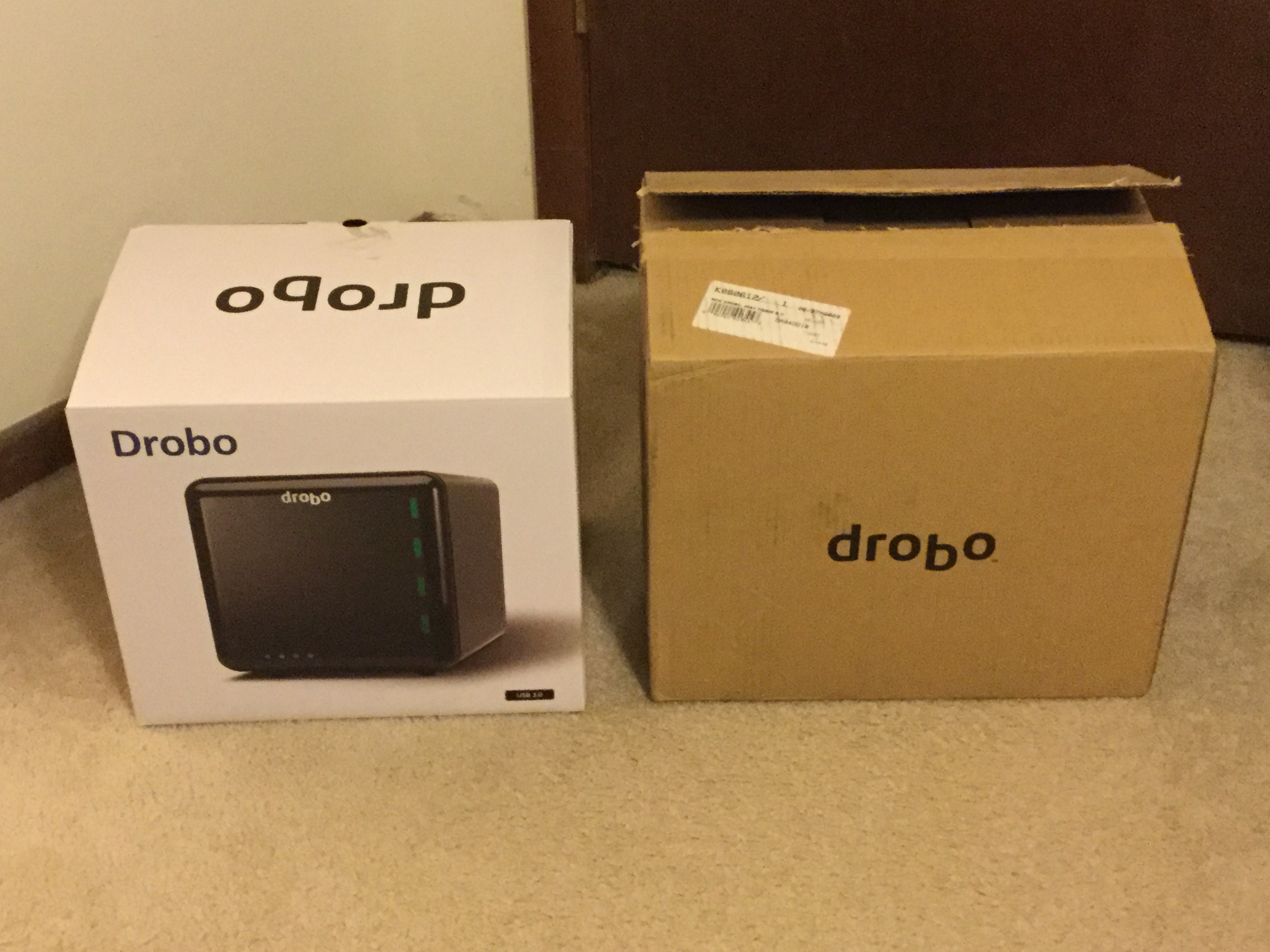
One week later… You should now have your new Drobo. The first thing you will notice is their package has gotten much nicer. I blame this on Apple, as they have made boring brown boxes seem downright primitive.

My old Drobo came wrapped in a black cloth bag. The new one comes in a black cloth bag that has handles on it — it’s a Drobo-logo’d version of those reusable grocery store bags! There was also a Drobo window sticker inside just like when you get that Apple sticker with a new Apple product (did I mention blaming things on Apple?). The packaging has much improved.

Everything else should be pretty similar. There is an included USB cable, and the power supply now uses a more standard power cable. The new Drobo looks the same except the logo is now embossed/raised on the front instead of just being painted on. (That’s the easiest way to tell them apart by looking at them when the lights aren’t on. More on the lights in a moment.) There is also a power switch on that back now. (Wow! I can FINALLY turn the thing off without having to yank the power cable.)

There is a warning note attached to the Drobo (and repeated in the included Quick Start guide printed on the inside cover of the accessory box). It says any drives you insert will have their data erased. What!?! I thought I read you could migrate your old “disk pack” from an old Drobo to the new one. Just to be safe, I did some searching on Drobos website and found an article that verified this was possible.

I also contacted Drobo support and they clarified: As long as the units are powered off, the erase will not happen, but if you insert the drives while the Drobo is booted, it will being the process of formatting them for new storage.

PRO-TIP: READ THE INSTRUCTIONS AND WARNINGS! Had I made the mistake of having my new Drobo powered up when I inserted the first drive, I would have lost data!

Once my previous drives (three 2TB and one 3TB) were moved over to the new Drobo, I powered it up to see if my data would survive…

Next time, we’ll find out if my data survived…


Drobo (2nd gen) to Drobo (3rd gen), part 3

See also: Part 1 and Part 2.

My 2nd generation Drobo (currently for sale on e-Bay).

My 2nd generation Drobo (currently for sale on e-Bay).

The story so far . . . In August 2009, I purchased two 2nd generation Drobos. Back then, Drobo was still a relatively new thing. I had been aware of it since the first model was introduced in 2007, but it was USB-only and thus too slow for my needs. The 2nd generation model added Firewire and I hoped I could use it for some video editing.

I populated my new Drobos with the bare hard drives I had been using separately. It took quite a bit of juggling to get all the data off various drives so I could then wipe them out and put them in the new Drobo. (I always do a zero-byte full reformat of drives before I use them. This exercises every sector of the drive and helps the drive map out bad blocks, or identify larger problems.)

At the time, Drobo documentation said if you make the device look like one huge drive, it might take several minutes to boot up. I chose to have the Drobo split itself up in to 1TB volumes. (This startup delay went away with a firmware update, apparently.) As I added drives, more volumes would appear. Over the years, I upgraded from four 500GB drives to four 2TB drives, and eventually had six 1TB virtual drives on each device. (I say “virtual” because unlike a true RAID system, the Drobo file system is flexible. It has a set amount of storage, split between the various drive volumes. You can’t actually fill each to 100%, and the Drobo suffers from severe slowdown if you fill it within 10% of max capacity. There are alot of gotchas with the magical Drobo.)

Eggs in One Basket

"Just buy another drive," they tell me.

“Just buy another drive,” they tell me.

While having to manage six volumes might seem like more work than one huge volume, it ended up saving me a number of times. I have had several instances of file system corruption on a Drobo volume where a volume would be unreadable (or not even mount). If this had happened to a huge 6TB single volume, I would have lost everything. By having it isolated to 1TB, it greatly reduced the amount of data I lost.

I tried Apple Disk Utility and a few other programs trying to recover the first disk crash, but only AlSoft’s DiskWarrior could do it. I strongly recommend every Mac user have a copy of this wonderful program. In all but a few cases, it was able to recover my corrupted Drobo volume. The one that it couldn’t is still a bit of a mystery. A support guy from AlSoft spent some time examining sectors on my Drobo and determined that the directory had been erased. Drobo support claimed they didn’t do it, and blamed Disk Warrior. Disk Warrior claimed they didn’t even modify the drive until the final stage after the data was declared recoverable.

Thus, two of my major Drobo issues: Support and reliability. Though overall they have been helpful, there have been a number of times when Drobo support was useless. Early on, when a firmware update looked like it had lost ALL my data, they provided me a special firmware version that would let me READ all my data off. That’s great if I had a few spare terabytes sitting around to copy it to. Fortunately, they figured out the problem and I was able to recover my data and continue using the device.

Let’s just say I have had quite a bit of close calls over the years with Drobo (and have lost several terabytes of data). There have been issues where the Drobo would suddenly shut off (unmounting, and not waking up), or times when it would cause my Mac to hang on startup (if plugged in to the computer) and endless other annoying issues. Web searched revealed hundreds of similar reports from other Drobo users.

Much like an abusive relationship, the magic of Drobo seemed to keep many of us involved even when we knew we probably should move on.

I stuck with my two Drobos for over six years. I put up with repeated problems that always seemed to manifest themselves when I needed to get some work done. If my livelyhood depended on them, I am sure I would have had to move on to something else, but since I was just earning some side-income as a hobby-business, I couldn’t justify the expense of a professional high-end RAID system. It seems Drobo is a consumer toy, not a professional tool.

Danger, Will Robinson

Drobo blues...

Houston, we have a problem.

Recently, a few things happened that caused me to consider an upgrade. First, one of my Drobos was regularly sending me alerts that it was in the process of rebuilding.

After about a week or so of this happening, I contacted Drobo support. The 2nd generation models had been end-of-lifed so they were no longer supported, but I was able to get the support tech to look at a diagnostic log file from my device. They wrote back:

Response By Email (xxxx) (11/03/2015 02:26 PM)

Hello Allen,

Thank you for contacting Drobo Technical Support,
I would recommend replacing the drive with the serial number WMAZA1948667 in the top bay.

We are showing that drive has 31 bad blocks and has had a full timeout.

If you have any other questions feel free to ask.

Thank you and have a great day.

Kind Regards,
xxxx.
Technical Support Agent

At the very least, I was going to have to replace that drive. All of my 2TB Western Digital Green drives were now out of warranty, so if one was starting to fail, it seemed likely others would too.

During my research of RAID systems, the low-cost ones I looked in to would not have worked with my Western Digital Green drives. Had I switched to RAID, I would have had to replace all my drives — an expense I couldn’t handle.

But, thanks to Swagbucks, I could at least get me a replacement drive. I decided to go with a 3TB Western Digital Red drive. These were rated for NAS devices, so they would be good for a RAID down the line if I ever ditched the Drobo.

When the drive arrived, I put my Drobo in standby and swapped out the bad drive. After a restart, Drobo then went to work rebuilding the drive and informed me how long it thought it might take . . .

440 hours!?!?!

440 hours!?!?!

Axl Rose, We Have a Problem…

To be continued . . .


Drobo (2nd gen) to Drobo (3rd gen), part 2

In part 1, I rambled on a bit about my experience with external hard drives and I stated that next I would explain “why I chose Drobo” and that we’d “look at the 2nd generation model versus the 3rd generation model.”

I guess I should do that.

Never Enough Storage

“Just buy a larger hard drive,” people tell me. It must be nice to have so little content you want to store that you can just buy an extra drive and be done with it. As an early adopter of digital photography (I got my first digital camera in 1996), I have taken several hundred thousand digital photos over the years. With no negatives, keeping those digital originals safe is very important. I learned this the hard way when I had a hard drive failure and lost a year’s worth of photos. The only copies I had were the scaled-down and watermarked versions on my website. At least I had those!

All my earlier photos had been archived to stacks of CD-Rs, so I was able to recover most of them, but it was clear I would have to make backups more regularly just in case it ever happened again. (“Just buy more DVD-Rs”.)

And it happened again. Several times, actually. I’ve had a number of hard drives fail on me unexpectedly. Most were still “new” drives, well under warranty. While Seagate or Western Digital will promptly replace the drive, that does little for you data. ALWAYS MAKE BACKUPS! (And always check reviews. The “more reliable” hard drive brand to buy has changed a number of times of the years. I am currently using Western Digital drives, but many years ago I wouldn’t have touched a WD for anything important.)

CD-Rs Aren’t Backups

For me, my main backup strategy was making sure all my digital photos and digital video files were archived to CD-R (then, later, DVD-R). I have stacks of these discs, but, sadly, some of my earliest CD-R backups no longer read. That’s right, Virginia. CD-Rs are not “forever” media. Exposure to UV rays in light can cause bit rot. Just because you copy something to a plastic disc doesn’t mean it’s safe long term.

When I learned CD-Rs were not enough, I decided I needed to do a combination of things:

  1. Every bit of important data should be archived to CD/DVD. Even if it’s not necessarily a long term solution, it’s still important to have a backup that can’t be taken out by a power surge or by dropping a computer.
  2. Every bit of important data should exist on at least two hard drives.

qBox 4-drive enclosure (photo from their website).

qBox 4-drive enclosure (photo from their website).

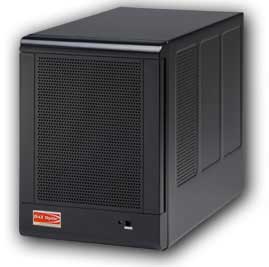
I started using some qBox-F quad-drive enclosures on my Mac. I had two of them – one for primary storage and the other for backup. Each one was “JBOD” (just a bunch of disks) so they appeared are four separate drives to my Mac. Soon, though, four drives was not enough and I needed more storage. Every time I did, I had to get out the screwdriver and swap out drives and spend hours copying data back and forth. There had to be a better way.

A Better Way: Trayless Hard Drive Enclosures

iStarUSA v7AGE220-SAU enclosure

iStarUSA v7AGE220-SAU enclosure (photo from their website)

The next thing I found were trayless hard drive enclosures. They let you slide bare drives in and out without using tools. I bought a few inexpensive iStarUSA brand 2-drive enclosures. (I always like to have two matching enclosures in case one of them dies so I can swap drives out and get to my data in an emergency.) I was using the now-discontinued Firewire version for primary store (faster than USB 2.0) and had a cheaper USB-only version for emergency backup.

I also found a company that sold plastic hard drive cases that looked like old VHS rental tape cases. I ended up with a bookshelf full of hard drives. When I would copy data to one of them, I would also copy it to the second backup hard drive.

This worked quite well, but every time my collection grew I had to buy two more hard drives (primary and backup). I was hoping for a way to save some money while still getting protection. That’s what let me to research RAID-type hard drive systems.

Saving Money by Going RAID

With RAID, multiple drives are used and data is spread across all the drives. Every block of data is duplicated on another drive. If one drive fails, any data on that drive still exists somewhere else in the RAID array. This sounded like a good solution, but RAID has some limitations.

RAID systems want all drives to be of matching size (and preferably, type). If you put in a 500GB drive and a 750GB drive, the RAID would only use the largest amount that is common to all drives (in this case, 500GB – thus wasting the rest of the 750GB drive). You were also locked to that size. If a drive failed and you replaced it with a larger drive, the data would rebuild on the new drive, but it would only use the size of the former drive. Thus, you couldn’t upgrade capacity without starting over with an all new set of larger drives and copying everything over.

My 2nd generation Drobo (currently for sale on e-Bay).

My 2nd generation Drobo (currently for sale on e-Bay).

I ended up going with a Drobo because their non-standard “magic” was that you didn’t have to have matching hard drives. You could start with two drives of any size, and then add more (up to four) to expand. When you started running out of space, you could replace a drive with a larger one and continue to do this as needed. Drobo looked like a great solution to my ever-growing need for backup data.

Up next: Drobo pros and Drobo cons.

Drobo (2nd gen) to Drobo (3rd gen), part 1

This multi-part series will be an extensive review of the 3rd generation Drobo external hard drive enclosure and my experiences with it after migrating from a 2nd generation Drobo on a Mac. Thank you to Data Robotics for making this possible. My many years with Drobo have sometimes felt like an abusive relationship – I have had numerous instances of data loss and many other problems, but the “magic” of Drobo keeps pulling me back in. Hopefully, after another generation of product advancement, maybe this time things will be better. Drobo loves me. I know it does.

Most article writers seldom give you any indication of why they are qualified to speak on a subject. My experience with external hard drives began a long, long time ago . . . (Well, to you young folks. To me, it seems like only yesterday…) This will have nothing to do with the actual content, so please free to skip to Part 2 (once it is posted).

My Path to External Drives

In 1998, I purchased my first Apple product – an original bondi blue Apple iMac. It had no RS232 serial port, no parallel printer port, and no floppy drive. Instead, it used some weird port called a Universal Serial Bus (USB) to hook up to such devices. There was pretty much nothing available that used USB back then. Early USB devices included mice, keyboards, printers, RS232 serial ports, external floppy drives and hard drives.

In the next MacWorld keynote after the iMac was released, Steve Jobs gave a presentation where he unveiled “Firewire” (Apple’s re-branding of the IEEE-1394 standard). He demonstrated it by showing it used to hook up an external hard drive and a digital video camcorder. Back then, the only way I’d ever seen an external hard drive hooked up to a PC was via the parallel printer port (Iomega Zip drives, for example) or via a SCSI interface. The only way I’d ever seen a camera hooked up was by audio/video inputs to a video digitizing device. It was a very different world!

Seeing Firewire allow importing of digital video from a camcorder was revolutionary, and I instantly knew it was something I wanted to be able to do.

Digression:

Around 1981, my father had a video camera that hooked to a huge VHS recorder. I remember making silly home videos with it a kid. In 1982, we made a trip to Walt Disney World with a “portable” VHS recorder and camera. I guess we recorded some of the earliest vacation “home videos” long before everyone there was carrying around a camera. In the years that followed, things got smaller: all-in-one VHS camcorders would be introduced, and then tiny 8mm video tapes (and VHS-C). The home video revolution was in full swing, but the only way I ever edited video back then was with two video recorders hooked together. As video moved to digital (Digital8 on 8mm tapes, or DV tapes), a new world opened up. Seeing digital video being “imported” from tape in to a computer and then edited on screen non-linearly was magic. I bought a Sony Digital8 camcorder in preparation for having this editing capability at home.

Although Firewire was initially only available on the high-end (and expensive) PowerMac G3 desktop, Apple quickly added it to their next consumer computer when the iMac DV (digital video) was released in 1999. It took me weeks to get one at the local CompUSA, but soon I was set up with a digital camcorder and a computer with Firewire. The only problem was that an hour of digital video took about 13GB of hard drive space, and the iMac DV Special Edition I had only came with a 13GB drive.

This is what led to me purchasing my first external hard drive. (I am not counting the “big floppy” Iomega Zip drives or SyQuest EZ135 drives I used on PCs, my Radio Shack Color Computer or OS-9 MM/1 systems. I had been using those for years, but they weren’t hard drives.)

After filling up this first 30 gigabyte external drive (at least, I think it was 30), I moved on to many more drives over the years, each one larger than the last. Today on my desk I have four external drive enclosures (two 2-bay RAID systems, and two 2nd generation Drobos), a 3TB Seagate backup drive, and about four tiny pocket drives… Between all of those and the drives in my computers, I easily have over 20 terabytes of storage which, sadly, seems to be full at all times.

Over the years I have gone through brand after brand, including many that no longer exist. Western Digital makes up most of the drives I am currently using, though there was a time when their drives were considered bad and you’d have better luck with Seagate. There were other brands that, for awhile, were considered the most reliable. I have no brand loyalty. I just want my data to be protected. EVERY drive can and will fail. Always assume that day will be tomorrow and keep redundant copies of all your important data.

So am I an expect about external hard drives? Not at all . . . but I’ve probably used more of them over the years, and use more of them today, than most folks will in a lifetime.

Up next, why I chose Drobo and a look at the 2nd generation model versus the 3rd generation model.