Category Archives: Hardware

Drobo (2nd gen) to Drobo (3rd gen), part 2

In part 1, I rambled on a bit about my experience with external hard drives and I stated that next I would explain “why I chose Drobo” and that we’d “look at the 2nd generation model versus the 3rd generation model.”

I guess I should do that.

Never Enough Storage

“Just buy a larger hard drive,” people tell me. It must be nice to have so little content you want to store that you can just buy an extra drive and be done with it. As an early adopter of digital photography (I got my first digital camera in 1996), I have taken several hundred thousand digital photos over the years. With no negatives, keeping those digital originals safe is very important. I learned this the hard way when I had a hard drive failure and lost a year’s worth of photos. The only copies I had were the scaled-down and watermarked versions on my website. At least I had those!

All my earlier photos had been archived to stacks of CD-Rs, so I was able to recover most of them, but it was clear I would have to make backups more regularly just in case it ever happened again. (“Just buy more DVD-Rs”.)

And it happened again. Several times, actually. I’ve had a number of hard drives fail on me unexpectedly. Most were still “new” drives, well under warranty. While Seagate or Western Digital will promptly replace the drive, that does little for you data. ALWAYS MAKE BACKUPS! (And always check reviews. The “more reliable” hard drive brand to buy has changed a number of times of the years. I am currently using Western Digital drives, but many years ago I wouldn’t have touched a WD for anything important.)

CD-Rs Aren’t Backups

For me, my main backup strategy was making sure all my digital photos and digital video files were archived to CD-R (then, later, DVD-R). I have stacks of these discs, but, sadly, some of my earliest CD-R backups no longer read. That’s right, Virginia. CD-Rs are not “forever” media. Exposure to UV rays in light can cause bit rot. Just because you copy something to a plastic disc doesn’t mean it’s safe long term.

When I learned CD-Rs were not enough, I decided I needed to do a combination of things:

  1. Every bit of important data should be archived to CD/DVD. Even if it’s not necessarily a long term solution, it’s still important to have a backup that can’t be taken out by a power surge or by dropping a computer.
  2. Every bit of important data should exist on at least two hard drives.
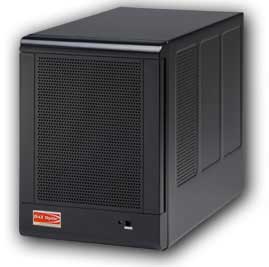
qBox 4-drive enclosure (photo from their website).

qBox 4-drive enclosure (photo from their website).

I started using some qBox-F quad-drive enclosures on my Mac. I had two of them – one for primary storage and the other for backup. Each one was “JBOD” (just a bunch of disks) so they appeared are four separate drives to my Mac. Soon, though, four drives was not enough and I needed more storage. Every time I did, I had to get out the screwdriver and swap out drives and spend hours copying data back and forth. There had to be a better way.

A Better Way: Trayless Hard Drive Enclosures

iStarUSA v7AGE220-SAU enclosure

iStarUSA v7AGE220-SAU enclosure (photo from their website)

The next thing I found were trayless hard drive enclosures. They let you slide bare drives in and out without using tools. I bought a few inexpensive iStarUSA brand 2-drive enclosures. (I always like to have two matching enclosures in case one of them dies so I can swap drives out and get to my data in an emergency.) I was using the now-discontinued Firewire version for primary store (faster than USB 2.0) and had a cheaper USB-only version for emergency backup.

I also found a company that sold plastic hard drive cases that looked like old VHS rental tape cases. I ended up with a bookshelf full of hard drives. When I would copy data to one of them, I would also copy it to the second backup hard drive.

This worked quite well, but every time my collection grew I had to buy two more hard drives (primary and backup). I was hoping for a way to save some money while still getting protection. That’s what let me to research RAID-type hard drive systems.

Saving Money by Going RAID

With RAID, multiple drives are used and data is spread across all the drives. Every block of data is duplicated on another drive. If one drive fails, any data on that drive still exists somewhere else in the RAID array. This sounded like a good solution, but RAID has some limitations.

RAID systems want all drives to be of matching size (and preferably, type). If you put in a 500GB drive and a 750GB drive, the RAID would only use the largest amount that is common to all drives (in this case, 500GB – thus wasting the rest of the 750GB drive). You were also locked to that size. If a drive failed and you replaced it with a larger drive, the data would rebuild on the new drive, but it would only use the size of the former drive. Thus, you couldn’t upgrade capacity without starting over with an all new set of larger drives and copying everything over.

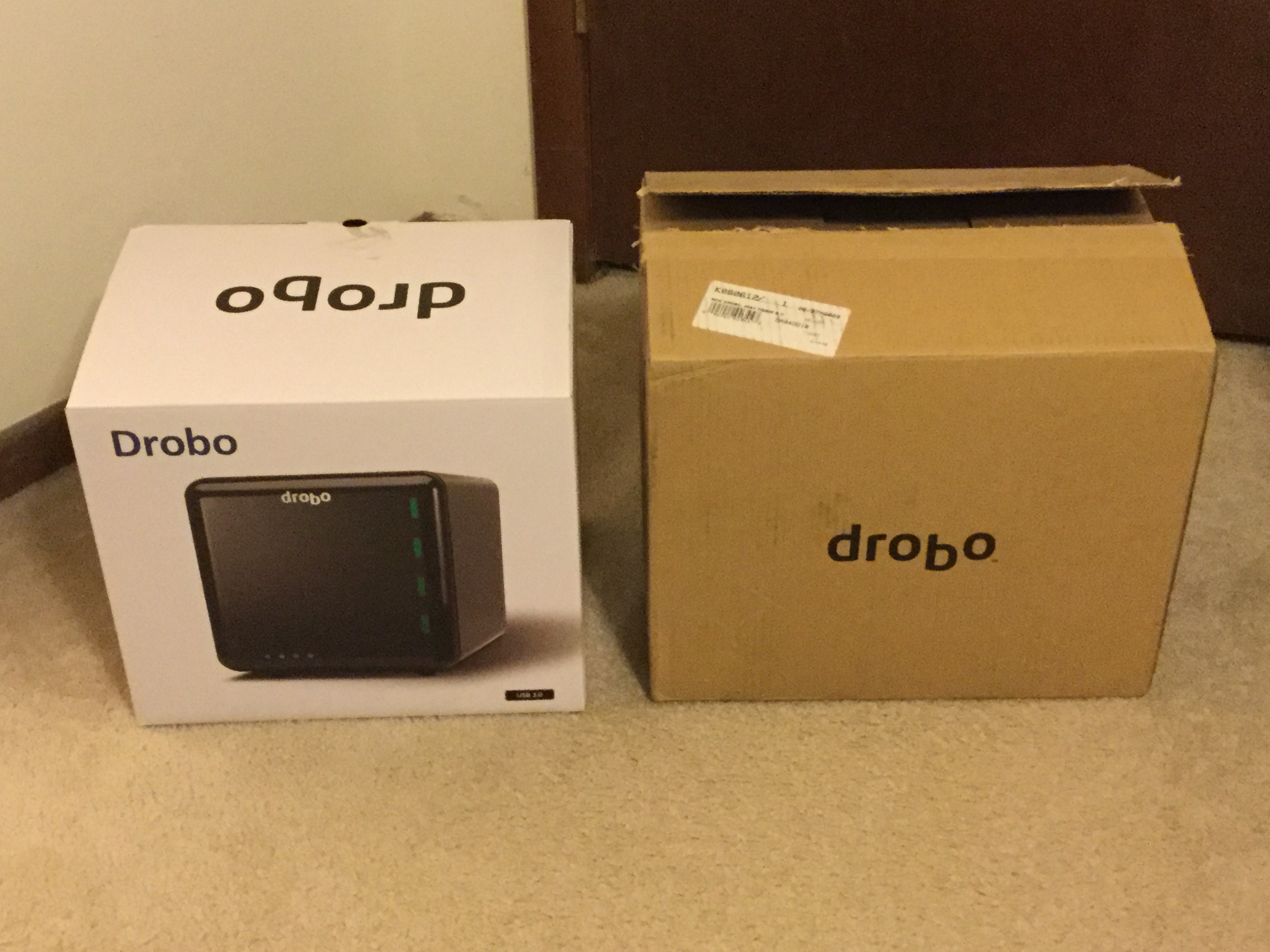
My 2nd generation Drobo (currently for sale on e-Bay).

My 2nd generation Drobo (currently for sale on e-Bay).

I ended up going with a Drobo because their non-standard “magic” was that you didn’t have to have matching hard drives. You could start with two drives of any size, and then add more (up to four) to expand. When you started running out of space, you could replace a drive with a larger one and continue to do this as needed. Drobo looked like a great solution to my ever-growing need for backup data.

Up next: Drobo pros and Drobo cons.

Drobo (2nd gen) to Drobo (3rd gen), part 1

This multi-part series will be an extensive review of the 3rd generation Drobo external hard drive enclosure and my experiences with it after migrating from a 2nd generation Drobo on a Mac. Thank you to Data Robotics for making this possible. My many years with Drobo have sometimes felt like an abusive relationship – I have had numerous instances of data loss and many other problems, but the “magic” of Drobo keeps pulling me back in. Hopefully, after another generation of product advancement, maybe this time things will be better. Drobo loves me. I know it does.

Most article writers seldom give you any indication of why they are qualified to speak on a subject. My experience with external hard drives began a long, long time ago . . . (Well, to you young folks. To me, it seems like only yesterday…) This will have nothing to do with the actual content, so please free to skip to Part 2 (once it is posted).

My Path to External Drives

In 1998, I purchased my first Apple product – an original bondi blue Apple iMac. It had no RS232 serial port, no parallel printer port, and no floppy drive. Instead, it used some weird port called a Universal Serial Bus (USB) to hook up to such devices. There was pretty much nothing available that used USB back then. Early USB devices included mice, keyboards, printers, RS232 serial ports, external floppy drives and hard drives.

In the next MacWorld keynote after the iMac was released, Steve Jobs gave a presentation where he unveiled “Firewire” (Apple’s re-branding of the IEEE-1394 standard). He demonstrated it by showing it used to hook up an external hard drive and a digital video camcorder. Back then, the only way I’d ever seen an external hard drive hooked up to a PC was via the parallel printer port (Iomega Zip drives, for example) or via a SCSI interface. The only way I’d ever seen a camera hooked up was by audio/video inputs to a video digitizing device. It was a very different world!

Seeing Firewire allow importing of digital video from a camcorder was revolutionary, and I instantly knew it was something I wanted to be able to do.

Digression:

Around 1981, my father had a video camera that hooked to a huge VHS recorder. I remember making silly home videos with it a kid. In 1982, we made a trip to Walt Disney World with a “portable” VHS recorder and camera. I guess we recorded some of the earliest vacation “home videos” long before everyone there was carrying around a camera. In the years that followed, things got smaller: all-in-one VHS camcorders would be introduced, and then tiny 8mm video tapes (and VHS-C). The home video revolution was in full swing, but the only way I ever edited video back then was with two video recorders hooked together. As video moved to digital (Digital8 on 8mm tapes, or DV tapes), a new world opened up. Seeing digital video being “imported” from tape in to a computer and then edited on screen non-linearly was magic. I bought a Sony Digital8 camcorder in preparation for having this editing capability at home.

Although Firewire was initially only available on the high-end (and expensive) PowerMac G3 desktop, Apple quickly added it to their next consumer computer when the iMac DV (digital video) was released in 1999. It took me weeks to get one at the local CompUSA, but soon I was set up with a digital camcorder and a computer with Firewire. The only problem was that an hour of digital video took about 13GB of hard drive space, and the iMac DV Special Edition I had only came with a 13GB drive.

This is what led to me purchasing my first external hard drive. (I am not counting the “big floppy” Iomega Zip drives or SyQuest EZ135 drives I used on PCs, my Radio Shack Color Computer or OS-9 MM/1 systems. I had been using those for years, but they weren’t hard drives.)

After filling up this first 30 gigabyte external drive (at least, I think it was 30), I moved on to many more drives over the years, each one larger than the last. Today on my desk I have four external drive enclosures (two 2-bay RAID systems, and two 2nd generation Drobos), a 3TB Seagate backup drive, and about four tiny pocket drives… Between all of those and the drives in my computers, I easily have over 20 terabytes of storage which, sadly, seems to be full at all times.

Over the years I have gone through brand after brand, including many that no longer exist. Western Digital makes up most of the drives I am currently using, though there was a time when their drives were considered bad and you’d have better luck with Seagate. There were other brands that, for awhile, were considered the most reliable. I have no brand loyalty. I just want my data to be protected. EVERY drive can and will fail. Always assume that day will be tomorrow and keep redundant copies of all your important data.

So am I an expect about external hard drives? Not at all . . . but I’ve probably used more of them over the years, and use more of them today, than most folks will in a lifetime.

Up next, why I chose Drobo and a look at the 2nd generation model versus the 3rd generation model.


More cheers for Otterbox, and jeers for Drobo

  • 11/11/2015 Update: I now have my Drobo (thanks, FedEx).
  • 11/17/2015 Update: Eden, an inside sales person at Drobo, seems to have gotten the issue with orders being stuck “unfulfilled” fixed. I wonder if this was just happening to me, or to everyone getting shipments from Drobo? Also, added link to “full review”.

As previously mentioned, Otterbox makes great protective cases for phones and tablets. They also have outstanding customer service and warranty support. Recently, I damaged my iPad Otterbox Defender stand and wanted to get a replacement. Otterbox currently does not sell one for my model iPad so I had to contact them to ask how I could get one. A few e-mail exchanges later and I was told to call in on Monday to pay a $2.99 shipping charge and they’d send me a replacement. Amazingly enough, even with the damage being entirely my fault, they still wanted to send me a replacement at no cost (other than shipping). Everyone I dealt with, e-mail or voice, was incredibly nice and even apologetic over the process. Beyond Disney and Apple, I don’t think I have ever encountered this level of customer service. Way to go, Otterbox.

Meanwhile, things are not going quite as well with Data Robotics, creators of the Drobo backup devices. I have had two of those units which I purchased many years ago. Both are sold old they have been end-of-lifed by Data Robotics. Due to various problems which I will cover in a future article, I am now waiting for a replacement unit to arrive. The order was entered last Monday, then still showed “unfulfilled” in their tracking system three days later. Has Amazon spoiled us so much that we now actually expect a company to ship same or next day for online orders? I had to contact them to ask what was up, and was given a tracking number. Apparently they did ship the next day, but the system didn’t show that.

One week later, and the item is still not here. Actually, FedEx tried to deliver it on Friday, but I work days so I was unable to sign for the package. Due to how Data Robotics ships, I am unable to have the shipment “held for pickup” at the FedEx centers. Instead, I can only have someone sign for it. I am unable to do this, so apparently I am unable to receive packages from Data Robotics… I can’t imagine why they don’t allow me to go to a FedEx office and show my ID there to pick up a package, but would allow a stranger to sign for it at my address.

Hopefully I will eventually be able to get this shipment.

UPDATE: Thanks to the wonderful Cindy at FedEx Ground in Grimes, Iowa, I was able to pick up my Drobo from them on Friday night. She says I should have been able to do that anyway, though the FedEx online system would not let me redirect, and a rep at 800-GO-FEDEX also said I could not due to shipper restrictions. I don’t really care who was right as long as I can get my package ;-)

Eventually, my Drobo will finish rebuilding (it estimated as much as 440+ hours at one point) and I can move the drives in to this new unit for a full review.

ESP8266 $5 WiFi for Arduino?

This evening, I saw a reference to something called an ESP8266. A quick web search revealed it was a $5 WiFi chip that was mentioned last August 2014 on Hackaday:

As of this writing it has only been about six months since the discovery. At the time, little was known about it beyond some documents in Chinese and some early attempts to write code to use it. Today, however, you can find this part on Amazon for $7.99 with Prime shipping, or much cheaper on e-Bay with slow shipping from China:

http://www.amazon.com/s/ref=nb_sb_noss_1?url=search-alias%3Daps&field-keywords=ESP8266
http://www.ebay.com/itm/ESP8266-Serial-WIFI-Wireless-TransceiveR-Module-Send-Receive-LWIP-AP-STA-SY-/221619180149?pt=LH_DefaultDomain_0&hash=item3399885275

The chip can been hooked up to a UART (transmit and receive), or via SPI. This means, with a cheap TTL-to-RS232 adapter and a power supply, you could WiFi enable anything with an RS232 port with a bit of communications software.

The next time I have a few spare bucks, I plan to order one and see how easy it is to work with. It could be a fun way to WiFi-enable a CoCo or Arduino :)

And for those curious, here is a tutorial on using it I found:

http://www.instructables.com/id/Using-the-ESP8266-module/

Please leave a comment if you have worked with this chipset. It seems it might not take much to make a C library for Arduino that mirrored the official Arduino WiFi shield API, but used this inexpensive part.

CoCo/Tandy 1000 joystick adapter project

Last year, I designed an adapter that would let me use original CoCo (or Tandy 1000) analog joysticks on a modern computer via USB. I also designed an opposite adapter, which would let a modern USB controller be used on an old CoCo or Tandy 1000.

I ordered all the parts for a prototype, and did some quick tests to prove that it worked… And then promptly moved on to other things.

Eventually I found some time and I dug out all of these parts and began wiring things up again. My hope was to have a few things available to sell at the Chicago CoCoFEST this past April 25 and 26, 2015. (Money is very tight here, so any thing I can do to generate some extra income is a good thing.) I was unable to go, so did no more work on the project.

Rather than collect dust, I thought I’d share my work so far in this article I originally started working on last February.

The hardware components I have will allow several things:

For the CoCo

  • Use modern USB joysticks/gamepads on the CoCo
  • Use modem Bluetooth wireless joysticks/gamepads on the CoCo
  • Use modern USB keyboards on the CoCo
  • Use modern Bluetooth wireless keyboards on the CoCo

For Mac/Linux/Windows

  • Use an original CoCo/Tandy 1000 joystick as a USB input device
  • Use an original CoCo/Tandy 1000 joystick as a wireless Bluetooth input device
  • Use an original CoCo keyboard as a USB keyboard
  • Use an original CoCo keyboard as a Bluetooth wireless keyboard

As you can see, there are two main goals (use modern stuff on a CoCo, or use old CoCo stuff on a modern computer), with a focus on USB or wireless Bluetooth. All of these are possible, with the cost of doing Bluetooth about the same (or maybe a few dollars less) than USB.

My current prototype reads a PC USB joystick and turns that in to a CoCo-readable analog joystick. I also wired up CoCo joysticks to use on my Mac (very direct and easy).

The keyboard stuff also interests me. I plan to order the Bluetooth part I need so I can embed it inside my CoCo, hooked to the keyboard connector, and use an external battery powered Bluetooth keyboard on my CoCo.

The other combinations are not high on my project list since I do not even own a wireless Bluetooth gamepad or controller (unless my OUYA console controller can be used). However, when I get to that point, I may be able to find someone I can borrow one from for testing.

My eyesight took a hit last year, and now I can no longer focus on things more than a few feet away so I probably won’t do much until I can afford a new set of glasses ;-) Mid-40s is trying to make me think I’m no longer in my mid-20s!

To be continued…

Configuring the TP-LINK TL-WR702N nano router for Arduino

2015-02-07 Update: Added default WiFi password.

The two most-viewed pages on this site are often the following to Arduino articles:

The first one deals with a bug (?) I found in in the Arduino Ethernet library that prevented it from properly handling multiple incoming connections to the same port. The second was sharing my discovery of the $20 TP-LINK TL-WR702N nano router. It seems I am not the only one not happy that Arduino WiFi shields can be as much as $90, while cheap ethernet shields can be found for around $10.

The TP-LINK can be configured to connect to a WiFi network and then plug in to an Ethernet-only device and link it to the WiFi. Folks use them to get Ethernet printers on WiFi (such as the Lexmark printer I have — the official Ethernet module for it is $50, but I can use this TP-Link and be wireless printing for $20). I use one to get my Arduino on WiFi. Note that the Arduino will not have any control over the WiFi connection and won’t be able to select WiFi

This article is a quick guide to getting the TP-LINK set up for use with the Arduino.

TP-LINK TL-WR702N nano router box.
TP-LINK TL-WR702N nano router box, pictured next to a pen for scale.

1. Buy the TP-LINK WR702N. I got mine from Amazon for $19.99. It comes in a tiny box and is packed almost as nicely as an Apple product.

Inside the box you will find the tiny router (about 2″x2″x.5″), a micro USB cable, an Ethernet cable, and a USB power supply. There is also a mini-CD and a few small quick start guides. The guides are put together very well and have plenty of photos.

On the back of the TP-LINK unit will be the MAC address, but unless you have multiple units, you won’t need to know this.

2. Power up the TP-LINK by either plugging it up with the USB micro cable to a USB port (on your computer or a hub), or via the power supply.

3. The unit will boot up and after a few moments a new wireless network will appear that starts with “TP-LINK_xxxxxx” with the last part being the end of the MAC address of the router. Connect your computer to it. You will be prompted for a WiFi password, which you will find under the tiny barcode on the back of the unit. (It will be the last 8 HEX digits of the Mac address.) Give it a few more moments to connect and get an IP address. (Make sure you aren’t getting an internet connection some other way, like Ethernet. There are also ways to configure this router via Ethernet, but you’ll have to check TL-LINK guides for that.)

4. Open a web browser and go to: tplinklogin.net  It should prompt you for a username and password. You will find these on the back of the router, but they should be admin and admin.

TP-LINK WR702N login
Enter “admin” for the username and “admin” for the password.

5. You should see an admin webpage that is coming from your router. The first thing we need to do is configure the router to connect to your WiFi access point and connect to the internet. Click on Quick Setup under Basic Settings and click Next.

TP-LINK WR702N quick setup
Select Quick Setup.

6. The first screen is to select the Working Mode. We want Client, so choose it then click Next.

TP-LINK WR702N working mode
Select Client mode.

6. Next we will do Wireless Client setup and choose which WiFi network this nano should connect to. You can manually type it all in, but it’s easier to just click the Survey button so it scans for networks that are available. From that list, select your own WiFi network and then you will have an easy spot to enter your WiFi network password.

TP-LINK WR702N wireless client
Click the Survey button to obtain a list of available WiFi networks.
TP-LINK WR702N survey
Select your WiFi network from the list.
TP-LINK WR702N wifi password
Enter the password to your WiFi network.

7. The unit will then reboot and attempt to connect to your WiFi network. When it does, it will begin passing the WiFi connection out to the Ethernet port. To test this, turn off WiFi on your computer, and plug it up to the TP-LINK nano router via the included Ethernet cable. You will need to configure your computer’s Ethernet connection for DHCP. If it is working, after a few moments you will get an IP address assigned to your computer by the nano. Once the connection is made, you can test by going to Google.com or a known-working site.

8. Once you know it’s working, you should update the firmware on the nano to the latest. You can download the firmware here:

http://www.tp-link.us/support/download/?model=TL-WR702N&version=V1

Look for the latest version. It should look something like this:

TP-LINK WR702N firmware
Look for the latest version of the firmware for the TP-LINK TL-WR702N on the TP-LINK website.

Download this .zip file, then extract it somewhere you will be able to find it. It will create a folder with a few files inside, including a “.bin” which is the actual firmware update.

Log back in to tplinklogin.net and go to System Tools and Firmware then browse to the .bin file you just downloaded.

TP-LINK WR702N update
Browse to the .bin file you downloaded and update the firmware.

After it updates, the nano will reboot once again. On mine, this reset all the router settings, and I had to log back in and set it up again. There is probably a better set of steps to do this, but this is how I went through it and took screen shots so that is what I am sharing.

Once this is done, you can unplug and switch your computer back to normal internet connection. Now the TP-LINK can be plugged to power and the Arduino Ethernet shield and you can use the Ethernet library to make connections via your WiFi network.

NOTE: Since the nano requires using a computer and web browser to select which WiFi it connects to, this is not a portable solution. You cannot choose what WiFi to connect with (or the password or anything) from the Arduino. If you wanted to take your Arduino somewhere else and get it online, you would have to have a computer available to connect to the TP-LINK nano and reprogram which WiFi network it connects to. If you have a real WiFi shield for the Arduino, you can do this in software.

I hope these quick notes help…

Splitting a 16-bit value to two 8-bit values in C

1/27/2023: Hello, everyone. This page continues to be one of the most-viewed page on my site. Can you leave a comment and tell me what led you here? Thanks! -Allen

Recently in my day job, I came across some C code that just felt inefficient. It was code that appeared to take a 16-bit integer and split the high and low bytes in to two 8-bit integers. In all my years of C coding, I had never seen it done this way, so obviously it must be wrong.

NOTE: In this example, I am using modern C99 definitions for 8-bit and 16-bit unsigned values. “int” may be different on different systems (it only has to be “at least” 16-bits per the C standard. On the Arduino it is 16-bits, and on my PC it is 32-bits).

uint8_t  bytes[2];
uint16_t value;

value = 0x1234;

bytes[0] = *((uint8_t*)&(value)+1); //high byte (0x12)
bytes[1] = *((uint8_t*)&(value)+0); //low byte  (0x34)

This code just felt bad to me because I had previously seen how much larger a program becomes when you are accessing structure elements like “foo.a” repeatedly in code. Each access was a bit larger, so it you used it more than a few times in a block of code you were better off to put it in a temporary variable like “temp = foo.a” and use “temp” over and over. Surely all this “address of” and math (+1) would be generating something like that, right?

Traditionally, the way I always see this done is using bit shifting and logical AND:

uint8_t  bytes[2];
uint16_t value;

value = 0x1234;

bytes[0] = value >> 8;     // high byte (0x12)
bytes[1] = value & 0x00FF; // low byte (0x34)

Above, bytes[0] starts out with the 16-bit value and shifts it right 8 bits. That turns 0x1234 in to 0x0012 (the 0x34 falls off the end) so you can set bytes[0] to 0x12.

bytes[1] uses logical AND to get only the right 8-bits, turning 0x1234 in to 0x0034.

I did a quick test on an Arduino, and was surprised to see that the first example compiled in to 512 bytes, and the second (using bit shift) was 516. I had expected a simple AND and bitshift to be smaller, but apparently, on this processor/compiler, getting a byte from an address was smaller. (I did not tests to see which one used more clock cycles, and did no experiments with compiler optimizations.)

On a Windows PC under GNU-C, the first compiled to 784 bytes, and the second to 800. Interesting.

I ran across this code in a project targeting the Texas Instruments MSP430 processor. The MSP430 Launchpad is very Arduino-like, and previous developers had to do many tricks to get the most out of the limited RAM, flash and CPU cycles of these small devices.

I do not know if I can get in the habit of doing my integer splits this way, but perhaps I should retrain myself since this does appear incrementally better.

Update: Timing tests (using millis() on Arduino, and clock() on PC) show that it is also faster.

Here is my full Arduino test program. Note the use of “volatile” variable types. This prevents the compiler from optimizing them out (since they are never used unless you uncomment the prints to display them).

#define OURWAY

void setup() {
   volatile char bytes[2];
   volatile uint16_t  value;

   //Serial.begin(9600);

   value = 0x1234;

#ifdef OURWAY
   // 512 bytes:
   bytes[0] =  *((uint8_t*)&(value)+1); //high byte (0x12)
   bytes[1] =  *((uint8_t*)&(value)+0); //low byte  (0x34)
#else
   // 516 bytes:
   bytes[0] = value >> 8;     // high byte (0x12)
   bytes[1] = value & 0x00FF; // low byte  (0x34)
#endif

   //Serial.println(bytes[0], HEX); // 0x12
   //Serial.println(bytes[1], HEX); // 0x34
}

void loop() {
   // put your main code here, to run repeatedly:
}

iOS MFI game controller bluetooth protocol

Starting with iOS 7, Apple added official support for game controllers on an iPhone, iPad or iPod touch. Previously, the iCade standard was used, acting as a keyboard device sending key presses for button up and button down.

I have yet to find any place the discusses how these new controllers work. Has anyone reverse engineered it? Does it have digital rights management so you can’t pair using regular devices? Does anyone know?

Cheap bicycle wheel LED sign (POV)

Due to finances, about the only form of recreation I have these days is riding my bike. I like to take casual rides on the many trails here in Des Moines (Iowa is famous for it’s massive bike trail network).

A few years ago, I came across this neat LED display that attaches to a bike wheel and created images using persistence of image (i.e. lights flashing real fast as the wheel rotates, which the eye sees as a complete, though flickering, image):

http://www.ladyada.net/make/spokepov/

Go there and look at the pictures and watch the videos. It is able to display full color and even animate images (I love the Pac-Man and Ghost images they show). It works by having a row of LEDs that flicker on and off as the wheel spins. The wheel has to spin very fast to show an image, so they sell kits with multiple circuit boards of LEDs. The more on the wheel, the slower it has to turn to show an image.

It looked really cool, but it came in a kit, and I am not really that capable of an electronics person. Plus, the kit with three circuit boards was $113.

A found similar (much cheaper) devices on Amazon, though most of them just did preset patterns and didn’t let you load your own. You can find some simple LED wheel lights at Amazon for around $13 that can display short text messages:

Do some searching and you will find all kinds of cheap POV displays for bike wheels. I even found one for around $12 that was programmable via USB:

None of these are anywhere near as cool as the Adafruit SPOKEPOV kit, but they might be pretty neat for the money.

Then, I came across this one on from an e-Bay store:

http://www.ebay.com/itm/PC-Programmable-Wireless-LED-Custom-Message-Bike-Wheel-Lights-/400354534043?pt=LH_DefaultDomain_0&hash=item5d36fd629b

It had two rows of LEDs and could attach to the hub of the bike and display messages or graphics. At the time I found it, there was a seller auctioning them off, and I picked one up for $6 (shipped from the US, even). Unfortunately, the device was not like the pictures show — it was not in color, just blue (the description says this, but all the listings, including Amazon, use pictures showing one with color).

Also, the device would not fit the hub of my bike (the bolts were too short), nor the sensor on the frame (the bracket was too small). I am not sure what tiny little bikes these were made for, but my old 1998 Trek wasn’t one of them.

However, with a bit of rigging, it was easy to attach the device to the spokes of my bike (rather than clamping it around the hub) using some tape, and then I could do some quick experiments.

If I get time, I would like to experiment with a very low-cost version of this, using an Arduino-style device and a strip of the high speed LPN8806 addressable LEDs. An Arduino in a plastic enclosure with batteries could easily power two segments of 32 LEDs (wider spacing than the commercial units, though) and do full color. The only other hardware would be a magnet and a sensor so the device can tell when the led strips circle around.

Sound fun? More to come… (I already have created JavaScript code that lets me load in an image in a web browser and convert it to the format that this device would need to display it.)

Porting from 32-bit systems: 16-bit constants

I recently ran in to an issue at my day job where I had to write some time functions for a project. My work system did not have <time.h> and related functions like gmtime(), which I needed.

Unfortunately, once I implemented my version of gmtime() routine (based on some code I found online), I found it did not work on my target system. Testing on a PC using GNU-C worked fine, so I expected it had something to do with the code not being written for systems with 16-bit “ints” — like the Arduino.

I narrowed down the problematic code, and used the Arduino to test it. Here is the sample:


#define SECS_DAY          (24*60*60)

void setup()
{
long           time;
unsigned long  dayclock;

Serial.begin(9600);

time =   1396342111;

dayclock = (unsigned long)time % SECS_DAY;

Serial.println(time);
Serial.println(dayclock);
}

void loop()
{
}

On the PC, dayclock would print as 31711. On an Arduino, it would print as 18911. Initially I just tried to cast things to “unsigned long” but that did nothing. When I realized my mistake, I felt rather dumb since I learned this long ago.

Numeric constants, like that #define, are treated as “int” values meaning that on the PC (where int is 32-bits) they were different than on my target system (where int is 16-bit).

When dealing with long constants, you add “L” to the number like this:


#define THISISANINT 123456
#define THISISALONG 123456L

To fix my problem, all I did was throw in the Ls:


#define SECS_DAY          (24L*60L*60L)

The code I used as reference was written by someone who probably only considered it running on machines with 32-bit ints. Most desktop (PC/Mac/etc.) programmers tend to code this way.

Maybe this reminder will help someone else as they try to port code to an Arduino project.

Side note: Rather than use “int” and “long”, if you use a new enough compiler (C99 standard), include and use the actual type you want, such as uint8_t, uint16_t, or uint32_t. As you can see, “int” on the PC would be 32-bits, and “int” on Arduino (or MSP430, or…) would be 16-bits. It’s not portable code that way, and the C standard has finally solved this challenge.

Here’s another example for you to try… It should print out 86400 (24*60*60), which it does on a PC/32-bit system, but not on a system where ints are 16-bits. Have fun!


// This will fail (ints, 16-bit)
#define SECS_DAY  (24*60*60)

// This works (longs, 32-bit)
//#define SECS_DAY  (24L*60L*60L)

void setup()
{
Serial.begin(9600);

Serial.println(SECS_DAY);
}

void loop()
{
}