Ages ago, I started my Appleause.com blog mostly with the goal of posting research items that I couldn’t figure out by web searches. I figure, maybe someone else will be searching for the same thing one day and run in to my efforts and together we can figure it out.
This post is for that reason, so feel free to skip it. I have the solution, but it will not be in this post since I do not have the details with me at the moment.
Synology DS1522 NAS
The Synology NAS devices can install software, and support three types of VPNs. Choosing which one to use is a rabbit hole, but OpenVPN seems pretty common and cross platform.
OpenVPN can be enabled on the NAS, but if it is inside a network, you cannot access it. Some routers are directly supported by the NAS and it can open up holes in the router’s firewall (UPnP) and, I suppose, it just magically works. (We should really all turn that feature off, because if something naughty gets inside your network, it could potentially do the same, opening up your private network to the outside world.)
If you NAS is behind a cable modem, DSL modem, etc. you may have to manually open up ports and forward them to the IP address of your NAS.
Once that is done, a profile can be installed on a PC, Mac, Linux, iPad, Android, etc. and then you can run a VPN app and connect to your NAS. It can selectively allow access to other things inside your home network.
I plan to document some simple steps to make this happen, and save hours of watching YouTube videos and reading knowledge base articles.
But for now, I wanted to post this to get something in the search engines. In my case, I’ll be mentioning a specific CenturyLink DSL modem.
NOTE: This information requires XRoar 1.3.1 or later, as earlier versions had an issue remapping the Control key on Mac.
The XRoar emulator added support for the CoCo 3, but by default, the new CoCo 3 keys (alt, ctrl, f1 and f2) do not work for me — at least on the Mac. The author, Ciaran, pointed me to the “kbd-bind” configuration option. This allows remapping a host computer key and passing it through to the emulated machine. In my case, I want to do the following:
F1 key – F1 key on CoCo 3
F2 key – F2 key on CoCo 3
Left Control – CTRL key on CoCo 3
Left Option – ALT key on CoCo 3
The XRoar manual has the following information about kdb-bind:
When binding keys with -kbd-bind, if the emulated key dkey is prefixed with ‘preempt:’ or ‘pre:’, this binding preempts translation; useful for modifier keys. Interpretation of hkey depends on which user-interface toolkit is in use, and it might be useful to run with -debug-ui 1 to see what the toolkit calls your host keys.
The “hkey” is the name of the key you are trying to remap, and I think it may be different between Mac and PC. By running xroar from the command line with the “-debug-ui 1” option, the terminal will print out keys as you type inside the emulator. I did this, and press the keys I wanted to remap.
Above, I can see that the “hkey” for pressing my Mac’s left control is “Left Ctrl“. My left option key is “Left Option” (spelled out, and not abbreviated like Ctrl was). F1 and F2 were simply “F1” and “F2“.
I went with Control and Option on the left side, since I have duplicates of those keys on the right side of my keyboard. I can remap just the left ones for CoCo 3 use, and still have the right ones for XRoar interface use.
NOTE: You could remap any key — like make F5 turn in to the CoCo 3’s F1, or whatever.
To remap those keys, I can pass the option in from the command line like this:
If I run XRoar using the command line, or with those entries in the xroar.conf file, I can now boot in to the CoCo 3, and hold down my Left Control+Left Option then go to Hardware->Soft Reset and get the hidden CoCo 3 easter egg photo:
Though, the border color does not match that of a real CoCo 3, I don’t think.
I hope this helps someone else trying to use the XRoar in CoCo 3 mode with those four special CoCo 3 keys.
Change the step value in line 5 to make the spiral tighter (.2) or wider (.05).
0 'SPIRAL.BAS
5 ST=.1
10 PMODE 4,1:PCLS:SCREEN 1,1
20 FOR R=1 TO 165
30 CIRCLE(128,96),R,1,1,S,S+ST
40 S=S+ST:IF S>1 THEN S=S-1
50 NEXT
999 GOTO 999
As an experiment, I switched it to PMODE 0 so there could be eight graphics pages of spirals which could be page flipped to make a cool hypnotic animation.
I never shared this test program here, it seems, but you can find the full article over on Vintage is the New Old. This program will work on a CoCo 2 (or emulator) that has the later 6847T1 VDG chip. If the CoCo 2 has a slash in the zero on the screen, that’s the T1 chip.
0 REM 6847T1 VDG &HFF22
0 ' BIT 0) 01
1 ' BIT 1) 02
2 ' BIT 2) 04
3 ' BIT 3) 08 BG COLOR
4 ' BIT 4) 10 LOWERCASE
5 ' BIT 5) 20 REVERSE
6 ' BIT 6) 40 BORDER=BG
7 ' BIT 7) 80
10 CLS:PRINT "6847T1 VDG Demo"
20 L=&HFF22
100 ' NORMAL
110 PRINT "Normal"
120 REM
130 GOSUB 1000
140 PRINT "Normal + Border"
150 POKE L,PEEK(L) OR 2^6
160 GOSUB 1000
170 PRINT "Normal + Border + LC"
180 POKE L,PEEK(L) OR 2^6 OR 2^4
190 GOSUB 1000
200 ' REVERSE NORMAL
210 PRINT "Reverse Normal"
220 POKE L,PEEK(L) OR 2^5
230 GOSUB 1000
240 PRINT "Reverse Normal + Border"
250 POKE L,PEEK(L) OR 2^5 OR 2^6
260 GOSUB 1000
270 PRINT "Reverse Normal + Border + LC"
280 POKE L,PEEK(L) OR 2^5 OR 2^6 OR 2^4
290 GOSUB 1000
300 ' ALT COLOR
310 PRINT "Alt Color"
320 POKE L,PEEK(L) OR 2^3
330 GOSUB 1000
340 PRINT "Alt Color + Border"
350 POKE L,PEEK(L) OR 2^3 OR 2^6
360 GOSUB 1000
370 PRINT "Alt Color + Border + LC"
380 POKE L,PEEK(L) OR 2^3 OR 2^6 OR 2^4
390 GOSUB 1000
400 ' REVERSE ALT COLOR
410 PRINT "Reverse Alt Color"
420 POKE L,PEEK(L) OR 2^5 OR 2^3
430 GOSUB 1000
440 PRINT "Reverse Alt Color + Border"
450 POKE L,PEEK(L) OR 2^5 OR 2^3 OR 2^6
460 GOSUB 1000
470 PRINT "Reverse Alt Color + Border + LC"
480 POKE L,PEEK(L) OR 2^5 OR 2^3 OR 2^6 OR 2^4
490 GOSUB 1000
999 GOTO 999
1000 ' INKEY
1010 IF INKEY$="" THEN 1000
1020 RETURN
2023-02-14 – See the comments from William Astle for more background on the memory usage.
Hello once again from the land of Disk BASIC. Today we look at another command: FILES
Device numbers in Color BASIC are hard-coded, meaning a specific number goes to a specific device. Here are some common device numbers:
#-2 – printer
#-1 – cassette
#0 – screen
#1 to #15 – disk
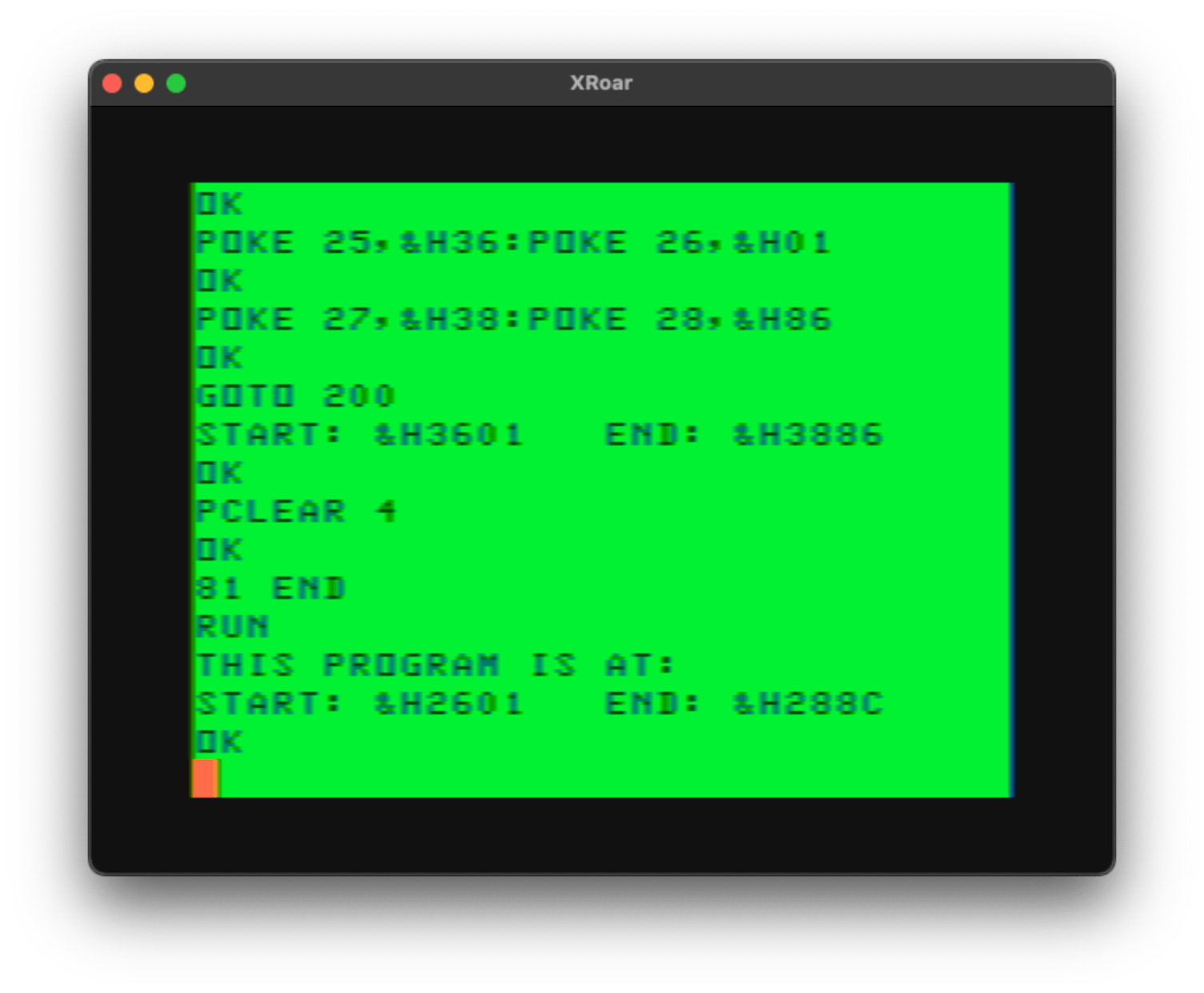
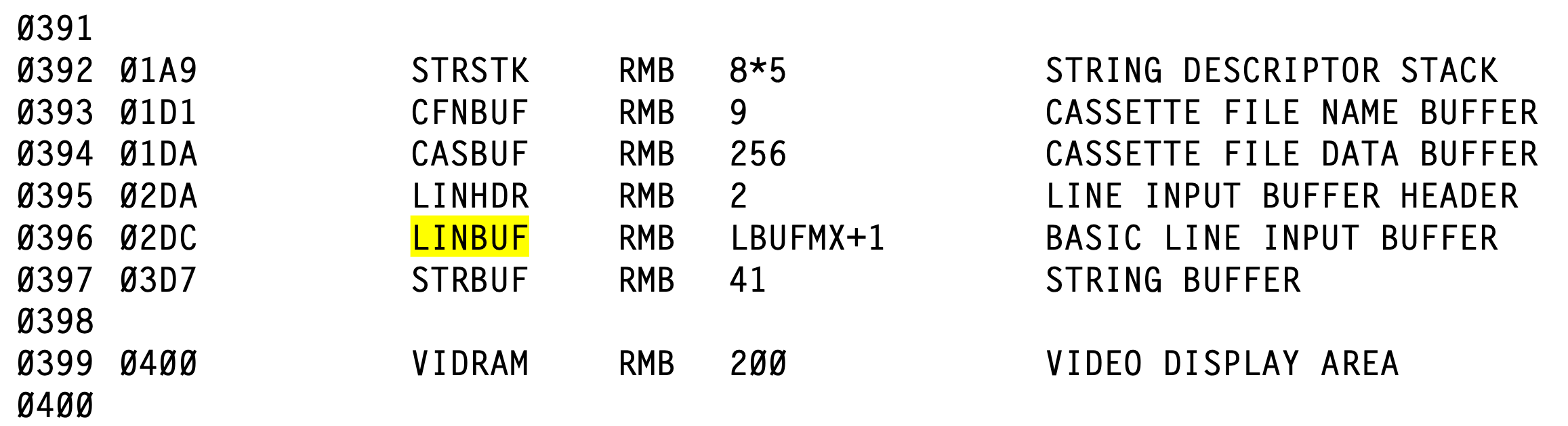
When Disk BASIC is added to the system, an extra 2K of memory is reserved for disk functionality. This memory is located directly after the 32-column screen memory (1024-1536) and it looks like this:
This is why a disk-based CoCo has less memory available for programs than a non-disk CoCo.
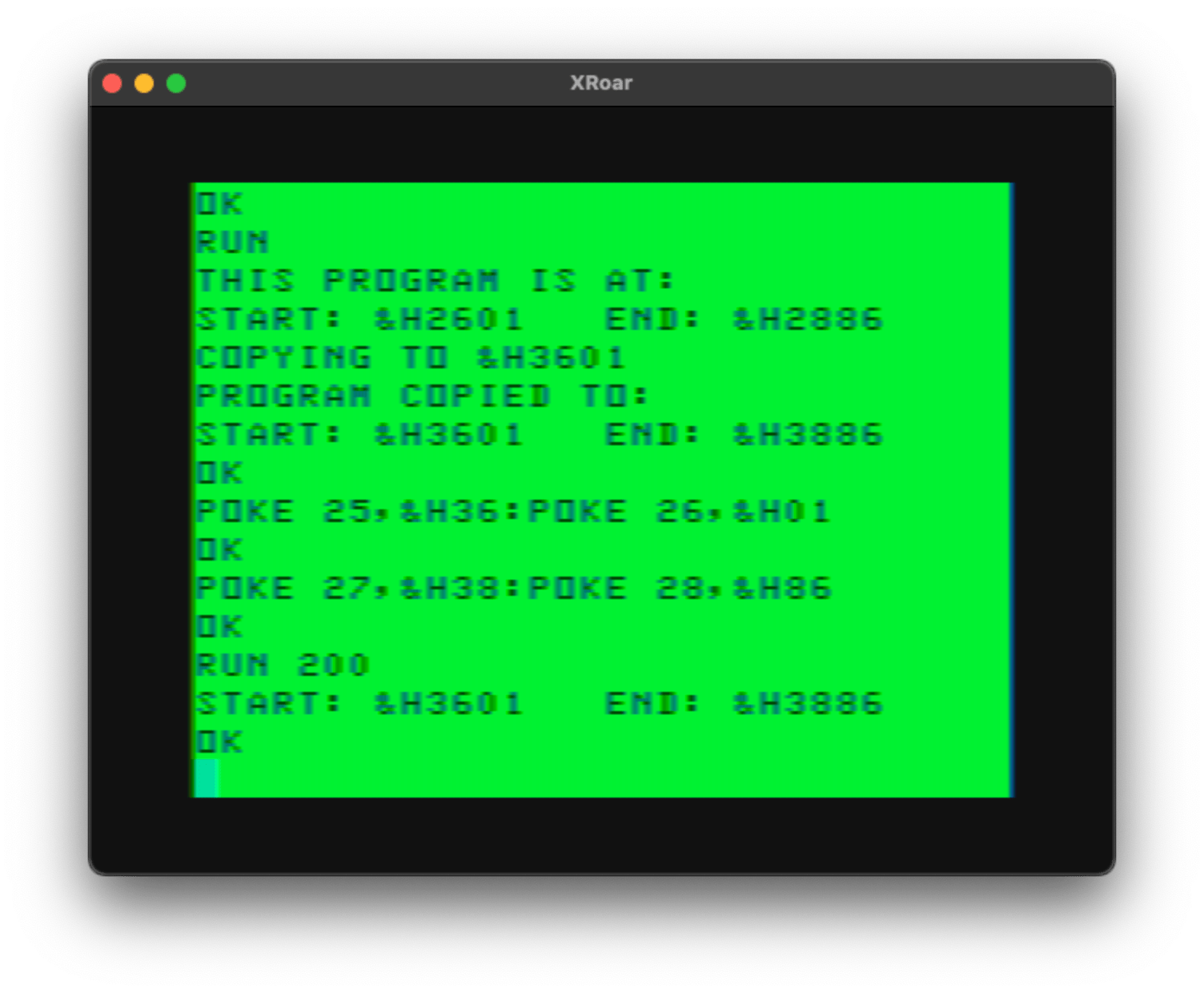
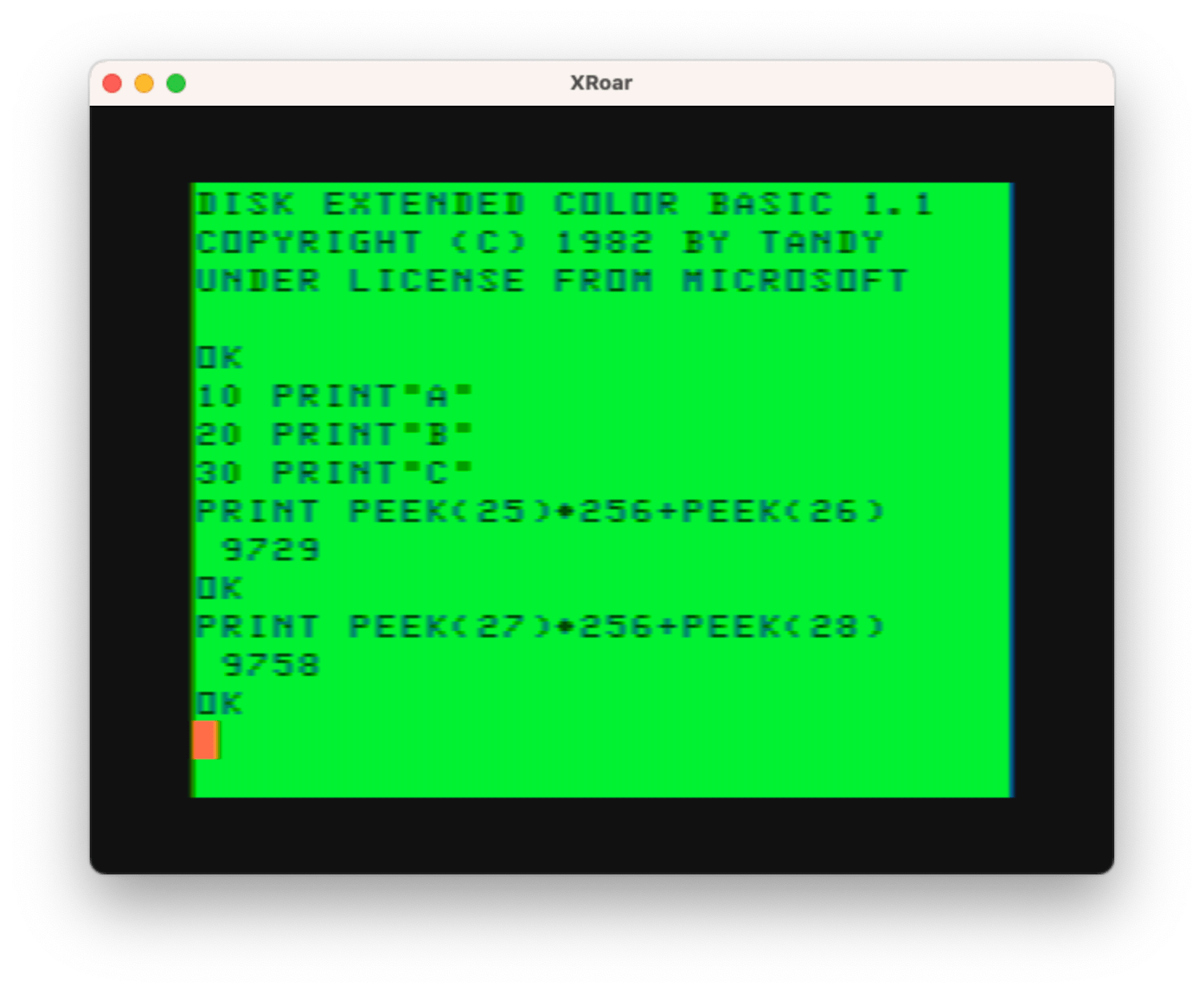
BASIC also reserves four pages of graphics memory (6144 bytes total) after this, which is why a BASIC program starts at 9729 in memory on a disk-based system. Memory locations 25 and 26 track where a BASIC program begins:
PRINT PEEK(25)*256+PEEK(26)
9729
While you can use the PCLEAR command to increase reserved graphics memory to eight pages maximum (PCLEAR 8), you cannot get rid of all of them. Due to an oversight or bug in Extended BASIC, “PCLEAR 0” is not valid. You always have to have at least 1536 bytes set aside for graphics, even if you aren’t using them. (Thus why I think this is a bug.) Look at my PCLEAR 0 article for details on how to perform a PCLEAR 0 and get the most memory for BASIC.
For this article, however, I wanted to dive a bit in to how memory is being used for Disk BASIC. If BASIC starts at 9729, and graphics memory is 6144 bytes before it, and the 32-column screen ends at 1536, I should be able to figure out how much memory is reserved for Disk BASIC.
Subtracting the size of graphics memory from the top of BASIC tells me where graphics memory should begin:
PRINT 9729-1-6144
3584
I subtract one there because the BASIC program starts at 9729, meaning the last byte of graphics memory is actually at 9728, one byte earlier.
And since I know the 32-column screen ends at 1535, bytes 1536 to 3135 should be for disk use:
PRINT 3584-1536
2048
Disk Basic is using memory from 1536 to 3584, followed by the graphics memory starting at 3585.
As the FILES manual entry states, by default there are two disk buffers (devices) reserved – #1 and #2. If you need more, you use the FILES command. You can go all the way to FILES 15 and have the ability to open fifteen files at the same time!
If you have enough memory, that is.
On startup, a Disk BASIC system has 22823 bytes available for BASIC. That includes room for two disk devices. If you aren’t using them, you can type FILES 0 and get some extra memory for BASIC:
Above, you can subtract the “after” memory 23335 minus the “before” memory 23823 and get 512. Disk device #1 and #2 take up 512 bytes.
And this tells me that manual entry is possibly wrong since it says “If you do not use FILES, the computer reserves enough memory space for two buffers (Buffer 1 and 2), and reserves a total of 256 bytes for those buffers.” (emphasis mine)
If FILES 2 reserves 256, going to FILES 0 should have only increased memory by 256 — not 512. Shouldn’t it?
I decided to write a program to show the memory after each amount of FILES buffers. I quickly learned that when you use the FILES command, it erases variables. There are other things in BASIC that will erase variables, like PCLEAR. It looks like BASIC just clears out variables rather than relocate them if they change.
Since I could not use a variable, doing this with a FOR/NEXT loop was not possible. So, BRUTE FORCE FOR THE WIN!
The semicolon at the end of the PRINT in line 160, and the endless loop GOTO on 170 just keep all fifteen lines on the screen without scrolling the top one off for the “OK” prompt. Running it gives me this:
Let’s look at that in text form, and I’ll highlight some odd entries:
FILES 0 – 22953
FILES 1 – 22953
FILES 2 – 22441
FILES 3 – 22441
FILES 4 – 21929
FILES 5 – 21417
FILES 6 – 21417
FILES 7 – 20905
FILES 8 – 20905
FILES 9 – 20393
FILES 10 – 20393
FILES 11 – 19881
FILES 12 – 19881
FILES 13 – 19369
FILES 14 – 19369
FILES 15 – 19369
The values immediately look odd, since memory doesn’t change between FILES 0 and FILES 1. But, FILES 0 seems to work. If you do that, you can’t OPEN “O”,#1,”FILES” without getting a ?DN ERROR (device number).
When FILES 2 happens, memory goes down by 512 bytes. FILES 3 doesn’t change anything, so it looks like it is allocating two buffers at a time, even if you just wanted one.
FILES 3 to FILES 4 goes down by 512 then FILES 4 to FILES 5 goes down by 512 as well.
That’s clearly not a pattern. In the above list, FILES 4 and FILES 13 to 15 stand out. For FILES 4, it jumps 512 for just that one addition device number, and for 13-15 they all report the same amount of memory.
I do not understand why. But, now that I know this, I can see you might as well use FILES 15 even if you only wanted FILES 13 because they take the same amount of memory.
Or do they?
Not-so-top secret FILES
There is a second option to FILES which is total size for how much memory is reserved for the buffers. But, it doesn’t work quite like I would expect. For example, if you do:
FILES 15,1000
PRINT MEM
…you should see 18215. 1000 bytes are being reserved for all fifteen buffers. But then if you do…
FILES 15,2000
PRINT MEM
…you might expect it to be 1000 less (17215) but on my system I see 17191 – 1024 bytes less. That’s 1K, so perhaps it’s just rounding to some multiple allocation size. We can test…
That wonderful brute force program shows us something interesting:
Even though each allocation is only asking for 100 bytes more, we only see increases in multiples of 512. That must be the allocation size Disk BASIC is using. This may mean that when we are allocating more buffers, the actual space they need in not a multiple of 512 so that produces the odd increases the first example demonstrated.
If you run this program, it starts off with 0 bytes used (MU) of an allocation of 0 (MA). It asks how much you want to allocate, and you can type in 100 bytes (A). If there isn’t enough memory allocated (MA) to fit another 100 bytes, it will add a new block of 512 (SZ) and continue.
I have not looked through the Disk BASIC manual to see if this is explained, nor have I looked at Disk Basic Unravelled, but I expect the answer is found in one of those.
For now, let’s just understand that using FILES with different values changes how much memory is reserved.
FILES this under…
With that understanding, the FILES command may be tricky to use efficiently in a complex program. Much like the CLEAR command reserving string space, knowing how much memory you need may take some thought if you don’t have enough free memory to just specify “a bunch.”
In a future article, I’d like to explore more about how these buffers are used, but in general it’s probably safe to assume that when we specify a record size for a direct access disk file:
OPEN "D",#1,"USERLOG",256
…and then use GET to read a record, that record has to go somewhere in memory. Above, with a record size of 256, I suspect we’d need at least a 256 byte buffer. Indeed, if you try to do this, you will get an ?OB ERROR (out of buffer space):
10 FILES 1,256
20 OPEN "D",#1,"USERLOG",300
...
But, changing the FILES command to specify 300 bytes for the buffer allows it to work:
10 FILES 1,300
20 OPEN "D",#1,"USERLOG",300
...
Oh. Maybe it is that easy to understand after all? And I suppose when we use multiple buffers (like reading from #1 and writing to #2), we’d need double that amount…
10 FILES 2,600
20 OPEN "D",#1,"OLDFILE",300
30 OPEN "D",#2,"NEWFILE",300
...
Indeed, FILES 2,600 works, but FILES 2,599 will show ?OB ERROR.
In a way, I’m surprised. I kind of expected the memory would be checked until you actually went to GET something, but I guess it pre-allocates.
This leaves me with another… What about FIELD? That command allows a record to be split up in to different fields and assigned to different variables. For example, if I wanted the 300 byte record to contain three 100 byte fields, I’d add:
10 FILES 2,600
20 OPEN "D",#1,"OLDFILE",300
25 FIELD #1,100 AS A$,100 AS B$,100 AS C$
30 OPEN "D",#2,"NEWFILE",300
...
…and this seems to work fine, so it doesn’t appear FIELD needs any extra space. (Note to self: look up how that works in the Unraveled disassembly book.)
I suppose this rabbit hole is pretty deep right now, so I’ll end this article by saying…
2023-02-09 – In the comments, Lee pointed out a type in the first example, which has been fixed, and an error in the logic of the final routine which tries to write a partial line if it cannot write all of it. The original code tried to write using LEN() of the string, but needs to be adjusted to subtract one, since the PRINT will add one extra character (carriage return) at the end. The code has been corrected, and actually tested not. Thanks, Lee!
In Disk BASIC, you can open a file for input and read from it like this:
10 CLEAR 255
20 OPEN "I",#1,FILE.TXT"
30 LINE INPUT #1,A$
40 PRINT A$
50 GOTO 30
That would keep reading lines (data terminated by an ENTER) from the file and printing it to the screen until it reached the end of the file. It would then crash and report an Input Past End Of File error:
?IE ERROR IN LINE 30
Avoiding IE ERROR
If we were using a fixed-format file, such as a configuration file, and we knew exactly what was expected to be in it, this wouldn’t be an issue. Suppose we had a file that just contained a Name, Address, City, State and Zip code. We could read just those entries like this:
0 ' NAME, ADDRESS, CITY, STATE, ZIP
10 PRINT "READING ADDRESS..."
20 OPEN "I",#1,"ADDRESS.TXT"
30 LINE INPUT #1,NM$
40 LINE INPUT #1,AD$
50 LINE INPUT #1,CT$
60 LINE INPUT #1,ST$
70 LINE INPUT #2,ZP$
80 CLOSE #1
For arbitrarily-sized files, like a text document from a word processor, you don’t know how many lines may be in it so that won’t work.
One solution is to write out how many lines are in the file as the first entry. For a file containing seven lines of text, it might look like this:
7
THIS IS THE FIRST LINE.
THIS IS SECOND.
AND THIRD IS HERE.
FOURTH CHECKING IN!
FIFTH FOREVER.
SIXTH GOES HERE.
AND THIS IS THE SEVENTH AND FINAL LINE.
A routine to read this might look like:
10 INPUT "I",#1,"FILE.TXT"
20 INPUT NL
30 FOR I=1 TO NL
40 LINE INPUT #1,A$
50 PRINT A$
60 NEXT
70 CLOSE #1
This can also be used on cassette files just by changing the device number from #1 to #-1.
EOF
Disk BASIC provides the EOF function that will return the status of an open input file. It will return 0 as long as there is more data in the file, or -1 if the end of the file has been reached. That simplifies the reader code to look like this:
10 OPEN "I",#1,"FILE.TXT"
20 IF EOF(1)=-1 THEN 60
30 LINE INPUT #1,A$
40 PRINT A$
50 GOTO 20
60 CLOSE #1
And again, by changing the device from #1 to #-1 and EOF(1) to EOF(-1) it should work on cassettes. (Note to self: Does it? I haven’t actually tried this in almost forty years.)
When it comes to writing data, if you try to write more than the disk can hold, say, in an endless loop like this…
10 OPEN "O",#1,"FILE.TXT
20 PRINT #1,"THIS LINE GOES IN THE FILE"
30 GOTO 20
…you will eventually fill up the disk and get a Disk Full error:
?DF ERROR IN 20
Avoiding DF ERROR
Unfortunately, EOF only works on files opened for input and there is no similar command that tests output. And if there were, how would it work? If it just returned “yes, there is still room” versus “no, the disk is full”, what does “still room” mean? One byte left? What if you wanted to write two bytes?
Let’s pretend there is a Disk Is Full command called DIF:
10 OPEN "I",#1,"FILE.TXT"
15 ' FAKE DIF FUNCTION THAT DOESN'T EXIST
20 IF DIF(1)=-1 THEN 50
30 PRINT #1,"THIS LINE GOES IN THE FILE"
40 GOTO 20
50 CLOSE #1
Above, if the disk still had room (even if it was just one byte), line 20 would return a 0 (“yep, there is still room”) and then we’d crash with a ?DF ERROR in the next line, since we tried to write more than that one byte left.
What we really need is a command that tells us how many more bytes of data we can write to the disk, and we don’t have that.
But we can make something close. Close-ish.
New features for FREE
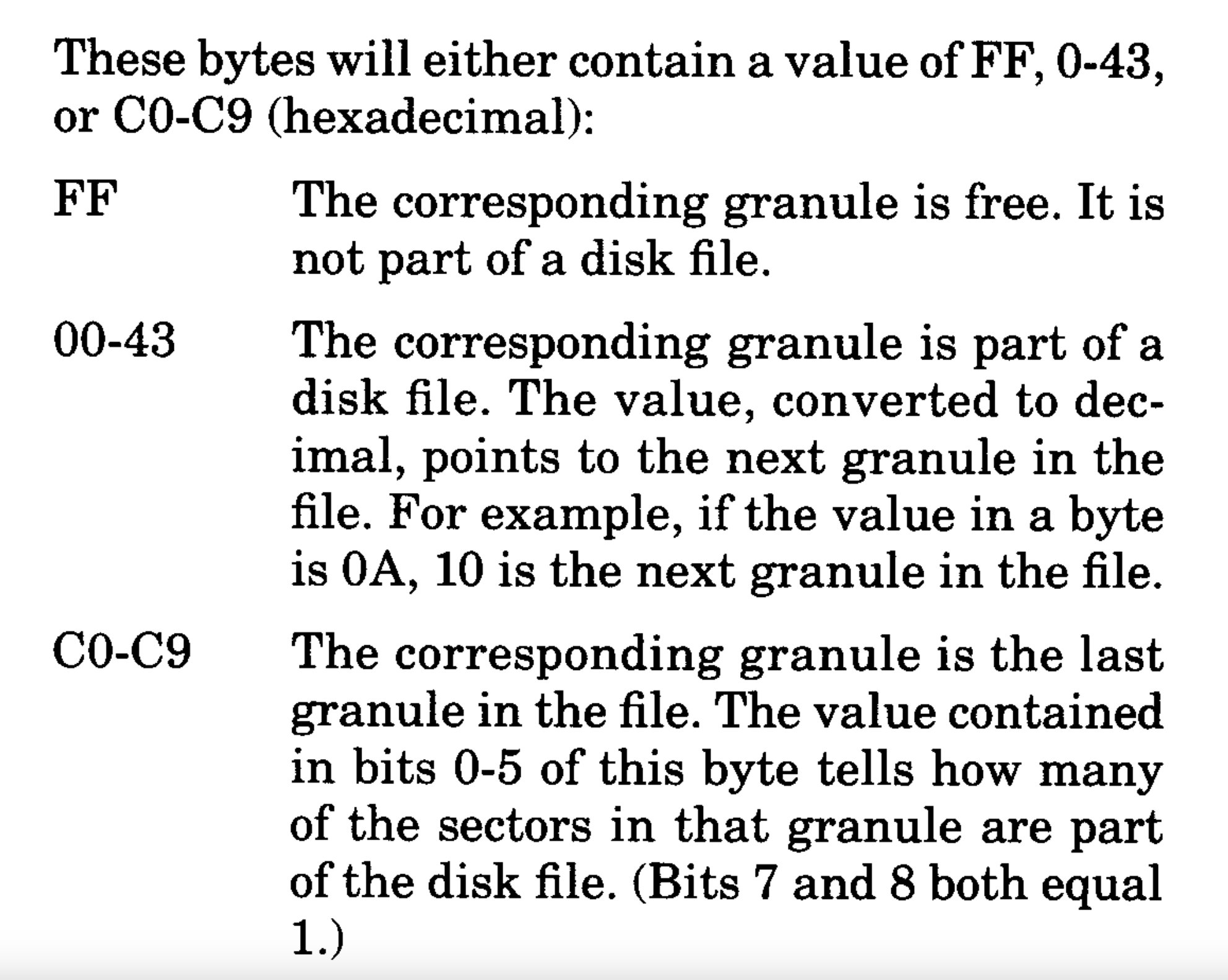
Disk BASIC has the FREE command which returns the number of free granules on a specified drive. There are 68 granules available on an empty disk. If you know what a granule is, that means something, but all I really knew back then was the largest program I’d ever seen was “13 grans”…
TL:DNR – A granule is 2304 bytes.
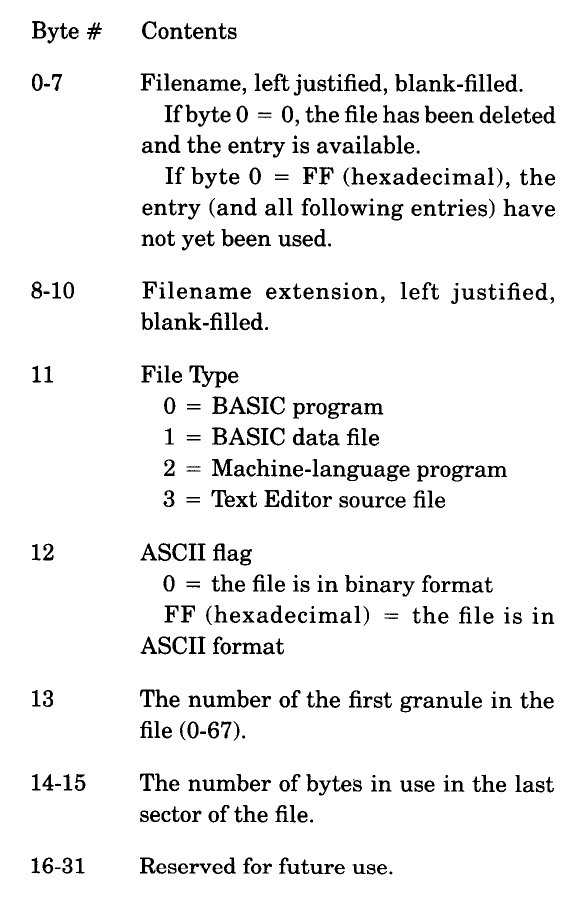
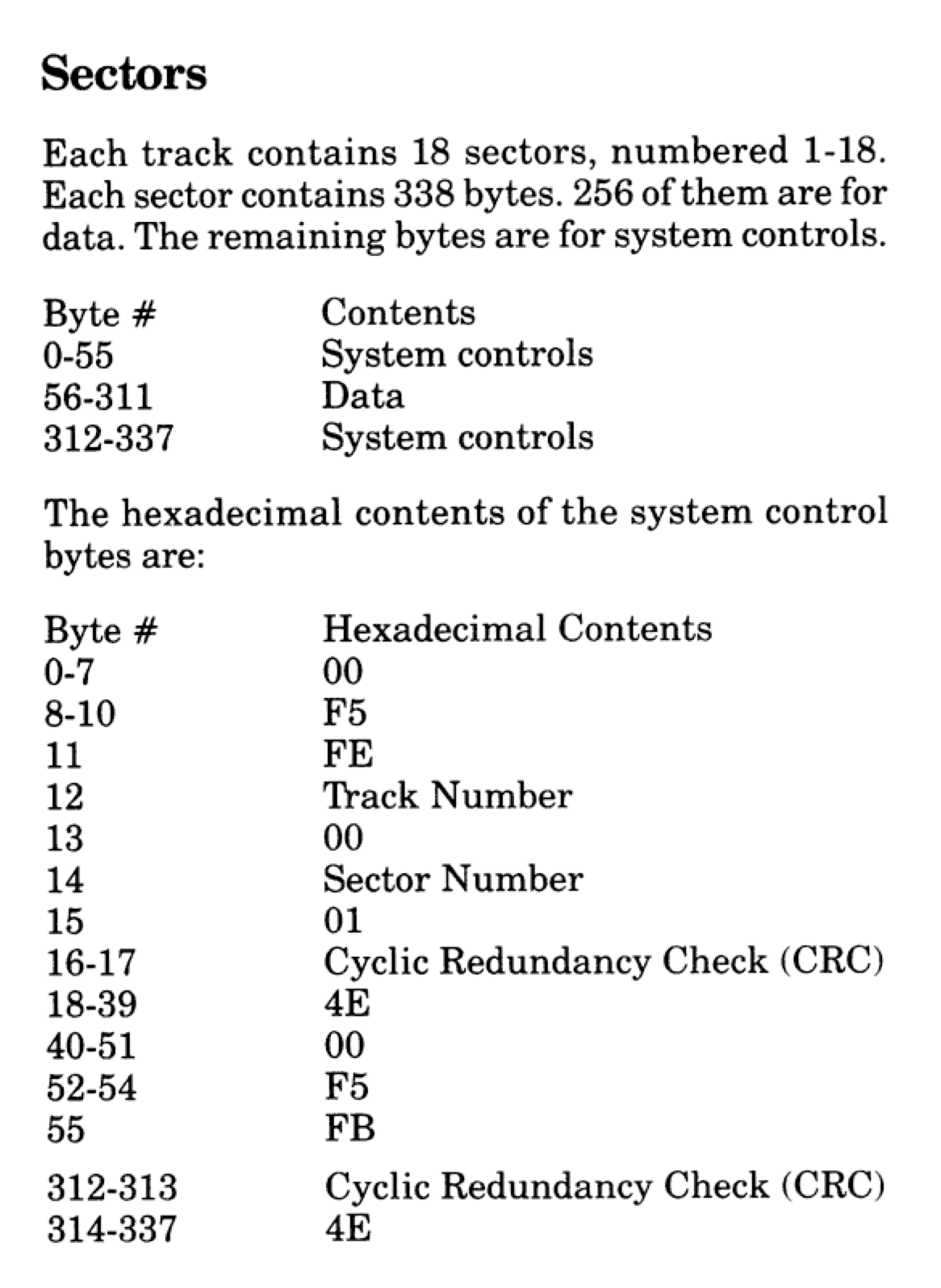
A CoCo RS-DOS (what we called Disk BASIC) disk is made up of thirty-five (35) tracks, each holding eighteen (18) 256-byte sectors. That is 161,280 bytes of storage (35 * 18 * 256), which really seemed like a bunch in the early 1980s! Track seventeen (17) is used for the disk directory and file allocation table (FAT), so there is really only 34 tracks you can use for programs or data storage which gives you 156,672 bytes (34 * 18 * 256).
For reasons I do not know, each track was divided up in to two (2) granules. That makes a granule represent nine (9) sectors. Therefore, a granule is 2304 bytes. (9 * 256 = 2304).
When FREE(0) returns 68 for an empty disk, that is 156,672 bytes free. You can multiply the value FREE returns by 2304 to see how many bytes are free.
On first glance, it seems like you could just check for FREE(0) to be 0, and stop writing when it is:
10 OPEN "I",#1,"FILE.TXT"
20 IF FREE(0)=0 THEN 50
30 PRINT #1,"THIS LINE GOES IN THE FILE"
40 GOTO 20
50 CLOSE #1
However, once a new file is created (even if you have written nothing to it yet), the number of free granules goes down by one since there is no longer a full granule available. This can be demonstrated using a program like this:
Running that on an empty disk should print the following:
RUN
68
67
67
Above, initially there were 68 granules available, then we opened/created a new file and then there were 67 granules used. We wrote one byte (“A”) to that new file and there were still 67 unused granules. We are creating a file an allocating that 68th granule for it, whether we write any data to it or not. After writing one byte to that granule, we can not tell how much room is left in it. This means if you had started with only ONE free granule and ran this program, you would see:
1
0
0
The moment the file was opened, a granule was consumed for this new file, leaving zero granules available. Thus, the check for FREE(0) being zero would immediately be satisfied, and even though you had bytes available to use in that granule, the program would skip writing because FREE was returning zero…
This approach simple won’t work if there is only one granule left (a file would be created, then no data would be allowed to be written). And, if there was more than one granule left, it would be wasteful since even writing one byte in to the new granule would count as “full” and the rest of those 2304 bytes would be wasted.
Side Note: Since the smallest amount of allocated space you can have is one granule, a file of one byte consumed 2304 bytes on the disk, just as a file of 2304 bytes would. MS-DOS and other file systems have the same issue with their allocation sizes.
Code compensation
Disk BASIC has no solution for us, by we can easily come up with our own. As long as we control what is being written, we should be able to determine the size of what is being written and do something like this:
0 '
1 ' DF - DISK FREE (BYTES)
2 ' DU - DISK USED (BYTES)
3 '
10 DF=FREE(0)*2304:DU=0
20 OPEN "O",#1,"FREETEST"
30 A$="WRITE THIS TO THE FILE"
40 IF DU<DF THEN GOSUB 1000 ELSE 60
50 GOTO 30
60 CLOSE #1
999 END
1000 ' WRITE A$ TO BUFFER #1
1001 ' COUNT BYTES WE WILL WRITE,
1002 ' ADD ONE FOR THE ENTER
1010 DU=DU+LEN(A$)+1
1020 IF DU<DF THEN PRINT #1,A$
1030 RETURN
The idea behind this code is that a subroutine is used to write whatever is in A$ to the disk file. That subroutine will keep track of how many bytes were written. In line 10, DF is initially set to the number of free bytes by taking FREE(0) and multiplying it by the size of a granule (2304 bytes). DU is how much of that has been used, so it starts out at 0.
In the main loop, as long as DU is less than DF, the subroutine can be called to (attempt to) write A$ to the disk file.
In the subroutine at line 1000, DU is incremented by the length of A$, and 1 is added since PRINT will add an ENTER character to the end of the line. If DU is less than DF, the line is actually written to the file. Otherwise, it is skipped.
This could be made more elegant, but it’s a simple approach that should work just fine.
Code compensation, improved
Some improvements might be to make it not just give up if all the data won’t fit, but to write as much as possibly leaving disk free at zero at the end. This could be done like this:
1000 ' WRITE A$ TO BUFFER #1
1001 ' COUNT BYTES WE WILL WRITE,
1002 ' ADD ONE FOR THE ENTER
1010 LN=LEN(A$)+1
1020 IF DU+LN>DF THEN LN=DF-DU
1030 IF LN>0 THEN PRINT #1,LEFT$(A$,LN-1)
1040 DU=DU+LN
1050 RETURN
…or something like that. The idea is if there is only ten bytes left, and you try to write 15, it will just right the first ten bytes of that string and then RETURN. This, too, could be made more elegant.
How would you improve it? Leave your suggestions in the comments…
Sadly, there’s not much you can do when using a cassette since there is no way to know how much tape is left.
It was almost identical to the description of how to use PRINT for disk access, except PRINT mentioned a semicolon:
I don’t remember if I used PRINT or WRITE back then, but “knowing what I now know” I wondered if this Disk BASIC command would work with other device numbers, such as tape (#-1) or screen (#0). I gave it a try, and found it did work with #0 to print a message to the screen. This is how I learned the difference between WRITE and PRINT:
It appears WRITE will enclose the string in quotes. When I tested with a numeric variable, it looked the same as PRINT output. I also noticed you couldn’t end a WRITE line with a semicolon (thus, maybe, the reference to PRINT being able to use a semicolon in the manual).
If you look above, you will also see WRITE was trying to add a comma, which led me down a rabbit hole trying to figure out what all was going on.
Comma little bit closer
Some quick experiments showed me that WRITE was doing much more than just acting like a PRINT replacement that could not use a semicolon. WRITE ignores TAB positions, which normally happen when you try to PRINT something separated by a comma. For the CoCo’s 32-column screen, the comma uses 16 for the tab position so if you print…
PRINT "THIS","THAT"
…you will get something like this:
12345678901234567890123456789012
+--------------------------------+
|THIS THAT | 32-col screen
| |
If you use PRINT to put messages in a file on tape or disk, I expect they would have the tab spaces inserted in the file as well.
Tangent testing
Obviously I had to test that. I decided to take my hexdump program I shared last time and modify it to dump the bytes in a file I wrote to using PRINT and commas to see what was in it. The program looks like this:
0 'DUMPFILE.BAS
10 ' CREATE TEST FILE
20 OPEN "O",#1,"TEST"
30 PRINT #1,"THIS","THAT","OTHER"
40 CLOSE #1
50 ' DUMP TEST FILE
60 OPEN "D",#1,"TEST",1
70 FIELD #1,1 AS BT$
80 OF=0:C=0
90 FOR R=1 TO LOF(1)
100 IF C=0 THEN PRINT:PRINT USING"#### ";OF;
110 GET #1,R
120 BT=ASC(BT$)
130 IF BT<&H10 THEN PRINT "0";
140 PRINT HEX$(BT);" ";
150 C=C+1:IF C>7 THEN C=0
160 OF=OF+1
170 NEXT
180 CLOSE #1
When I ran that, I did see that it was padding the words with spaces out to the 16 character tab position:
Above, I PRINTed “THIS”, “THAT” and “OTHER” to the file, separated by commas. In the hex dump output, the hex values 54 38 39 53 are “THIS”, followed by hex value 20s (space). You can see it goes all the way to the end of the second line. Each hex dump line represents eight characters, so the comma tabbed out to the 16th character.
At offset 16 are hex values 54 48 41 54 which is “THAT”, followed by spaces out to the next 16th tab position (end of line four).
At offset 32 there is just 4F 54 48 45 52 which is “OTHER” followed by 0D which is CHR$(13) for ENTER.
Checks out! But I digress…
PRINT versus WRITE versus COMMAS
WRITE, on the other hand, will put string items in quotes and output a comma character rather than tab spaces. Here’s an example of WRITE versus PRINT:
With this understood, the difference between WRITE and PRINT now becomes clear.
SIDE NOTE: Just like with PRINT, you don’t need to specify device #0. You can simply do WRITE “HELLO, WORLD!” and you will get a nicely quoted “HELLO, WORLD!” message to the screen.
If I were to modify the test program to use WRITE instead of PRINT, it would look like this:
0 'DUMPFILE2.BAS
10 ' CREATE TEST FILE
20 OPEN "O",#1,"TEST"
30 WRITE #1,"THIS","THAT","OTHER"
40 CLOSE #1
50 ' DUMP TEST FILE
60 OPEN "D",#1,"TEST",1
70 FIELD #1,1 AS BT$
80 OF=0:C=0
90 FOR R=1 TO LOF(1)
100 IF C=0 THEN PRINT:PRINT USING"#### ";OF;
110 GET #1,R
120 BT=ASC(BT$)
130 IF BT<&H10 THEN PRINT "0";
140 PRINT HEX$(BT);" ";
150 C=C+1:IF C>7 THEN C=0
160 OF=OF+1
170 NEXT
180 CLOSE #1
And if I run that, I expect we’d see the addition of the quote character around each word, and a comma character in place of the run of spaces that PRINT added. Let’s try:
It looks like it works as predicated. Hex 22 must be the quote character, then 54 48 49 53 is “THIS”, then a closing quote 22, followed by a 2C which must be the comma, then another quote 22 and “THAT” followed by a quote 22, then another comma 2C, then a quote 22 and “OTHER” with a final quote 22 and ENTER 0D.
That really packs the data much better than using PRINT. I had no idea when I was PRINTing comma separated numbers to a file it was padding them out with all those spaces! Apparently, when you INPUT the data back, it must be checking for the spaces to know where the next value starts or something, or maybe that won’t work at all. I need to test this, sometime, too…
There’s no time like sometime
I wrote a simple program that PRINTs out three strings separated by commas and reads them back.
0 'PRINTREAD.BAS
5 A$="HELLO, WORLD!"
6 B$="DON'T PANIC!"
7 C$="WELL... OKAY, THEN."
10 OPEN "O",#1,"TEST"
20 PRINT #1,A$,B$,C$
30 CLOSE #1
40 '
50 OPEN "I",#1,"TEST"
60 INPUT #1,X$,Y$,Z$
70 PRINT X$:PRINT Y$:PRINT Z$
80 CLOSE #1
Running this gives me results I do not want:
This is because INPUT separates things by a comma, so if the string is:
HELLO, WORLD!
…doing INPUT A$,B$ would put “HELLO,” in A$, and “WORLD!” in B$. But the output above doesn’t quite look like that, and that’s due to there being no commas between the three strings we PRINTed. Instead, it was adding spaces to the next TAB position. Therefore, if we looked at the contents of the file as if it was the screen, the data might look like:
BUT! If you type that in and hit enter, you will then see “?? ” as a prompt, because BASIC is looking for the third parameter. It found an element, then a comma (that was the first so it goes in to A$), then a bunch of stuff and an end of line (that goes in to B$) and still wants to find the C$. If you do:
10 INPUT A$,B$,C$
20 PRINT A$:PRINT B$:PRINT C$
And RUN that, you can type each of those three items on a line by itself and it will work.
RUN
? THIS
?? THAT
?? OTHER
THIS
THAT
OTHER
BUT, if you are doing an INPUT from a file, there is no way to prompt the user that something is missing, so apparently INPUT just skips it and returns what it was able to find.
To make INPUT accept a comma as part of what you type, you can surround it by quotes. That would let you do this:
RUN
? "HELLO, WORLD!"
?? "I THINK, THEREFORE..."
?? "BUT, WAIT!"
HELLO, WORLD!
I THINK, THEREFORE...
BUT, WAIT!
INPUT requires the quotes so it doesn’t split up a string that might contain a comma. Which means you could have typed them all on one line like this:
RUN
? "HELLO, WORLD!","I THINK, THEREFORE...","BUT, WAIT!"
HELLO, WORLD!
I THINK, THEREFORE...
BUT, WAIT!
In order to output a quoted string to a file, you would have had to manually add the quote characters using CHR$(34) like this:
PRINT #1,CHR$(34)"THIS WILL BE QUOTED"CHR$(34)
And, when using output to cassettes, I guess that’s how you had to do it, since there was no WRITE command in Color BASIC or Extended Color BASIC!
And, since the first example didn’t have enough commas to use to separate the string values, you cannot use PRINT like that for strings and expect INPUT to read them back:
0 'NOWORKY.BAS
10 OPEN "O",#1,"TEST"
20 PRINT #1,"THIS","THAT","OTHER"
30 CLOSE #1
40 '
50 OPEN "I",#1,"TEST"
60 INPUT #1,A$,B$,C$
70 PRINT A$:PRINT B$:PRINT C$
80 CLOSE #1
The above program will produce an ?IE ERROR IN 60 because it never found a comma and therefore only sees one long entry that looks like those three words with a bunch of spaces between each of them. The only reason the previous example got as far as it did was due to having a comma in one of the strings. #TheMoreYouKnow
Input Crosses the Line
Extended BASIC added the LINE INPUT command which can only input strings, and drops support for the comma. It treats everything as a literal string (which can contain commas and even quotes). It is a superior INPUT for strings. You can do:
10 LINE INPUT "TYPE:";A$
20 PRINT A$
…and then you can type things that contain a comma and it works just fine:
RUN
TYPE:THIS, MY FRIENDS, IS COOL.
THIS, MY FRIENDS, IS COOL.
It also allows you to have quotes in the string:
RUN
TYPE:"I AM QUOTED!"
"I AM QUOTED!"
While you can use LINE INPUT on tape or disk files (if you have Extended or Disk BASIC), you can no longer separate data with commas. This means only one entry per line in the file.
If you want to use INPUT so you can have multiple items on each line, you either need to make sure they don’t contain commas or, if they do, quote them, and put commas between each quoted string.
PRINT #1,CHR$(34)"THIS"CHR$(34)","CHR$(34)"THAT"CHR$(34)","CHR$(34)"AND, OF COURSE, OTHER"CHR$(34)
Or use WRITE and it takes care of that for you.
WRITE #1,"THIS","THAT","AND, OF COURSE, OTHER"
Changing the example to use WRITE instead of PRINT works nicely:
And that, in a nutshell, is the difference between using WRITE and PRINT, and why you might want to use WRITE/PRINT versus PRINT/LINE INPUT.
Bonus Tip
In a comment to the previous entry, William “Lost Wizard” Astle added:
You can also use “R” for random files. It’s exactly the same as “D”.
– William Astle
So I guess OPEN “R”,#1,”FILE” and OPEN “D”,#1,”FILE” do the same thing. If I ever knew that, I don’t now. Well, except now I do, again or for the first time, thanks to William.
On a tape-based Color Computer (Color BASIC or Extended Color BASIC), you could write data out to a tape file by opening device #-1 for Output (“O”) like this:
0 'TAPEWRIT.BAS
10 OPEN "O",#-1,"MYFILE"
20 PRINT #-1,"THIS IS IN THE FILE"
30 PRINT #-1,"SO IS THIS"
40 PRINT #-1,"AND THIS IS AS WELL"
50 CLOSE #-1
By having a tape inserted in the recorder, and PLAY+RECORD pressed, when that program runs the cassette relay in the computer would click on, starting the tape motor, and the three lines of text would be written to the file. The file would look like this:
THIS IS IN THE FILE(enter)
SO IS THIS(enter)
AND THIS IS AS WELL(enter)
After rewinding the tape and pressing PLAY, running this program would open the same file for Input (“I”) and read and display that data:
0 'TAPEREAD.BAS
10 OPEN "I",#-1,"MYFILE"
20 IF EOF(-1)=-1 THEN 60
30 INPUT #-1, A$
40 PRINT A$
50 GOTO 20
60 CLOSE #-1
NOTE: In line 30, if you have Extended Color BASIC, if reading strings use LINE INPUT instead of INPUT. That will allow lines that have commas, quotes, and other special characters in it, which INPUT will not.
In line 20, the EOF function is used to check if there is more data in the file. If you knew exactly how much data was in the file (like a configuration file that always has the same information), you could just do that many INPUTs. If the amount of data is not known, EOF must be used to avoid an end-of-file error when you try to read past the end of data.
Now you have a simple program that would read and print as many lines as are in the file.
Disks Do More
When a floppy disk controller is added, Disk BASIC comes along for the ride. While cassettes use device #-1, disks can use devices #1 to #15. This allows multiple files to be open at the same time, and on different drives. (Disk BASIC supported four floppy drives simultaneously.)
We can change the above sequential file programs to work on a disk system just by changing device #-1 to be device #1:
0 'DISKWRIT.BAS
10 OPEN "O",#1,"MYFILE.TXT"
20 PRINT #1,"THIS IS IN THE FILE"
30 PRINT #1,"SO IS THIS"
40 PRINT #1,"AND THIS IS AS WELL"
50 CLOSE #1
…and…
0 'DISKREAD.BAS
10 OPEN "I",#1,"MYFILE.TXT"
20 IF EOF(1)=-1 THEN 60
30 LINE INPUT #1, A$
40 PRINT A$
50 GOTO 20
60 CLOSE #1
The only change I made other than the device number was adding an extension to the filename. Since a disk file can have a three-character extension, I used “.TXT”. If you leave off the extension, it will be created as “.DAT” for a data file.
With a sequential file, each entry is expected to have a carriage return at the end. You can write out a single line, like the earlier example:
PRINT #1,"THIS IS AN ENTRY"
…or even write out numeric data, separated by commas:
PRINT #1,A,B,C,D
In the disk file will either be “THIS IS AN ENTRY” with an ENTER at the end, or the three numbers with an ENTER at the end.
5 A=1:B=2:C=3
10 OPEN "O",#1,"NUMBERS"
20 PRINT #1,A,B,C
30 CLOSE #1
40 '
50 OPEN "I",#1,"NUMBERS"
60 INPUT #1,X,Y,Z
70 PRINT X;Y;Z
80 CLOSE #1
As the name implies, data is sequential — one after the next. If you had a file with 1000 entries in it, and wanted to get to the 1000th entry, you would have to read through the 999 entries first.
Direct Access
A far more powerful form of disk access is Direct. This allows you to create a file that is not made of arbitraty strings that end in a carriage return. Instead, the file can be a set of records (of a size you specify). This is done by using the “D”irect access mode and specifying the record size at the end of the OPEN.
With a direct access file, you can specify a record size, and then write or read to any record you want. (This is usually called “random access” these days.)
Here is an example that creates a file with 32-byte records, and writes three entries to it:
0 'DISKWRIT2.BAS
10 OPEN "D",#1,"MYFILE2.TXT",32
20 PRINT #1,"THIS IS IN THE FILE"
25 PUT #1,1
30 PRINT #1,"SO IS THIS"
35 PUT #1,2
40 PRINT #1,"AND THIS IS AS WELL"
45 PUT #1,3
50 CLOSE #1
For a direct access file, using PRINT (or the WRITE command, which seems to do the same thing), the data goes in to a buffer and won’t be written to the disk until PUT is used to tell it which record of the disk file to write it to. The file would look like this:
11111111111222222222233
12345678901234567890123456789012
+--------------------------------+
|THIS IS IN THE FILE | record 1
+--------------------------------+
|SO IS THIS | record 2
+--------------------------------+
|AND THIS IS AS WELL | record 3
+--------------------------------+
(There would also be an ENTER at the end of each line, normally.)
The program to read back and display the records looks like this:
0 'DISKREAD2.BAS
10 OPEN "D",#1,"MYFILE2.TXT",32
20 FOR R=1 TO LOF(1)
30 GET #1,R
40 LINE INPUT #1,A$
50 PRINT A$
60 NEXT
70 CLOSE #1
Above, you see the addition of “,32” to specify 32 byte records, and the use of LOF which is the length of file (number of records). In our example, this should be 3, matching the three records we wrote in the previous example.
To load a record in to the buffer, GET is used, followed by a LINE INPUT to read it in to a string.
Now if 1000 entries had been written in to a direct access file, we could retrieve any record we wanted just by using GET #1,42:LINE INPUT A$ or whatever.
Breaking Records
A record can be treated like a string of a maximum size. When you PRINT or WRITE that record, it must be smaller than the record size, and have the ENTER at the end. The ENTER is needed for INPUT/LINE INPUT to know where the end of that record is.
But, you can also break a record up in to specific entries. For instance, first name, middle initial, and last name. This is done using the FIELD command. You tell it the buffer (device) number and how many bytes to assign to a variable. For example, if you wanted a 32 byte record to look like this:
11111 11111111
12345678901234|1|12345678901234567
+--------------+-+-----------------+
| First Name |I| Last Name |
+--------------+-+-----------------+
…with fourteen (14) characters for the First Name, one (1) character for the Initial, and fifteen (17) characters for the Last Name, and you wanted them in variables F$, I$, L$, you would use:
FIELD #1,14 AS F$,1 AS I$,17 AS L$
(I wanted to use FN$ for first name but FN is a reserved keyword used for the DEF FN function and it cannot be used for a variable.)
If you do that, you no longer use INPUT/LINE INPUT. Instead, when you GET the record, it loads the appropriate bytes in to the variables for you! Nifty!
And, to write it, you reverse the process by loading the variables (using LSET or RSET) and then using PUT. Also nifty! Here is a program that adds three First/Initial/Last records:
0 'DISKWRIT3.BAS
10 OPEN "D",#1,"NAMES.DAT",32
15 FIELD #1,14 AS F$,1 AS I$,17 AS L$
20 LSET F$="ALLEN":LSET I$="C":LSET L$="HUFFMAN"
25 PUT #1,1
30 LSET F$="ARTHUR":LSET I$="P":LSET L$="DENT"
35 PUT #1,2
40 LSET F$="TRICIA":LSET I$="M":LSET L$="MCMILLAN"
45 PUT #1,3
50 CLOSE #1
If you try to just assign the variable and then PUT, it doesn’t work (or at least, did not for me). The example in the Disk BASIC manual show this being done with LSET and RSET to assign those variables to the buffer (left or right justified). After the write, the disk file looks something like this:
11111 11111111
|12345678901234|1|12345678901234567
+--------------+-+-----------------+
|ALLEN |C|HUFFMAN | record 1
+--------------+-+-----------------+
|ARTHUR |P|DENT | record 2
+--------------+-+-----------------+
|TRICIA |M|MCMILLAN | record 3
+--------------+-+-----------------+
Using LSET puts the entry in to the left, and using RSET would right justify it instead. (What is this for, anyone know?) RESET would make the file look like this:
11111 11111111
12345678901234|1|12345678901234567
+--------------+-+-----------------+
| ALLEN|C| HUFFMAN| record 1
+--------------+-+-----------------+
| ARTHUR|P| DENT| record 2
+--------------+-+-----------------+
| TRICIA|M| MCMILLAN| record 3
+--------------+-+-----------------+
…and here is the program that reads them back and displays them:
0 'DISKREAD3.BAS
10 OPEN "D",#1,"NAMES.DAT",32
15 FIELD #1,14 AS F$,1 AS I$,17 AS L$
20 FOR R=1 TO LOF(1)
30 GET #1,R
40 PRINT F$;" ";I$;". ";L$
60 NEXT
70 CLOSE #1
With this in mind, we could make a program that dumps out all the bytes in a file by making the record size one (1) byte, like this:
0 'DIRECT.BAS
10 '
11 ' CREATE A FILE
12 '
20 OPEN "O",#1,"FILE.TXT"
30 PRINT #1,"DON'T PANIC!"
40 CLOSE #1
100 '
101 ' OPEN DIRECT ACCESS
102 '
110 OPEN "D",#1,"FILE.TXT",1
115 FIELD #1,1 AS BT$
120 NR=LOF(1)
130 PRINT "RECORDS: ";NR
140 FOR R=1 TO NR
150 GET #1,R
170 PRINT ASC(BT$);
180 NEXT
190 CLOSE #1
The important part are lines 100-190. You could remove the earlier lines that just make a test file, and modify this to “dump” any file you want. Here’s a simple HEX dump program:
0 'HEXDUMP.BAS
10 LINE INPUT "FILENAME:";F$
20 OPEN "D",#1,F$,1
30 FIELD #1,1 AS BT$
40 OF=0:C=0
50 FOR R=1 TO LOF(1)
60 IF C=0 THEN PRINT:PRINT USING"#### ";OF;
70 GET #1,R
80 BT=ASC(BT$)
90 IF BT<&H10 THEN PRINT "0";
100 PRINT HEX$(BT);" ";
110 C=C+1:IF C>7 THEN C=0
120 OF=OF+1
140 NEXT
150 CLOSE #1
There is more you can do with Disk BASIC, so here are a few references to get you started:
Recently, I accepted a Fiverr project to needed to sharpen and enhance a video. My Topaz Labs Video AI was unable to do anything useful, so I tried converting the entire video to photos and running through through their photo tools like Photo AI. Using the open source ffmpeg, I did it like this:
Movie to Images using ffmpeg
ffmpeg -i “input.mp4 frames-full/frame%d.jpg
That command creates jpg image files in a subfolder called “frames-full” for every frame of the original video. In my case, the original video was shot at 59.94 frames per second and created a ton of image files.
Processing 20,000+ images was going to take days, so I decided to just process it as 29.97 frames per second (standard US video rate) which would cut my processing time in half. To do this, I needed to delete every other image. I was able to use the “find” command to search for any matching filename that ended in 0, 2, 4, 6 or 8 (an even number):
find . -name "frame[0-9]*[02468].jpg"
One neat thing about the modern macOS file system is you can make a duplicate of a folder before doing something dangerous like command line deletes! The duplicate doesn’t take up extra space (beyond a bit of directory overhead) so that let me experiment over and over until I figured it out.
Now I had frame1.jpg, frame3.jpg, frame5.jpg and so on. After processing these files, I would need to re-assemble them using ffmpeg at the 29.97 frame rate. Here is the command for that:
A bit of trail and error led me to this simple script that divides the number by 2, and since there is no floating point, all I needed to do was add one to the number and then do the division. 3 became 1+3 which is 4, which divided by 2 became 2:
That let me simply rename the original number to the new number and get what I wanted. Here is the script, though it is hard coded to the number of files I needed. You’d have to change that since it’s not smart enough to figure this out (like, “stop when you find a file that doesn’t exist”). Also, it starts at 3 since frame1.jpg would be renamed to frame1.jpg which probably produces an error:
#!/bin/bash
# find . -name "frame[0-9]*[02468].jpg"
# Delete even-numbered files
for ((i=3;i<=26999;i=i+2))
do
file="frame${i}.jpg"
j=$((i/2+1))
if [ -f "$file" ]; then
echo "Renaming $file"
mv "$file" "frame${j}.jpg"
fi
done
I just wanted to post this here in case anyone else ever needs to do the same thing…
Here is a quick tutorial on an often-asked question about the XRoar emulator:
How do you load/save a program to/from disk/tape?
– Folks
Cassette Tapes
Since the XRoar emulator can emulate a floppy drive, there’s no real reason to mess with virtual cassette tapes unless you just want the experience, need the extra memory (disk systems have about 2K less memory), or are using software that does not support floppy disks.
But, if you still want to save your BASIC programs to a virtual cassette, and load it back, here are the steps.
The tape used for writing is considered separate to the read tape (this is an emulator-friendly approach to prevent overwriting your programs, though it would have been possible with two cassette decks).
That is likely the cause of confusion for many/most/all who try to use this the first time.
To save your program to tape, you must first mount (or create new) an Output Tape:
File -> Cassette -> Output Tape…
That will pop up a file explorer, and you can browse to an existing tape image, or select a location and create a new tape like “tape.cas” (where “cas” means cassette).
Once that is there, you can save your program as normal using CSAVE (or CSAVEM for machine language):
10 PRINT "HELLO, TAPE!"
20 GOTO 10
CSAVE "HELLO"
That file is now saved to the virtual tape. On a real cassette system, you would have to rewind the tape before you can load the program back in. But, if you try to use “File -> Cassette -> Rewind Output Tape” you still won’t be able to load. That tape is output only. You would just be rewinding it so you can overwrite whatever is there if you save something new.
Instead, you mount this tape image as an Input Tape:
File -> Cassette -> Input Tape…
You then can browse and select the “tape.cas” you made earlier. Now you can load the program using CLOAD (or CLOADM for machine language) and it will be back in memory:
CLOAD "HELLO"
LIST
10 PRINT "HELLO, TAPE!"
20 GOTO 10
OK
To reload, you need to to “File -> Cassette -> Rewind Input Tape”.
It appears you can have the same tape mounted for both Input and Output, but you need to re-mount the input each time you want to see the updated files on the Output tape.
In my test, I mounted an Output tape and then did a CSAVE”HELLO” of the program. After that, I mounted the tape for Input and did a CLOAD to get it back. I then did CSAVE”HELLO2″ and CSAVE”HELLO3″ to add two more copies to the Output tape.
Rewinding the Input tape did not get me those new files, but re-mounting (File -> Cassette -> Input Tape…”) and selecting the same .cas file again did let me load all three.
I’d enjoy XRoar having a “one tape” mode that worked like a real cassette deck. That would probably be much easier for folks to start using.
Here’s a quick video showing the basic process:
Floppy Disks
XRoar handles floppy disks more like real hardware, but as of version 1.2, it still defaults to having disk images being temporary. If you mount and use a disk image, when you shut down, all your changes are lost. It was intended for casual users who would be mounting disks and running programs, as opposed to folks programming and saving new data. A menu option (or entry in the xroar.conf config file) changes disks images to “write back” and work like normal.
Here are the steps:
First, you need an existing disk image, or you can create one:
File -> Drive 1 -> New Disk…
Browse to where you want the new disk image to be saved, and give it a name like “mydisk.dsk”
Drive 1 (which is 0 to DISK BASIC) is now ready, but just like a real floppy, you must format it before you can use it. Use the disk initialize command to do this:
DSKINI 0
You should now be able to type “DIR” and see an empty disk. BUT, if you save things to it, those changes will be lost (or maybe not even be able to save, if the disk is write protected and gives you a ?WP ERROR just like a real disk did when you taped over the write protect notch).
Turn on “Write Enable” to make the disk NOT write protected, and turn on “Write Back” to ensure anything you write will actually go back on the disk and not be discarded on exit:
Now you can save and load programs as normal:
10 PRINT "HELLO, DISK!"
20 GOTO 10
SAVE "HELLO"
DIR
HELLO BAS 0 B 1
OK
As long as Write Enable is checked, the disk won’t be write protected. As long as Write Back is checked, your changes should save when you exit XRoar (or eject the disk).
The next time you startup XRoar, you can use the Ctrl-1 shortcut to mount Drive 1, and just browse to your “mydisk.dsk” image and start using it.
You will still need to check Write Back every time, unless you add that to your xroar.conf config file. You can set that up so it automatically mounts disk images, tape files, etc. as well as setting default machine, memory size, TV mode (simulated, RGB monitor, etc.)