C strcat, strcpy and armageddon, part 4

See also: part 1, part 2, part 3, part 4, part 5 and part 6.

The story so far . . . String copies can be made much safer by using strncpy() instead of strcpy(). strncpy() will take up slightly more code space than strcpy() and may be slower.

Now let’s move on to appending strings with strcat() (“string concatenate”). From the very-useful cplusplus.com website:

  • strcat( char *destination, const char *source ) – Concatenate strings. Appends a copy of the source string to the destination string. The terminating null character in destination is overwritten by the first character of source, and a null-character is included at the end of the new string formed by the concatenation of both in destination.

As an example of normal use, perhaps you want to take two string buffers that contain a first and last name, and put them together and make a full name string buffer:

char firstName[40];
char lastName[40];
char fullName[81]; // firstName + space + lastName

// Load first name.
strcpy( firstName, "Zaphod" );

// Load last name.
strcpy( lastName, "Beeblebrox" );

// Create full name by starting with first name...
strcpy( fullName, firstName );

// ...then appending a space...
strcat( fullName, " " );

// ...then appending the last name.
strcat( fullName, lastName );

The fullName buffer looks like this:

// strcpy( fullName, firstName )
+---+---+---+---+---+---+---+---+---+---+---+---+-...
| Z | a | p | h | o | d | 0 |   |   |   |   |   | ...
+---+---+---+---+---+---+---+---+---+---+---+---+-...

// strcat( fullName, " " );
+---+---+---+---+---+---+---+---+---+---+---+---+-...
| Z | a | p | h | o | d |   | 0 |   |   |   |   | ...
+---+---+---+---+---+---+---+---+---+---+---+---+-...

// strcat( fullName, lastName )
+---+---+---+---+---+---+---+---+---+---+---+---+-...
| Z | a | p | h | o | d |   | B | e | e | b | l | ...
+---+---+---+---+---+---+---+---+---+---+---+---+-...

Hopefully you get the idea.

In this simple example, we are controlling the length of the name strings being copied in. We know that fullName can hold 81 bytes, so we know firstName and lastName plus the space in between must be less than 81 bytes long to avoid overflowing the fullName buffer.

In a perfect world, that is fine.  But in a perfect world, we would never need any error checking. Let’s just pretend the world isn’t perfect and do this the safe(r) way.

Just like strcpy() has strncpy(), strcat() also has a safer version. It is called strncat():

  • char * strncat ( char * destination, const char * source, size_t num ) – Append characters from string. Appends the first num characters of source to destination, plus a terminating null-character.

    If the length of the C string in source is less than num, only the content up to the terminating null-character is copied.

For strncat(), num specifies how many characters of the source to append to the destination buffer. If you know the destination buffer (fullName, in this example) is 81 characters (because it is, in this example), you might think you could just do this:

strncat( fullName, firstName, 81 );

While you can do that, that would be wrong. The num count only controls how many characters are appended — it does not have anything to do with the count of how many characters are already in the destination buffer. For example, say fullName already has a 6 character firstName copied to it:

+---+---+---+---+---+---+---+---+--...--+---+---+---+
| Z | a | p | h | o | d | 0 |   |  ...  |   |   |   | <- fullName
+---+---+---+---+---+---+---+---+--...--+---+---+---+

If fullname is able to hold 81 characters, and already contains “Zaphod” (6 characters, not counting the null), the maximum size of a string we could append would be 75 (81-6) characters. Remember that the null (0) character just marks the end of a C string, and gets overwritten by the next strcat() data.

This means what we really want is:

strncat( fullName, firstName, 75 );

Or do we? Actually, there’s another difference with strncat() versus strncpy(), and it was clearly stated in the function description:

Appends the first num characters of source to destination, plus a terminating null-character.

strncat() always appends the null (0) character, meaning if you gave it a long source string and told it to append up to 10 characters, it would append 10 characters plus the null (0) character. Thus, that 75 could actually append 76 characters! We have to always subtract one to avoid a buffer overrun.

// Copy up to 74 characters + null to the 81 character
// fullName buffer which already contains 6 characters.
strncat( fullName, firstName, 74 );

But hard-coding the numbers like that isn’t possible if we don’t know how many characters are already in the destination buffer. Instead, we can use some other C string calls to determine that and then do some math.

strlen() will return a count of how many characters are in a string buffer. It counts up to the first null (0) it finds. Thus, strlen(fullName) would return 6 (“Zaphod”). If we know the full size of the buffer, we can use strlen() to determine what is already there, and then simply subtract to know how many free bytes the buffer has. And since strncat() always adds a null, we subtract 1:

strncat( fullName, firstName, 81-strlen(fullName)-1 );

This is getting messy, but that is the basic way to ensure that strcat() doesn’t append too much data. Let’s update the original example a bit more:

#define FIRSTNAME_SIZE 40
#define LASTNAME_SIZE  40
// firstName + space + lastName
#define FULLANME_SIZE  FIRSTNAME_SIZE + 1 + LASTNAME_SIZE

char firstName[FIRSTNAME_SIZE];
char lastName[LASTNAME_SIZE];
char fullName[FULLNAME_SIZE]; 

// Load first name.
strncpy( firstName, "Zaphod", FIRSTNAME_SIZE-1 );
firstName[FIRSTNAME_SIZE-1] = '\0';

// Load last name.
strncpy( lastName, "Beeblebrox", LASTNAME_SIZE-1 );
lastName[LASTNAME_SIZE-1] = '\0';

// Create full name by starting with first name...
strncpy( fullName, firstName, FULLNAME_SIZE-1 );
fullName[FULLNAME_SIZE-1] = '\0';

// ...then appending a space...
strncat( fullName, " ", FULLNAME_SIZE-strlen(fullname)-1 );

// ...then appending the last name.
strncat( fullName, lastName, FULLNAME_SIZE-strlen(fullName)-1 );

So much extra code, but necessary to avoid a potential buffer overrun if the string being appended was passed in from another function where you don’t know the length.

Now we have a “safe” string append that can’t possibly write past the end of the destination buffer (fullName). If the string is too long, it just stops and puts a null there, truncating the string.

If every string copy is done using strncpy() to assure the destination buffer is never overran, and if every string append is done using strncat() with checks to limit how many characters can be appended, you practically eliminate the chance that a buffer overrun could occur and corrupt or crash your program.

However… If I were writing code to run a nuclear reactor, I might still take some extra steps to make sure the data I am using is valid.

Next time, we will look at a problem with this code. (Hint: What if something is wrong with the initial buffer that you are trying to append to?)

Until then…

64K TRS-80 CoCo memory test

Updates:

  • 2016/1/19 – Added reference to earlier article about more memory for BASIC (and an excerpt about why BASIC is that way). Also added reference to Juan’s comment on improving the program. Added link to Facebook CoCo group.
  • 2016/9/2 – Removed a duplicate line in the 2nd listing. Maybe fixed a typo or two.
On startup, a cassette-based CoCo has 24871 bytes available for BASIC.

Recently, Richard Ivey became the latest person in the Facebook TRS-80 / Color Computer group to ask how to tell if an old Radio Shack Color Computer had 64K without opening the case. The problem has to do with backwards compatibility. When the original Radio Shack TRS-80 Color Computer was released in 1980, it was sold as either a 4K or 16K system. Later, a 32K model would be available, and the Microsoft COLOR BASIC would give about 24K of free memory (with the rest of the memory used by the video display, cassette buffers, BASIC input buffer, etc.).

Update: See this earlier article about getting more memory for BASIC. Here is an excerpt:

64K NOTE: The reason BASIC memory is the same for 32K and 64K is due to legacy designs. The 6809 processor can only address 16-bits of memory space (64K). The BASIC ROMs started in memory at $8000 (32768, the 32K halfway mark). This allowed the first 32K to be RAM for programs, and the upper 32K was for BASIC ROM, Extended BASIC ROM, Disk BASIC ROM and Program Pak ROMs. Early CoCo hackers figured out how to piggy-pack 32K RAM chips to get 64K RAM in a CoCo, but by default that RAM was “hidden” under the ROM address space. In assembly language, you could map out the ROMs and access the full 64K of RAM. But, since a BASIC program needed the BASIC ROMs, only the first 32K was available.

When 64K upgraded became available, the original BASIC would still only report about 24K free since it had never been modified to make use of the extra memory. Thus, typing “PRINT MEM” on a 32K CoCo 1 shows the same thing it does on a 512K (or greater) CoCo 3.

So how do you tell? One easy way is to just try to load a program or game that requires 64K and see if it works. But, if all you have is the CoCo, there is a short program you could type in to test. (NOTE: See a better listing later in this article.)

10 READ A$:IF A$="X" THEN END
20 POKE 20000+N,VAL("&H"+A$)
30 N=N+1:GOTO 10
40 DATA 34,01,1A,50,10,8E,80,00
50 DATA B7,FF,DE,EC,A4,AE,22,EE
60 DATA 24,B7,FF,DF,ED,A1,AF,A1
70 DATA EF,A1,10,8C,FE,FC,25,E8
80 DATA 10,8C,FF,00,24,0C,B7,FF
90 DATA DE,EC,A4,B7,FF,DF,ED,A1
100 DATA 20,EE,35,01,39
110 DATA X

Thanks to Juan Castro for passing this along. I reformatted it so no line would be longer than the 32 column screen, hoping it makes it a bit easier to type in (though it does make the program longer, needing more, shorter lines).

On a 64K CoCo, this program will copy the ROMs to RAM and then switch in to all-RAM mode. RUN it, then type EXEC 20000 to execute it.

I believe this is the classic “ROM TO RAM” (or ROM2RAM) program that appeared somewhere in Rainbow magazine back probably around 1983. Basically, it places the system in to 64K mode (where memory addresses &H0000 to &HFFFF are all RAM) and copies the COLOR BASIC and, if installed, the EXTENDED and DISK BASIC ROMs in to that upper 64K so the system can still work.

If you type this in on a CoCo 1 or 2, then RUN it, it loads a small machine language program in starting ad memory address 20000. After this, you can type “EXEC 20000” to execute that machine language program. If you typed it in correctly, it should just return to BASIC and nothing should seem any different.

But, at this point (if it worked), the BASIC ROM is now in RAM, which means you can POKE to those memory locations and make changes.

Juan suggests an easy hack of changing where the prompt “OK” appears. He says:

Now try POKE &HABEF,89 — OK should become OY.

It worked for me in the Xroar emulator (configuration to emulated a 64K CoCo 2):

The BASIC "OK" prompt is changed to read "OY" (after placing the 64K CoCo in to all-RAM mode).
The BASIC “OK” prompt is changed to read “OY” (after placing the 64K CoCo in to all-RAM mode).

Thus, if you can run this program without it crashing, and that POKE works to change something formerly in ROM, your CoCo is operating in all-RAM mode and must have more than 32K.

In the future, I will have to track down a simpler way to test for 64K. Until then, happy typing…

Update: In the comments, Juan suggested making the following changes, so the program will execute the machine language program for you:

10 READ A$:IF A$=”X” THEN 35
20 POKE 20000+N,VAL("&H"+A$)
30 N=N+1:GOTO 10
35 EXEC 20000:POKE &HABEF,89:END
40 DATA 34,01,1A,50,10,8E,80,00
50 DATA B7,FF,DE,EC,A4,AE,22,EE
60 DATA 24,B7,FF,DF,ED,A1,AF,A1
70 DATA EF,A1,10,8C,FE,FC,25,E8
80 DATA 10,8C,FF,00,24,0C,B7,FF
90 DATA DE,EC,A4,B7,FF,DF,ED,A1
100 DATA 20,EE,35,01,39
110 DATA X

With those changes, now all you have to do is type RUN and it will load the machine language program, execute it (to copy ROM in to RAM), then poke the “OK” prompt to say “OY”. Thanks, Juan!

C strcat, strcpy and armageddon, part 3

See also: part 1, part 2, part 3, part 4, part 5 and part 6.

Previously, I discussed a way to make string copies safer by using strncpy(). I mentioned there would be a bit of extra overhead and I’d like to discuss that. This made me wonder: how much overhead? I decided to try and find out.

First, I created a very simple test program that copied a string using strcpy(), or strncpy() (with the extra null added).

#include <stdio.h>
#include <stdlib.h>
#include <string.h>

#define BUFSIZE 20

//#define SMALL

int main()
{
    char buffer[BUFSIZE];

#ifdef SMALL
    // Smaller and faster, but less safe.
    strcpy(buffer, "Hello");
#else
    // Larger and slower, but more safe.
    strncpy(buffer, "Hello", BUFSIZE-1);
    buffer[BUFSIZE-1] = '\0';
#endif

    // If you don't use 'buffer', it may be optimized out.
    puts(buffer);

    return EXIT_SUCCESS;
}

Since I am lazy, I didn’t want to make two separate test programs. Instead, I used a #define to conditionally compile which version of the string copy code I would use.

When I built this using GCC for Windows (using the excellent Code::Blocks editor/IDE), I found that each version produced a .exe that was 17920 bytes. I expect the code size difference might start showing up after using a bunch of these calls, so this test program was not good on a Windows compiler.

Instead, I turned to the Arduino IDE (currently version 1.6.7). It still uses GCC, but since it targets a smaller 16-bit AVR processor, it creates much smaller code and lets me see size differences easier. I modified the code to run inside the setup() function of an Arduino sketch:

#define BUFSIZE 10
#define SMALL

void setup() {
    // volatile to prevent optimizer from removing it.
    volatile char buffer[BUFSIZE];

#ifdef SMALL
    // Smaller and faster, but less safe.
    strcpy((char)buffer, "Hello");
#else
    // Larger and slower, but more safe.
    strncpy((char)buffer, "Hello", BUFSIZE-1);
    buffer[BUFSIZE-1] = '\0';
#endif
}

void loop() {
    // put your main code here, to run repeatedly:
}

Then I selected Sketch Verify/Compile (Ctrl-R, or the checkmark button). Here are the results:

  • SMALL (strcpy) – 540 bytes
  • LARGE (strncpy) – 562 bytes

It seems moving from strcpy() to strncpy() would add only 22 extra bytes to my sketch. (Without the “buffer[BUFSIZE-1] = ”;” line, it was 560 bytes.)

Now, this does not mean that every use of strncpy() is going to add 20 bytes to your program. When the compiler links in that library code, only one copy of the strncpy() function will exist, so this is more of a “one time” penalty. To better demonstrate this, I created a program that would always link in both strcpy() and strncpy() so I could then test the overhead of the actual call:

#define BUFSIZE 10
#define SMALL

void setup() {
    // volatile to prevent optimizer from removing it.
    volatile char buffer[BUFSIZE];

    // For inclusion of both strcpy() and strncpy()
    strcpy((char)buffer, "Test");
    strncpy((char)buffer, "Test", BUFSIZE);

#ifdef SMALL
    // Smaller and faster, but less safe.
    strcpy((char)buffer, "Hello");
#else
    // Larger and slower, but more safe.
    strncpy((char)buffer, "Hello", BUFSIZE-1);
    //buffer[BUFSIZE-1] = '\0';
#endif
}

void loop() {
    // put your main code here, to run repeatedly:
}

Now, with both calls used (and trying to make sure the optimizer didn’t remove them), the sketch compiles to 604 bytes for SMALL, or 610 bytes for the larger strncpy() version. (Again, without the “buffer[BUFSIZE-1] = ”;” line it would be 608 bytes.)

Conclusions:

  1. The strncpy() library function is larger than strcpy(). On this Arduino, it appeared to add 20 bytes to the program size. This is a one-time cost just to include that library function.
  2. Making a call to strncpy() is larger than a call to strcpy() because it has to deal with an extra parameter. On this Arduino, each use would be 4 bytes larger.
  3. Adding the null obviously adds extra code. On this Arduino, that seems to be 2 bytes. (The optimizer is probably doing something. Surely it takes more than two bytes to store a 0 in a buffer at an offset.)

Since the overhead of each use is only a few bytes, there’s not much of an impact to switch to doing string copies this safer way. (Assuming you can spare the extra 20 bytes to include the library function.)

Now we have a general idea about code space overhead, but what about CPU overhead? strncpy() should be slower since it is doing more work during the copy (checking for the max number of characters to copy, and possibly padding with null bytes).

To test this, I once again used the Arduino and it’s timing function, millis(). I created a sample program that would do 100,000 string copies and then print how long it took.

#define BUFSIZE 10
//#define SMALL

void setup() {
    // volatile to prevent optimizer from removing it.
    volatile char buffer[BUFSIZE];
    unsigned long startTime, endTime;

    Serial.begin(115200); // So we can print stuff.

    // For inclusion of both strcpy() and strncpy()
    strcpy((char)buffer, "Test");
    strncpy((char)buffer, "Test", BUFSIZE);

    // Let's do this a bunch of times to test.
    startTime = millis();

    Serial.print("Start time: ");
    Serial.println(startTime);

    for (unsigned long i = 0; i < 100000; i++)
    {
#ifdef SMALL
        // Smaller and faster, but less safe.
        strcpy((char)buffer, "Hello");
#else
        // Larger and slower, but more safe.
        strncpy((char)buffer, "Hello", BUFSIZE - 1);
        buffer[BUFSIZE - 1] = '\0';
#endif
    }
    endTime = millis();

    Serial.print("End time  : ");
    Serial.println(endTime);

    Serial.print("Time taken: ");
    Serial.println(endTime - startTime);
}

void loop() {
    // put your main code here, to run repeatedly:
}

When I ran this using SMALL strcpy(), it reports taking 396 milliseconds. When I run it using strncpy() with the null added, it reports 678 milliseconds. strcpy() appears to take about 60% of the time strncpy() does, at least for this test. (Maybe. Math is hard.)

Now, this is a short string that requires strncpy() to pad out the rest of the buffer. If I change it to use a 9 character string (leaving one byte for the null terminator):

#ifdef SMALL
// Smaller and faster, but less safe.
strcpy(buffer, "123456789");
#else
// Larger and slower, but more safe.
strncpy(buffer, "123456789", BUFSIZE - 1);
buffer[BUFSIZE-1] = '';
#endif

…no padding will be done. Without padding, the SMALL version takes 572 and the strncpy()/null version takes… 478!?!

Huh? How can this be? How did the “small” version suddenly get SLOWER? Well, before, strcpy() only had to copy the five characters of “Hello” plus a null then it was done, while strncpy() had to copy “Hello” then pad out five nulls to fill the buffer. Once both had to do the same amount of work (copying nine bytes and a null), it appears that strncpy() is actually faster! (Your mileage may vary. Different compilers targeting different processors may generate code in vastly different ways.)

Perhaps there is just some optimization going on when the destination buffer size is know. (Note to self: Look in to the GCC strncpy source code and see what it does versus strcpy.)

Conclusion:

  • strncpy() isn’t necessarily going to be slower (at least on this Arduino)!
  • strncpy() might be significantly slower if you copy a very short string (“Hi”) in to a very long buffer (char buffer[80];).

Buyer Programmer beware!

I am sure glad we (didn’t) clear that up. In the next part, I’ll get back to talking about appending strings using strcat() and how to make that safer.

To be continued…

C strcat, strcpy and armageddon, part 2

See also: part 1, part 2, part 3, part 4, part 5 and part 6.

In part 1, I gave a quick overview of the C library call, strcpy(), and showed how it is used to copy a string in to a buffer.  I specifically wanted to show a problem that can happen if you copy more data than the buffer can hold (a buffer overrun), and show a simple way to fix it using strncpy().

The final example would limit how much data was copied to the number of bytes the buffer could hold:

char buffer[10];
strncpy( buffer, "I forgot how much room I have", 10);

Not only does strncpy() limit how many characters will be copied, it also does something else. If the source string is shorter than the maximum number you specify to copy, it pads the rest of the destination buffer with null characters (zeros). If you give it a null terminated string shorter than the max…

strncpy( buffer, "HI", 10);

…that would result in:

+---+---+---+---+---+---+---+---+---+---+
| H | I | 0 | 0 | 0 | 0 | 0 | 0 | 0 | 0 |
+---+---+---+---+---+---+---+---+---+---+

Even though it’s clearly stated in the C library manual, I guess I never read that part. I had no idea it did that.

If I were to write my own crude implementation of strncpy(), it might look something like this:


// My own crude implementation of strncpy()
char * myStrncpy( char *destination, const char *source, size_t num )
{
size_t i;
// Now we will begin copying characters until we copy a null (0) or
// we have copied num characters.
for (i=0; i<num ; i++)
{
// If we have found a null character...
if (source[i]=='\0') break; // Exit the for loop.
// Copy a character over.
destination[i] = source[i];
} // Here we have copied 'i' characters. // If less than num, fill the rest with nulls. while(i < num) { destination[i] = '\0'; i++; } return destination; // Why? Because it just does. }

While strncpy() will prevent us from a buffer overrun, passing in a string that is too large will create a different problem: It will not leave us with a usable C string. Per the cplusplus.com page on strncpy:

No null-character is implicitly appended at the end of destination if source is longer than num. Thus, in this case, destination shall not be considered a null terminated C string (reading it as such would overflow).

strncpy() will copy characters until it has copied a null (0) or has copied a max number of bytes you specify with the third parameter. If you copy that full amount, and no null was copied, the destination buffer will not have a null terminator. It won't be a C string, and using it as one will do strange things.

char buffer[10];
strncpy( buffer, "I forgot how much room I have", 10);
+---+---+---+---+---+---+---+---+---+---+
| I |   | f | o | r | g | o | t |   | h |
+---+---+---+---+---+---+---+---+---+---+

In the above example, you end up with buffer full of 10 bytes of data without a null character at the end. You won't be able to use it with any of the C string functions like printf(), strlen(), strcat(), etc. Well, you can, but you might not get what you expect.

If you try to use it, these functions will continue through memory until they find the next null character after the buffer. If the next byte in memory after the buffer just happens to be a zero, everything will work and you won't see the problem. If the next 1K of memory is garbage that has NO zeros in it, the functions would begin at buffer and keep going as it if found a really long 1K string that starts out with what you expected, followed by garbage.

On operating systems that have memory protection, the program might even get terminated if it seeks through memory and ends up trying to read (still looking for that null byte) RAM that doesn't belong that that process.

Don't do that. Instead, when using strncpy(), always make sure you manually null terminate the buffer in case this situation occurs:

// Copy up to 10 characters.
strncpy( buffer, "I forgot how much room I have", 10);
// null terminate destination at 10th byte (bytes 0-9)
buffer[9] = '';

The end result of that will be up to 9 characters followed by a null. (See #3 below for an optimization tip.)

+---+---+---+---+---+---+---+---+---+---+
| I |   | f | o | r | g | o | t |   | 0 |
+---+---+---+---+---+---+---+---+---+---+

Because of needing a null at the end, if you truly did want a 10 character string, you would have to make the buffer 11 bytes large, so it can hold the 10 characters you want plus the null character at the end.

Therefore, my suggestion for doing string copies is to do the following:

  1. For clarity, use a #define for how large the buffer is, so you have that define available to use in strncpy(). This will mean only one place in code to change the buffer size if you need to (rather than having to edit every function instance of strncpy() that used it).
  2. Always manually null terminate the last byte of the destination buffer after the copy, just in case a string as large or larger than the buffer is copied to it. (Yes, this will add to your code and take more CPU time, but we are going for safety here.)
  3. Optimization tip: Since you are going to manually terminate the final byte anyway, you can copy one less byte in strncpy(). (There is no need to have strncpy() write out to the final byte only to have you write to that final byte again.)
#define BUFSIZE 10
char buffer[BUFSIZE];
strncpy(buffer, "Here is my stuff", BUFSIZE-1);
buffer[BUFSIZE-1] = '';

Above, we will allow up to 9 bytes to be copied in to the buffer (BUFSIZE-1), then we will null terminate the 10th byte (remember bytes are numbered starting at zero, so 0-9, therefore BUFSIZE-1 is 9, the 10th byte of the buffer).

If you truly did want to be able to hold a 10 character string, just add one to the BUFSIZE define. None of the other code will have to be touched.

Get in to that simple habit and your strncpy() will now not create a buffer overflow, and will never create a non-terminated C string.

And before you say it . . .

Now, obviously, if YOU are copying a literal "string" inside your own code, you can know exactly how large it is so using strcpy() is perfectly safe (and more efficient if you don't need the rest of the destination buffer padded with zeros). BUT, if you code using strncpy() all the time, you will reduce the chances of you changing something later on that might cause you grief:

strcpy( buffer, "Game Over" );
...later changed to...
strcpy( buffer, "Game over, dude! You suck!" );

Above, a simple change to a message might end up crashing your program because you forgot how large buffer was.

In the next installment, we will take a look at strcat() and appending strings.

C strcat, strcpy and armageddon, part 1

See also: part 1, part 2, part 3, part 4, part 5 and part 6.

I am pretty sure writing crash-proof code used to be a thing. Back when computers were simpler, and an entire project was done by one developer, it was much rarer to find a glaring bug in a piece of released software.

Today I’d like to share some things you may never have known, or thought about, when it comes to standard C library string manipulation calls.

Upon the conclusion of this series, you will know some very simple things to do to make your program a bit more crash proof just by using “safer” versions of C string calls. Let’s begin with the “less safe” calls.

From the very-useful cplusplus.com website:

  • strcat( char *destination, const char *source ) – Concatenate strings. Appends a copy of the source string to the destination string. The terminating null character in destination is overwritten by the first character of source, and a null-character is included at the end of the new string formed by the concatenation of both in destination.
  • strcpy( char *destination, const char *source ) – Copy string. Copies the C string pointed by source into the array pointed by destination, including the terminating null character (and stopping at that point).

    To avoid overflows, the size of the array pointed by destination shall be long enough to contain the same C string as source (including the terminating null character), and should not overlap in memory with source.

These simple functions allow us to copy, append and compare null terminated strings. A null is a zero that indicates the end of a string. Consider the string “HELLO WORLD”:

char *message = "HELLO WORLD";

In memory would be the characters “HELLO WORLD” followed by a 0 to indicate the end of the string:

+---+---+---+---+---+---+---+---+---+---+---+---+---+
| H | E | L | L | O |   | W | O | R | L | D | ! | 0 |
+---+---+---+---+---+---+---+---+---+---+---+---+---+

When we control everything, and know exactly what we are doing, strings are safe. But in the real world, there are some very serious problems that can happen with strings that can cause crashes from memory corruption. At best, this may just be annoying if your Arduino sketch won’t run, but at worst, it could mean Armageddon if the corruption is on a system that controls nuclear missiles.

Let’s discuss some very simple habits to get in to when using strings in C that will reduce the chances of an atomic meltdown. Or your blinking LEDs from stopping blinking…

First, here is an example of the problem. Suppose you have a 10-byte string buffer:

char buffer[10];

Somewhere in memory will be 10 bytes reserved for that buffer:

+---+---+---+---+---+---+---+---+---+---+
|   |   |   |   |   |   |   |   |   |   | <- buffer
+---+---+---+---+---+---+---+---+---+---+

You can load a string in to that buffer using strcpy() like this:

strcpy( buffer, "HELLO" );

Then buffer will contain your string, including the null character at the end:

+---+---+---+---+---+---+---+---+---+---+
| H | E | L | L | O | 0 |   |   |   |   | <- buffer
+---+---+---+---+---+---+---+---+---+---+

Anything else in the buffer may be random junk from what might have been in that memory before the buffer was allocated. If this was a concern, we could have initialized that buffer memory ahead of time by doing something like this:

char buffer[10] = { 0 };

…or in your code, you could use memset() to clear the contents of the buffer:

memset( buffer, 0, 10 ); // Initialize buffer with zeros

But I digress. (Not to self: I should share some pros and cons of initializing data like that sometime.)

When you control the world, you can do things like this safely. But what if you forget how large buffer is, and try to load something larger in to it?

strcpy( buffer, "I forgot how much room I have" );

strcpy() will gladly start copying everything you give it up until it finds a null at the end of the string. In C, when you created a “quoted string” it automatically has a null added to the end of it.

Thus, it begins copying “I forgot how…” in to the 10 bytes of buffer, and keeps on going well past the end of buffer, overwriting whatever happens to be in memory past that area. This is a very common mistake.
Suppose you had created two buffers, and the compiler created them in memory next to each other:

char buffer[10];
char launchCode[10];

As the above strcpy() began writing to buffer, it would fill up buffer then continue to write over part of launchCode, corrupting whatever was there. This is bad, and you might not even notice if if you hadn’t checked launchCode to see if it was still intact.

+---+---+---+---+---+---+---+---+---+---+
| I |   | f | o | r | g | o | t |   | h | <- buffer
+---+---+---+---+---+---+---+---+---+---+
| o | w |   | m | u | c | h |   | r | o | <- launchCode
+---+---+---+---+---+---+---+---+---+---+
| o | m |   | I |   | h | a | v | e | 0 | ...other memory...
+---+---+---+---+---+---+---+---+---+---+

Worse, you might have had other types of variables there for counters, high scores or mom’s birthday, and overwriting the buffer might end up corrupting some numeric variable and cause your program to behave in unexpected ways. This can be madness to figure out :)

The solution is to use a special version of string copy that lets you specify the maximum number of characters it will copy before it stops.

  • strncpy( char *destination, const char *source, size_t num ) – Copy characters from string. Copies the first num characters of source to destination. If the end of the source C string (which is signaled by a null-character) is found before num characters have been copied, destination is padded with zeros until a total of numcharacters have been written to it.
    No null-character is implicitly appended at the end of destination if source is longer than num. Thus, in this case,destination shall not be considered a null terminated C string (reading it as such would overflow).

    destination and source shall not overlap (see memmove for a safer alternative when overlapping).

By using this, and specifying the max size of the destination buffer, we can prevent the overrun and life will be perfect and happy:

strncpy( buffer, "I forgot how much room I have", 10 );

…or will it?

+---+---+---+---+---+---+---+---+---+---+
| I |   | f | o | r | g | o | t |   | h | <- buffer
+---+---+---+---+---+---+---+---+---+---+
|   |   |   |   |   |   |   |   |   |   | <- launchCode
+---+---+---+---+---+---+---+---+---+---+

That looks fine, doesn’t it?

In the next part, I’ll demonstrate why the above example is bad, and show you an easy way to make it more bullet-proof. Maybe you see it already… (Hint: The description of strncpy specifically mentions the problem.)

I’ll also discuss appending strings with strcat() and the similar problems that happen there, plus a few unexpected things I did not realize about these functions until I was digging in to them this week for a work project.

To be continued…

Bitcoin is less anonymous than cash

This article is written to address a peeve of mine/ I keep reading/hearing “bitcoin is anonymous” and warnings about how terrorists and drug dealers can use it for bad purposes. While this is true, they are far safer doing illegal activities with cash. If you are somehow unaware of Bitcoin, check out the wikipedia page for a good overview.

Bitcoin Summary

Basically, bitcoin is like PayPal except it uses its own currency (bitcoin) instead of U.S. dollars. You have to have internet access to transfer funds (just like you do with PayPal or a credit card). Without an internet connection, you cannot send or receive bitcoin. (Just like PayPal, and just like credit cards, though with credit cards a business could use a paper imprint of the card and run that through later, trusting the buyer. I am not sure if there is any way to do this offline with PayPal or bitcoin.)

Unlike PayPal, bitcoin is decentralized. If PayPal goes down, you can’t use PayPal. Bitcoin works like peer-to-peer file sharing services do. There is no master bitcoin server. Instead, thousands of bitcoin servers are running around the world, creating a vastly redundant network with no central point of failure.

Obtaining Bitcoin

You earn bitcoin just like you earn U.S. dollars — you can do work for someone who pays you in bitcoin, or, you can exchange/sell stuff for it, like how you might give someone a table for cash. In my case, a few years ago I gave some U.S. dollars to a company and they gave me some bitcoin for it.

But how does someone get bitcoin in the first place?

Creating Bitcoin

If you trace the U.S. dollar back far enough, you find it originated as paper notes representing some supply of precious metal (see the wikipedia entry on the U.S. silver certificates).  At some point, we unlinked our dollar from silver, and now paper is just a virtual currency, not really tied to anything. We accept the value because we can trade/exchange it for goods and services. Our banks don’t even have enough dollars to match what we have in our checking or savings accounts. See the wikipedia entry on fractional reserve banking.

Just like U.S. dollars originated from mining precious metals, bitcoin originated by virtual mining. Bitcoin is a mathematical creation, with a finite amount that can be created through some complex mathematical formula. In the early days, bitcoin miners ran software to decode/discover the bitcoin. They might then use it to buy a pizza (which may have been the very first bitcoin transaction for goods in 2010). And thus it begins.

Over the years, mining has become less and less popular. The fewer bitcoins there are to find, the harder and longer it takes to find them. Just like the gold rush, early miners found plenty, and those who showed up years later had to do much more digging.

At some point, the electricity cost to run the bitcoin mining computers is more than what the bitcoin is worth. But, just like gold, if the value of bitcoin goes up high enough, it might be worth mining it again. (It’s much like the oil industry. If gas goes to $4/gallon, suddenly it’s worth it to do more work on those old U.S. oil fields. When it’s $1/gallon, it’s cheaper to just import it.)

Bitcoin is NOT Anonymous

And now … the point of this article. Bitcoin is not an anonymous currency. Every bitcoin ever created is recorded in a ledger. This ledger (see the wikipedia entry on block chain database) is replicated on the thousands of systems running bitcoin software. Every transaction (sending or receiving bitcoin) is recorded in this ledger, thus every virtual penny of bitcoin is traceable.

Just like every U.S. dollar has a serial number on it, every bitcoin has a serial number. Just like with cash, you can spend a portion of a bitcoin — like giving a store $10 for an $8 item, and receiving $2 back in change. As bitcoins split up, new entries in the ledger are created. It is possible to track the movement of every piece of a bitcoin ever spent back to its original full bitcoin that was created through the mining process.

It would be as if every business wrote down the serial number of every cash bill they ever received and then shared this information with every other person who uses cash around the world. In the real world, this would be impossible, but in the digital world, the Internet and distributed computing makes it easy.

What this means is if you have ever been identified as owning a bitcoin (or portion of one), it would be possible to see where you spent it. Since the entire ledger is public, if the receiver of the bitcoin has ever been known, you could now trace the transactions and know that Bob just sent Dan $5 worth of bitcoin.

In order to stay anonymous, users can create disposable wallets for each transaction, and split up bitcoins in to many small pieces and exchange them through anonymizing services making it much harder to track down. Think of it as exchanging serial numbered U.S. dollars to un-serial numbered coins, then turning those coins back in to dollar bills later. (Except, in the case of bitcoin, every fractional penny of bitcoin is still tracked.)

Cash is More Anonymous than Bitcoin

Because of this, cash is far more anonymous than bitcoin. There is no master ledger for cash. There may be a record of where brand new bills are delivered, but once they leave the bank or ATM machine, they are out in the wild. Tracking bills can be done, of course:

http://www.wheresgeorge.com/

…but it’s far from a complete record of every place those bills have been. I expect anyone using bills for illegal purposes probably didn’t take the time to log their bill’s serial numbers in a public database.

“Bitcoin is the new MP3”

MP3 files and peer-to-peer systems were initially associated with illegal music piracy. Today, many see bitcoin along the same lines. Yet, it’s no different than any other piece of technology. Cash can be used to buy a carton of milk, or a bag of illegal narcotics.

The convenience of being able to near-instantly transfer bitcoin anywhere in the world without government oversight is both a benefit and concern. It is a far superior way to move value around the world without anyone being able to stop you. Since cash is completely anonymous, you could buy bitcoin with cash and then move that bitcoin around in ways cash never could — something you could never do though a bank transfer. (You would have to physically smuggle out suitcases of cash to do the same thing with paper currency, and hope it doesn’t get stopped at the border during an inspection.)

Just be aware that somewhere in the ledger is a record of you transferring bitcoin for that carton of milk you just bought.

See Also

Bitcoin is being accepted by places like Dell, Overstock.com and ProXPN. Maybe you’ve heard of them. To them, it’s just another form of value — much like a company dealing with different world currencies.

It will be interesting to see how bitcoin evolves. Maybe it will be huge in the future, or disappear completely like so many other amazing technologies have.

Until then, I’m willing to do work for bitcoin so let me know if you ever need any custom Arduino programming or audio/video work done.

Drobo (2nd gen) to Drobo (3rd gen), part 5

See also: Part 1, Part 2, Part 3 and Part 4.

When we last left off, our hero (that’s me) was waiting to see if hs data survived after moving four hard drives from an old Drobo in to a new one. Spoiler: It did.

With that out of the way, let’s look at some of the differences between old versus new Drobos:

  1. The removable front plate has a logo that is now embossed/raises from the black plastic.
  2. The LEDs are much brighter.
  3. There is a power switch on the back.
  4. Drobo Dashboard gives you several new options!

Paradise By the Dashboard Light

Drobo Dashboard has a few notable improvements when browsing a 3rd generation Drobo:

Screenshot 2015-11-12 22.49.12

Drobo 3rd Gen: New System Information status display, featuring Drobo health.

Drobo 3rd Gen: New HEALTH status for each installed drive, too!

Drobo 3rd Gen: New Drive Information status display, featuring health of each installed drive, too!

Drobo 3rd Gen: New Performance status, though mine always shows 0.

Drobo 3rd Gen: New Performance status, though mine always shows 0.

And for comparison, the more limited Status display from the 2nd generation Drobo:

Drobo 2nd Gen: Much less status...

Drobo 2nd Gen: Much less status…

Under Volumes, there is now an option to create a special Time Machine volume. My understanding is that this volume will be treated as a size-limited volume, rather than the “grow until it breaks” virtual volumes.

Drobo 3rd Gen: New Time Machine volume support.

Drobo 3rd Gen: New Time Machine volume support.

The Tools display seems to be the same, except wording is different. “Turn Blink Lights On” versus “Blink Lights”, and “Shutdown” versus “Standby”.

Drobo 3rd Gen: Tools display.

Drobo 3rd Gen: Tools display.

The 3rd gen model adds a new Drobo Settings display. From here, you can set the name of the Drobo (that was possible with the 2nd gen, but was done somewhere else), Disk Drive Spindown, and Dim Lights timeout. There is also a greyed out “Dual Disk Redundancy” selection. According to a feature chart at the Drobo site, this model does support dual disk redundancy where  you can have two drives fail and still preserve data. I am unable to test that with my current unit since it was already formatted to use all the disks for storage in the previous 2nd gen model I had.

Drobo 3rd Gen: Drobo Settings display.

Drobo 3rd Gen: Drobo Settings display.

Dual Disk Redundancy is a feature I would really like to try out. You have less space available for data, but if you migrate from 2TB drives to 3TB drives, you can do this and end up with about the same amount of storage as before. This will be a topic for another time.

Next time, we’ll compare some data transfer benchmarks. How does a “faster” Drobo 3rd gen via a USB 2.0 port compare to a slower Drobo 2nd gen hooked up via FireWire? I could tell you now, but then you wouldn’t need to wait for the next part.

Until then…

Drobo (2nd gen) to Drobo (3rd gen), part 4

See also: Part 1, Part 2 and Part 3.

When we last left off, we were waiting 440 HOURS (18 days!!!) for my second generation Drobo to rebuild after replacing a 2TB drive with a 3TB one. 440 HOURS! Fortunately, it didn’t actually take that long. I did the drive swap on a Friday evening, and it was actually complete the following Wednesday evening – a mere 120 hours later.

During those five days, if a second drive had failed, my data would have been toast. When a drive is down and being rebuilt, there is no data protection. I would be writing a completely different article is that had happened.

Faster than a Speeding Rebuild…

Spoiler: Drobo 3rd gen rebuilt in 12 hours what 2nd gen took 120 hours to do. (* Not 100% fair since I was moving a second 3TB drive in, but it's good enough for a reference point.)

Spoiler: Drobo 3rd gen rebuilt in 12 hours what 2nd gen took 120 hours to do. (* Not 100% fair since I was moving a second 3TB drive in, but it’s good enough for a reference point.)

One of the promises of the new 3rd generation Drobo was that it has dramatically faster rebuild times. (Skipping ahead, it looks like the newer model could have done the same rebuild in 12 hours.) On the downside, the new model does not have Firewire, so disk access would be much slower on my old Mac which only has USB 2.0. Newer Macs have USB 3.0, which is supposed to be very fast with the 3rd gen Drobo.

Since I didn’t want to spend months waiting for Drobo to rebuild as I upgraded drives one at a time, and since I feared trusting my data to a six year old end-of-life Drobo and dying hard drives, I decided it was time to upgrade. I do need to point out that I did not go out and buy a new $300 Drobo. I am far too broke for that. But, I do have one to review. If you want to get your own, you can use a special discount code and get $100 off. Go to:

www.drobo.com/macosken

You can learn more about Drobo there, and find a special “KEN100” discount code that lets you pick up a 3rd generation Drobo for $199 (plus about $20 in FedEx shipping). That would be a good price for a dumb 4-bay hard drive enclosure. (This code is supposed to be good until 12/31/2015.)

I’ll wait right here while you go do that . . .

Old Versus New

Drobo 3rd gen (left) vs 2nd gen (right).

Drobo 3rd gen (left) vs 2nd gen (right).

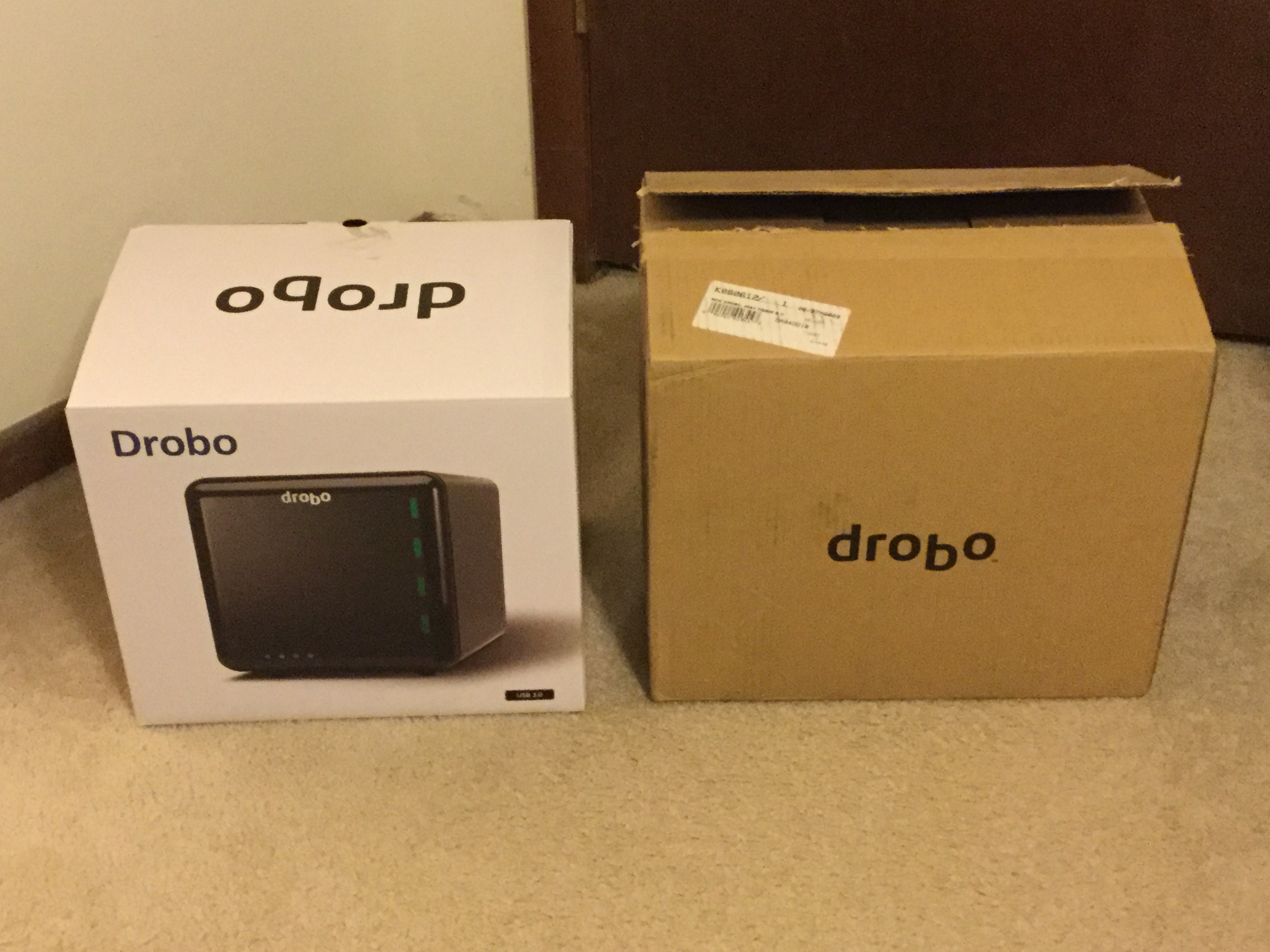
One week later… You should now have your new Drobo. The first thing you will notice is their package has gotten much nicer. I blame this on Apple, as they have made boring brown boxes seem downright primitive.

My old Drobo came wrapped in a black cloth bag. The new one comes in a black cloth bag that has handles on it — it’s a Drobo-logo’d version of those reusable grocery store bags! There was also a Drobo window sticker inside just like when you get that Apple sticker with a new Apple product (did I mention blaming things on Apple?). The packaging has much improved.

Everything else should be pretty similar. There is an included USB cable, and the power supply now uses a more standard power cable. The new Drobo looks the same except the logo is now embossed/raised on the front instead of just being painted on. (That’s the easiest way to tell them apart by looking at them when the lights aren’t on. More on the lights in a moment.) There is also a power switch on that back now. (Wow! I can FINALLY turn the thing off without having to yank the power cable.)

There is a warning note attached to the Drobo (and repeated in the included Quick Start guide printed on the inside cover of the accessory box). It says any drives you insert will have their data erased. What!?! I thought I read you could migrate your old “disk pack” from an old Drobo to the new one. Just to be safe, I did some searching on Drobos website and found an article that verified this was possible.

I also contacted Drobo support and they clarified: As long as the units are powered off, the erase will not happen, but if you insert the drives while the Drobo is booted, it will being the process of formatting them for new storage.

PRO-TIP: READ THE INSTRUCTIONS AND WARNINGS! Had I made the mistake of having my new Drobo powered up when I inserted the first drive, I would have lost data!

Once my previous drives (three 2TB and one 3TB) were moved over to the new Drobo, I powered it up to see if my data would survive…

Next time, we’ll find out if my data survived…


Drobo (2nd gen) to Drobo (3rd gen), part 3

See also: Part 1 and Part 2.

My 2nd generation Drobo (currently for sale on e-Bay).

My 2nd generation Drobo (currently for sale on e-Bay).

The story so far . . . In August 2009, I purchased two 2nd generation Drobos. Back then, Drobo was still a relatively new thing. I had been aware of it since the first model was introduced in 2007, but it was USB-only and thus too slow for my needs. The 2nd generation model added Firewire and I hoped I could use it for some video editing.

I populated my new Drobos with the bare hard drives I had been using separately. It took quite a bit of juggling to get all the data off various drives so I could then wipe them out and put them in the new Drobo. (I always do a zero-byte full reformat of drives before I use them. This exercises every sector of the drive and helps the drive map out bad blocks, or identify larger problems.)

At the time, Drobo documentation said if you make the device look like one huge drive, it might take several minutes to boot up. I chose to have the Drobo split itself up in to 1TB volumes. (This startup delay went away with a firmware update, apparently.) As I added drives, more volumes would appear. Over the years, I upgraded from four 500GB drives to four 2TB drives, and eventually had six 1TB virtual drives on each device. (I say “virtual” because unlike a true RAID system, the Drobo file system is flexible. It has a set amount of storage, split between the various drive volumes. You can’t actually fill each to 100%, and the Drobo suffers from severe slowdown if you fill it within 10% of max capacity. There are alot of gotchas with the magical Drobo.)

Eggs in One Basket

"Just buy another drive," they tell me.

“Just buy another drive,” they tell me.

While having to manage six volumes might seem like more work than one huge volume, it ended up saving me a number of times. I have had several instances of file system corruption on a Drobo volume where a volume would be unreadable (or not even mount). If this had happened to a huge 6TB single volume, I would have lost everything. By having it isolated to 1TB, it greatly reduced the amount of data I lost.

I tried Apple Disk Utility and a few other programs trying to recover the first disk crash, but only AlSoft’s DiskWarrior could do it. I strongly recommend every Mac user have a copy of this wonderful program. In all but a few cases, it was able to recover my corrupted Drobo volume. The one that it couldn’t is still a bit of a mystery. A support guy from AlSoft spent some time examining sectors on my Drobo and determined that the directory had been erased. Drobo support claimed they didn’t do it, and blamed Disk Warrior. Disk Warrior claimed they didn’t even modify the drive until the final stage after the data was declared recoverable.

Thus, two of my major Drobo issues: Support and reliability. Though overall they have been helpful, there have been a number of times when Drobo support was useless. Early on, when a firmware update looked like it had lost ALL my data, they provided me a special firmware version that would let me READ all my data off. That’s great if I had a few spare terabytes sitting around to copy it to. Fortunately, they figured out the problem and I was able to recover my data and continue using the device.

Let’s just say I have had quite a bit of close calls over the years with Drobo (and have lost several terabytes of data). There have been issues where the Drobo would suddenly shut off (unmounting, and not waking up), or times when it would cause my Mac to hang on startup (if plugged in to the computer) and endless other annoying issues. Web searched revealed hundreds of similar reports from other Drobo users.

Much like an abusive relationship, the magic of Drobo seemed to keep many of us involved even when we knew we probably should move on.

I stuck with my two Drobos for over six years. I put up with repeated problems that always seemed to manifest themselves when I needed to get some work done. If my livelyhood depended on them, I am sure I would have had to move on to something else, but since I was just earning some side-income as a hobby-business, I couldn’t justify the expense of a professional high-end RAID system. It seems Drobo is a consumer toy, not a professional tool.

Danger, Will Robinson

Drobo blues...

Houston, we have a problem.

Recently, a few things happened that caused me to consider an upgrade. First, one of my Drobos was regularly sending me alerts that it was in the process of rebuilding.

After about a week or so of this happening, I contacted Drobo support. The 2nd generation models had been end-of-lifed so they were no longer supported, but I was able to get the support tech to look at a diagnostic log file from my device. They wrote back:

Response By Email (xxxx) (11/03/2015 02:26 PM)

Hello Allen,

Thank you for contacting Drobo Technical Support,
I would recommend replacing the drive with the serial number WMAZA1948667 in the top bay.

We are showing that drive has 31 bad blocks and has had a full timeout.

If you have any other questions feel free to ask.

Thank you and have a great day.

Kind Regards,
xxxx.
Technical Support Agent

At the very least, I was going to have to replace that drive. All of my 2TB Western Digital Green drives were now out of warranty, so if one was starting to fail, it seemed likely others would too.

During my research of RAID systems, the low-cost ones I looked in to would not have worked with my Western Digital Green drives. Had I switched to RAID, I would have had to replace all my drives — an expense I couldn’t handle.

But, thanks to Swagbucks, I could at least get me a replacement drive. I decided to go with a 3TB Western Digital Red drive. These were rated for NAS devices, so they would be good for a RAID down the line if I ever ditched the Drobo.

When the drive arrived, I put my Drobo in standby and swapped out the bad drive. After a restart, Drobo then went to work rebuilding the drive and informed me how long it thought it might take . . .

440 hours!?!?!

440 hours!?!?!

Axl Rose, We Have a Problem…

To be continued . . .