

I just posted about the JAlbum program I use to make my photo galleries on some of my other websites. Unfortunately, there are some issues that need to be fixed before I can start using them. I wanted to share this for anyone else who might run into the same problems and search for a solution.
JAlbum core, skins and 360-degree photos.
First, some terms. The “core” is the main part of JAlbum. My limited understanding is that it does not actually generate the web pages. That functionality is done by “skins“. There are many (MANY) skins available with different looks and features. Some support 360-degree photos, for example, while others do not.
I use the PhotoBlogger skin:
https://jalbum.net/en/skins/skin/Photoblogger
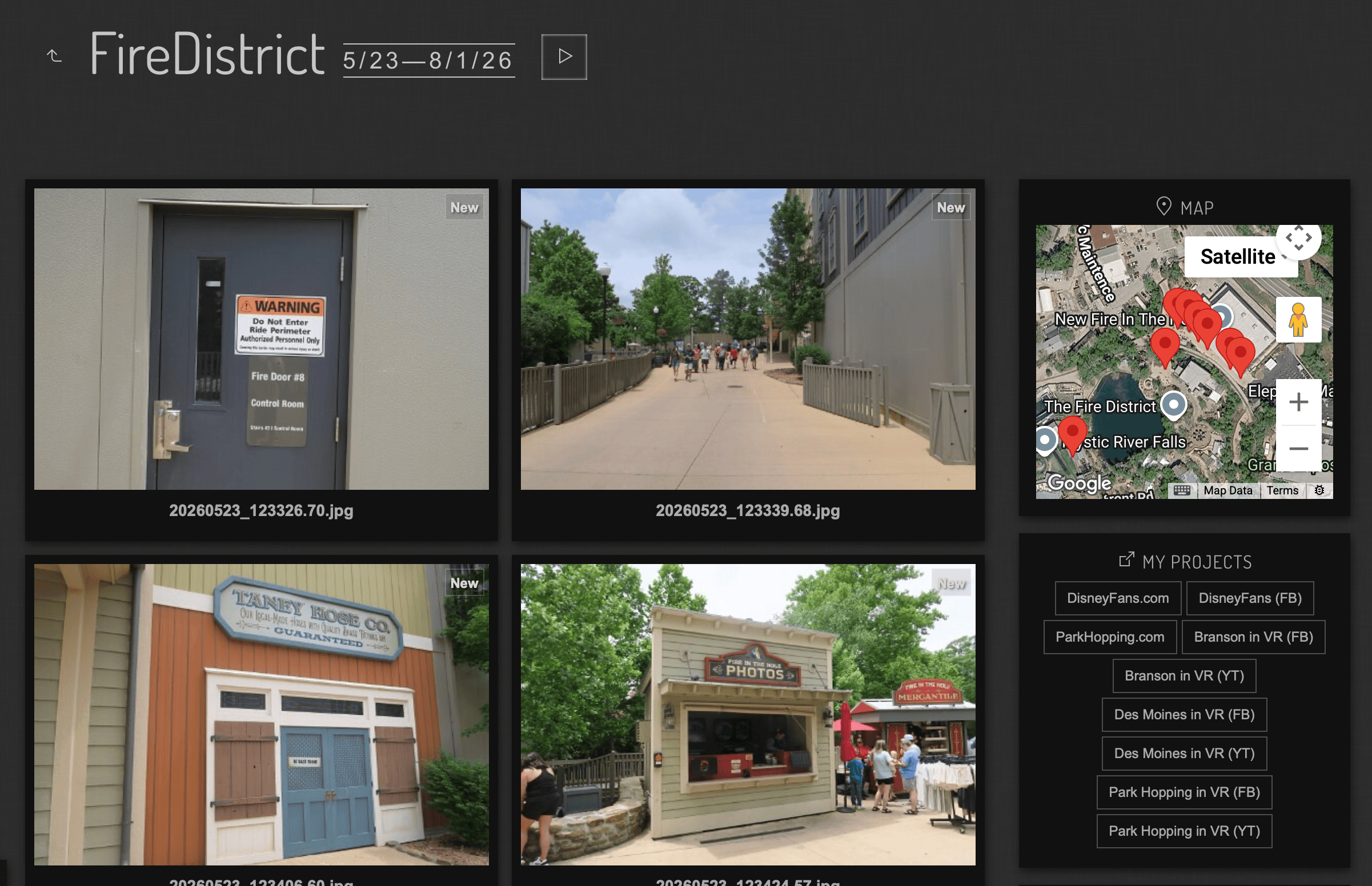
I switched to this because is supports the GPS data I embedded in my photos (geotagging), allowing site visitors to see where the photos where taken. It does this very well:
I recently learned that PhotoBlogger also supports 360-degree photos, so I made a test gallery of some of my images. What I immediately saw was that the images were too “zoomed in” when presented. In the two images below, there left one is the default (notice the magnifier slider at the bottom left is about halfway) versus the right image, which is zoomed all the way out, closer to where the image should be:
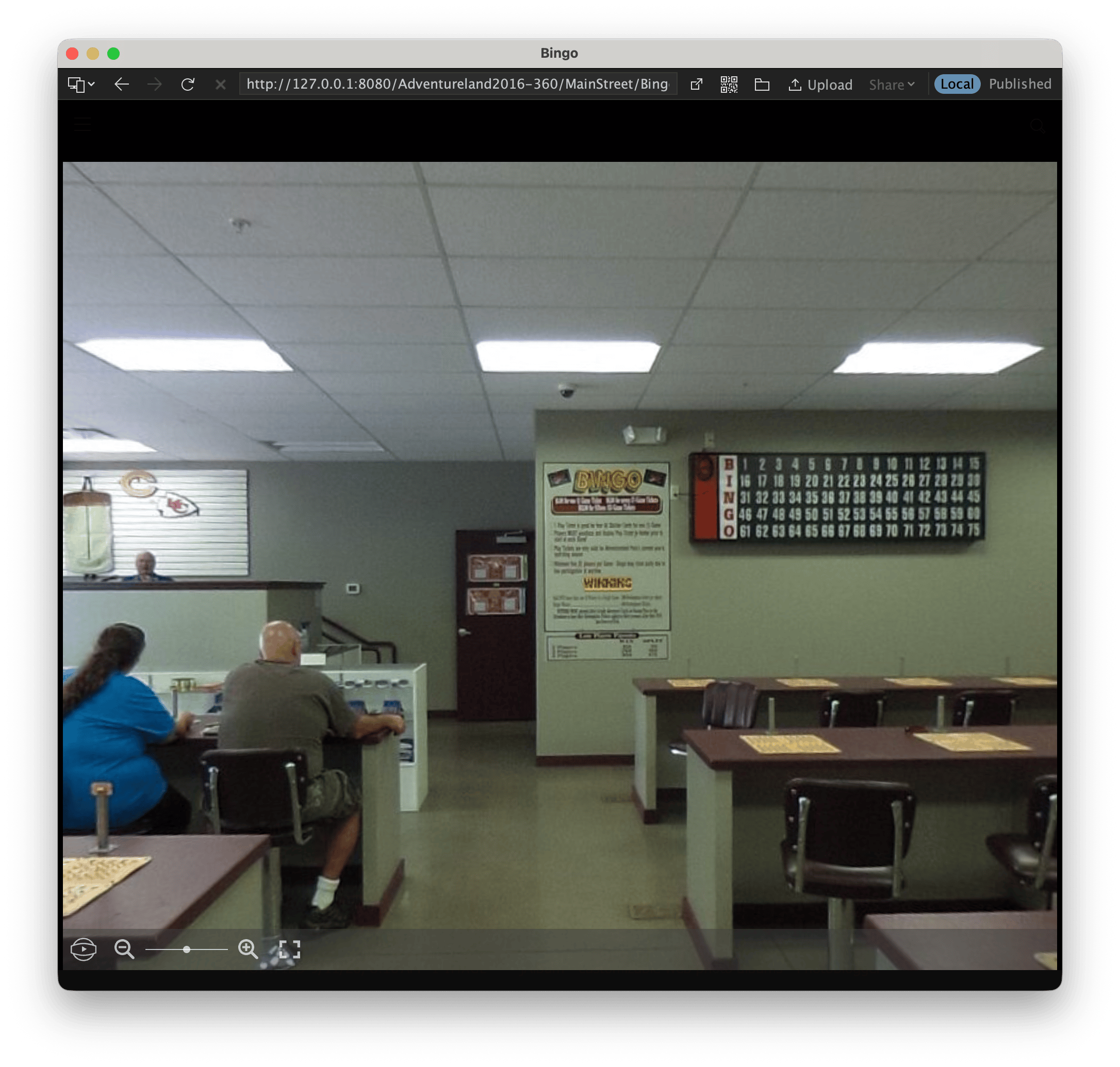
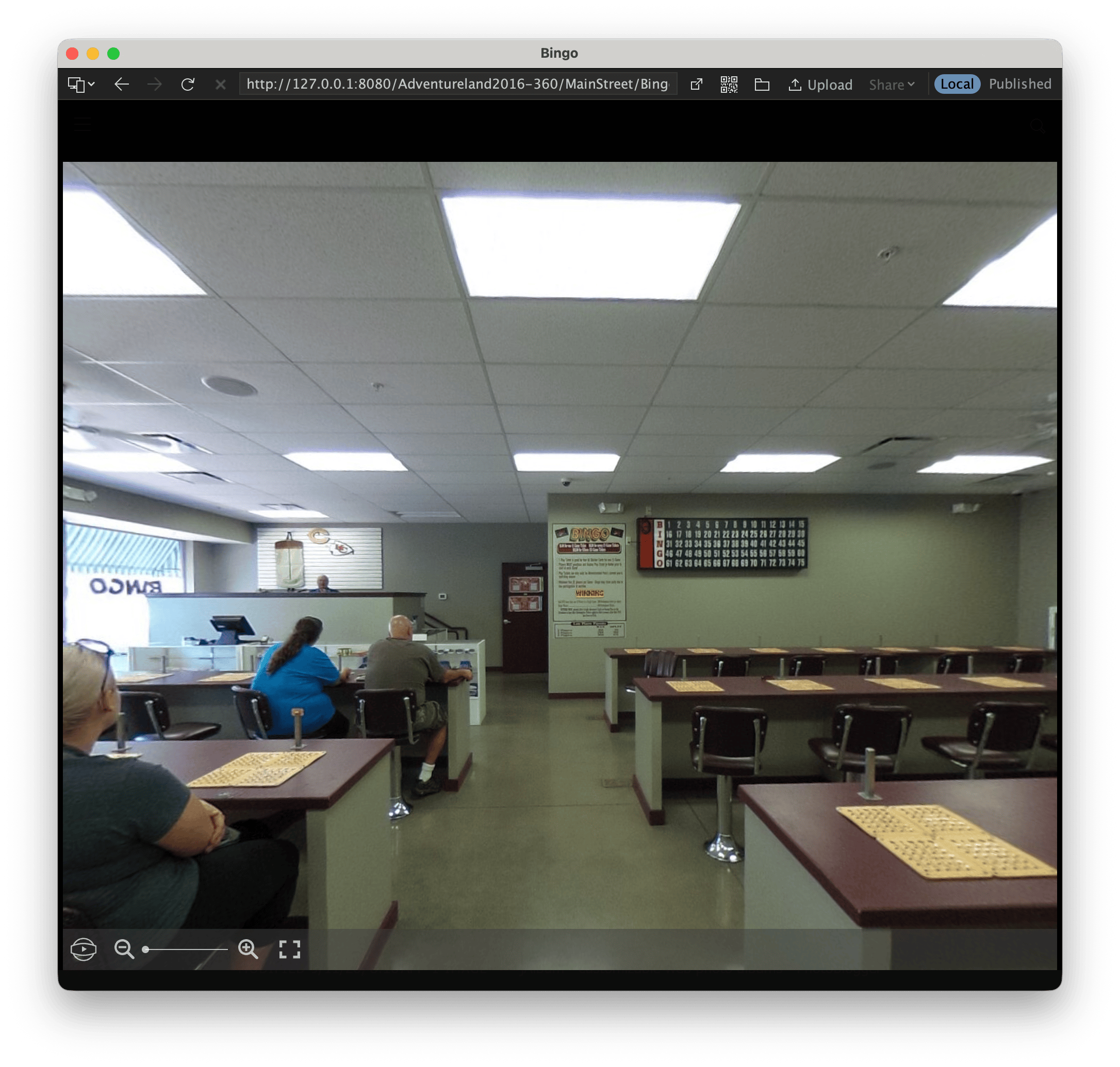
If we assume the slider is 1-100, then the default is around 50. To change this in JAlbum, you have to go to each image individually and EDIT it. When you enter EDIT mode, there is a special category for 360 images:
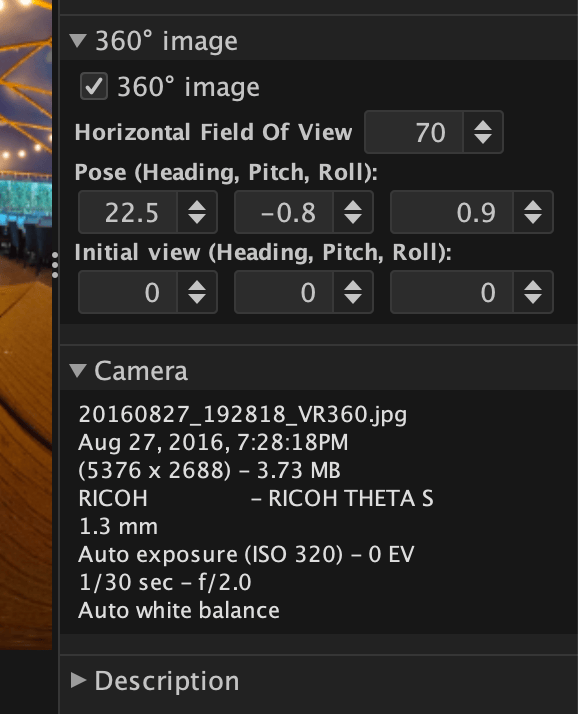
The “Horizontal Field of View” is the value the slider represents. Except, when JAlbum/PhotoBlogger displays them, it puts that slider in the middle. By changing that inside JAlbum, the first “core” but is revealed: it modifies the original JPG file!
The “core” bug.
Now, there is an option in JAlbum to allow this. In the settings you will find a checkbox (“Write xmp metadata to files”) that allows the program to update metadata inside your files, but even if it is unchecked, JAlbum still modifies the file. This seems to be a bug.
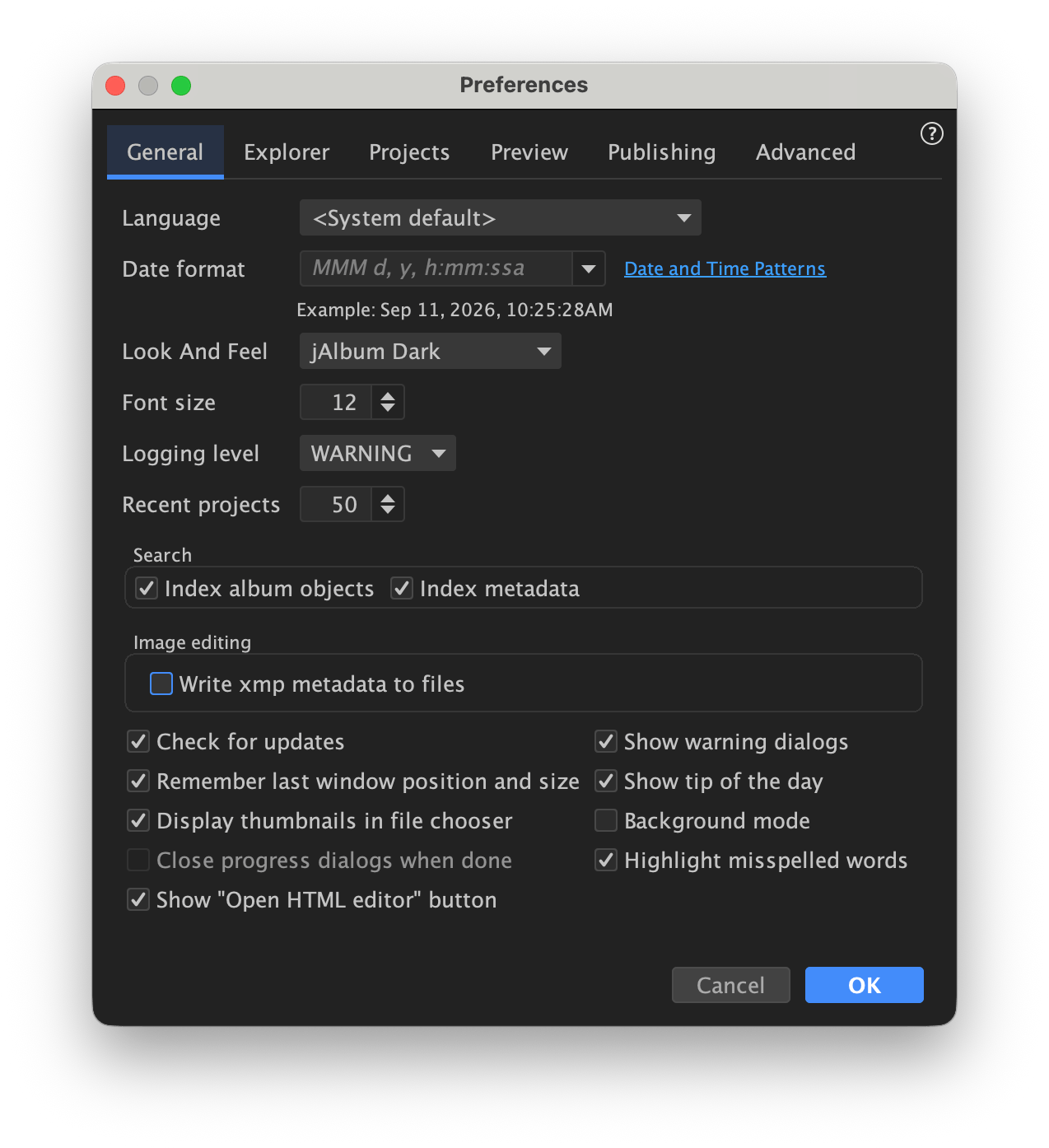
Adjusting the value in the EDIT window will modify the JPG file and add a new metadata entry that (at least in these test images) was not there before. You can use the command line exiftool utility to dump all the metadata as text, and then filter for the “FOV” entry:
exiftool /Users/allenh/Desktop/JAlbum\ 360\ Test/20160827_192818_VR360.jpg | grep FOV

Initial Horizontal FOV Degrees  : 42.0
Above, I had changed the FOV value to 42 inside the JAlbum EDIT screen.
It appears that if this entry is NOT in the JPG file, JAlbum/PhotoBlogger uses some default that is shown as the middle of the zoom slider. If this value does exist in the file, JAlbum/PhotoBlogger’s 360 viewer will use it instead.
And this reveals the second thing that may be a bug.
The “skin” bug.
In order to make the image zoom out in the gallery I had to reduce the value. The smaller the number, the more zoomed out the image will be shown at. I did a test and edited my images to a 1, which might be a bit too far “un-zoomed” but works…
I thought that was the solution, but then if I try to upload one of these modified-by-JAlbum JPG files to Facebook (which also supports 360 images), the result is an image that is zoomed all the way in, like a screen of pixels from the wall or whatever.
The FOV value seems to be handled backwards.
Indeed, if I look in other 360 software, such as Insta360 Studio, the FOV value uses a smaller number for “more zoomed in” and a larger number for “more zoomed out.”


For modern 360 images taken on an Insta360 X6 camera, the Insta360 Studio app seems to show a default value of 88 there — but this changed based on the “View Angle” that is selected. For “Mega”, it is 80. For Ultra, 79. For Dewarp, it is 99. Other values get adjusted to compensate for the fisheye lens. I do not think any of these settings where available in the RICOH Theta camera I used in 2016 for the test images I was working with originally.
Insta360 Studio appears to default to Mega with an 80 FOV for images that have not been edited yet. At least, that is what the UI shows. But when I export them as 360-degree JPG files (the camera uses a proprietary .insp format), I see this reported by exiftool:
exiftool X6-test.jpg | grep FOV
Initial View Vertical FOV Degrees: 95
Initial Horizontal FOV Degrees  : 100
This tells me the old RICOH software did not put this metadata in, but modern Insta360 software does. And when I process an X6 image with the Horizontal FOV set to 100, I see the JAlbum/PhotoBlogger slider set all the way to the right – as expected:
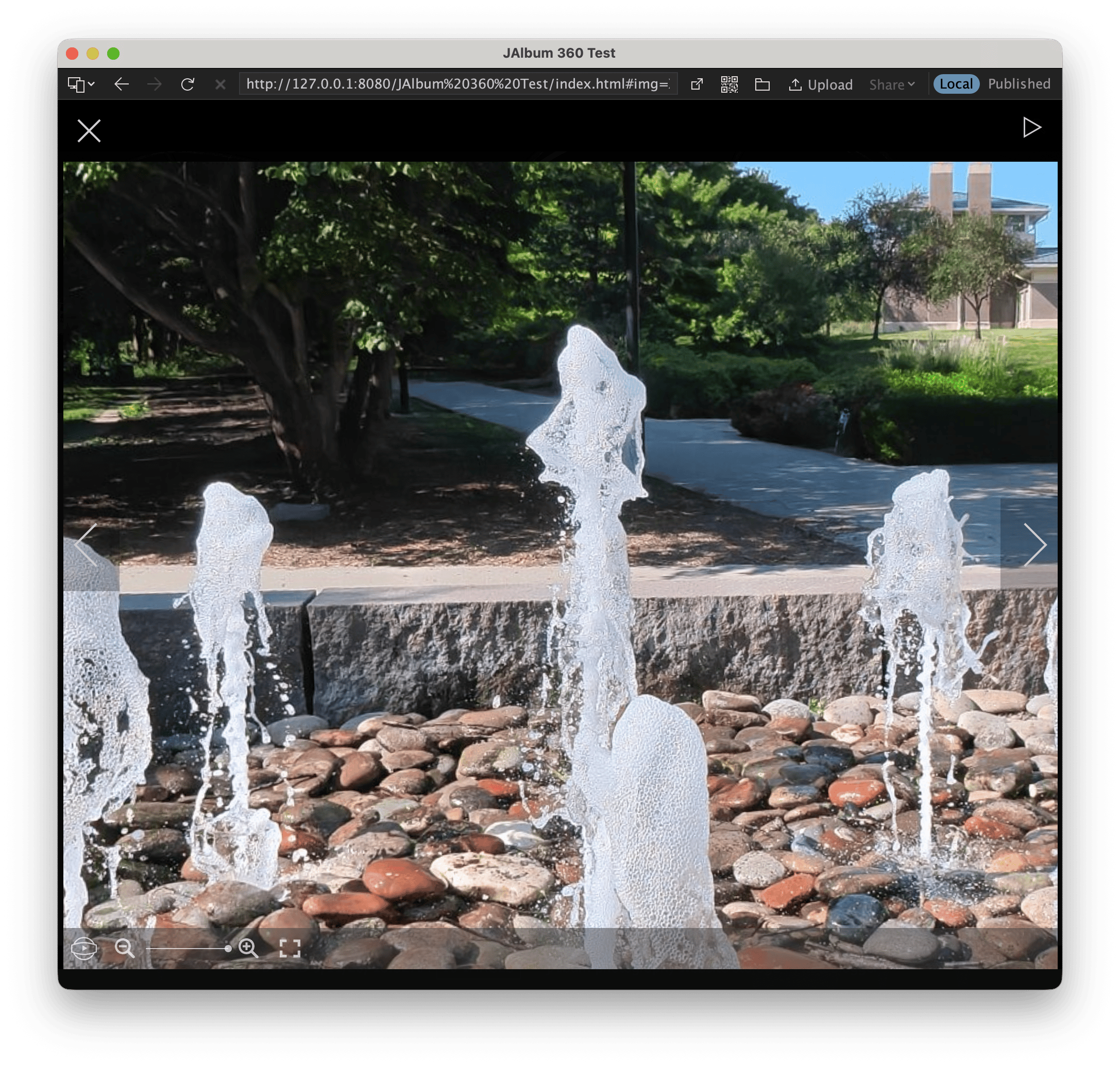
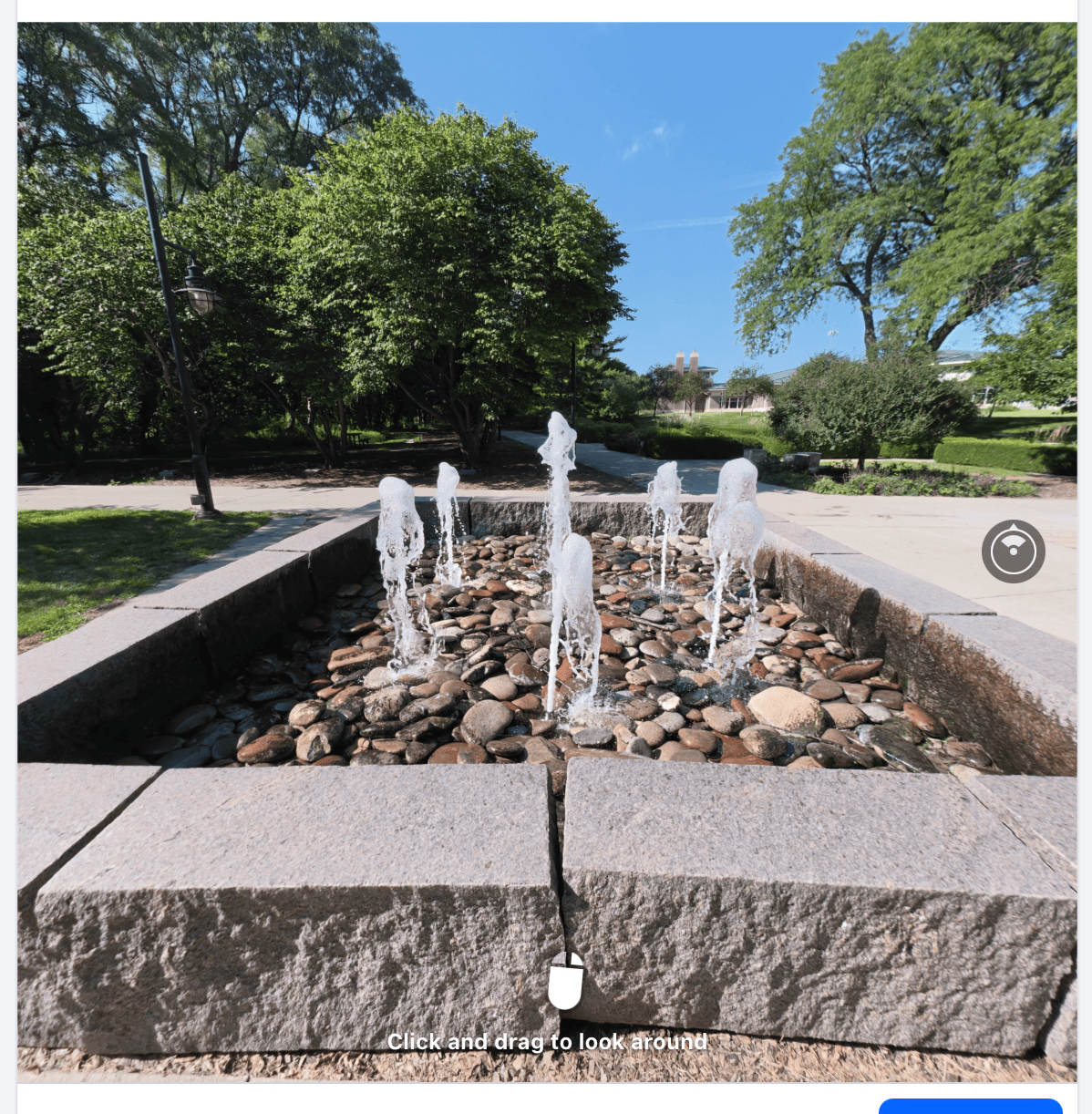
This is too zoomed in. But upload the same file to Facebook gives a zoom level that works nicely:
What I don’t know…
I do not know what Facebook is choosing for the default Field of View, but it is clearly different than what JAlbum does with the same file.
I am unsure if there is a workaround currently. If I modify the image file so it renders properly on JAlbum/PhotoBlogger, I get an image that will NOT show up properly on Facebook and other places that support 360 images (assumption; I have only tried this on FB as of this post).
There are some very helpful folks in the JAlbum forum that have been looking into this. Perhaps a part 3 of this post will follow, once a solution is figured out.
Until then…